
TP-Link TL-WR902AC Wireless Portable Nano Travel Router Installation Guide
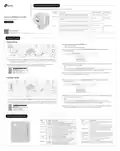


At Home
Access Point Mode
password to log in.
Internet
Existing Router
Password
Confirm Password
Start
LAN
C
A
B
D
4. Click Next to start the Quick Setup, select Access Point and then follow the
step-by-step web instructions to set up the internet connection.
Notes:
You can customize your Network Name and Password for the 2.4GHz/5GHz wireless network during the Quick
Setup, but you need to reconnect your wireless devices to the new Wi-Fi network(s).
1. Switch the Mode Switch to AP/Rng Ext/Client and connect the hardware from Step A to D.
2. Connect your device to the router’s Wi-Fi. The default SSID (network name) and Wireless
Password are printed on the label at the back of the router.
Wireless
Password
/PIN
If you are not sure about the LAN Type of the router, use Smart IP in most cases.
XXXXXXXX
-
_
2.4G: TP Link XXXX
SSID
5. Connect your own devices to the router’s Wi-Fi to enjoy the internet. The WAN/LAN
port is for connecting to the existing router in this mode.
-
_
5G: TP Link XXXX_5G
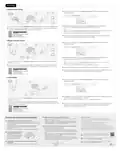
Range Extender Mode
password to log in.
Internet
Password
Confirm Password
Start
A
B
Host AP
OR
OR
4. Click Next to start the Quick Setup, select Range Extender and then follow the
step-by-step web instructions to set up the internet connection.
Notes:
You can either copy or customize your SSID (Network Name) during the Quick Setup. The extended network
shares the same Wi-Fi password as that of your host network.
Desktop
Printer
Other Device
1. Switch the Mode Switch to AP/Rng Ext/Client and connect the hardware from Step A to
near your host AP.
B
If you are not sure about the LAN Type of the router, use Smart IP in most cases.
2. Connect your device to the router wirelessly or via an Ethernet cable. The default SSID
(network name) and Wireless Password are printed on the label at the back of the router.
5. Relocate the router about halfway between your host AP and the Wi-Fi dead zone.
Wireless
Password
6. Connect your own device to the router wirelessly or via an Ethernet cable to enjoy the
internet. The WAN/LAN port functions as the LAN port in this mode.
/PIN
XXXXXXXX
-
_
2.4G: TP Link XXXX
SSID
-
_
5G: TP Link XXXX_5G
Client Mode
password to log in.
Internet
Password
A
Confirm Password
Start
B
Host AP
OR
OR
Smart TV
Desktop
Other Device
4. Click Next to start the Quick Setup, select Client and then follow the step-by-step web
instructions to set up the internet connection.
Note: If you are not sure about the LAN Type of the router, use Smart IP in most cases.
1. Switch the Mode Switch to AP/Rng Ext/Client and connect the hardware from Step A to B
near your host AP.
2. Connect your device like smartphone, computer or pad to the router wirelessly or via an
Ethernet cable. The default SSID (network name) and Wireless Password are printed on the
label at the back of the router.
5. After the setup, connect your wired-only device like smart TV, game console or media
player to the router via an Ethernet cable to enjoy the internet. The WAN/LAN port
functions as the LAN port in this mode.
Wireless
Password
/PIN
XXXXXXXX
-
_
2.4G: TP Link XXXX
SSID
-
_
5G: TP Link XXXX_5G
Q4. What should I do if I forget my Wi-Fi password?
• If you have not changed the default wireless password, it can be found on
the label of the router.
• If you have changed the default wireless password, please log in to the
router’s web management and go to Wireless 2.4GHz (or Wireless 5GHz)
> Wireless Security to retrieve or reset your password.
Safety Information
• Keep the device away from water, fire, humidity or hot environments.
• Do not attempt to disassemble, repair, or modify the device. If you need service,
please contact us.
• Do not use damaged charger or USB cable to charge the device.
• Do not use any other chargers than those recommended.
• Do not use the device where wireless devices are not allowed.
• Adapter shall be installed near the equipment and shall be easily accessible.
Please read and follow the above safety information when operating the device.
We cannot guarantee that no accidents or damage will occur due to improper use
of the device. Please use this product with care and operate at your own risk.
Frequently Asked Questions (FAQ)
Q1. What should I do if there is no internet access?
• If you are using a cable modem, unplug the Ethernet cable and reboot the
modem. Wait until its Online LED is on and stable, and then reconnect the
cable to the modem.
• If you’re in a hotel room or on a trade show, the internet may be limited
and requires that you authenticate for the service or purchase the
internet access.
Q5. What should I do if my wireless signal is unstable or too weak?
It may be caused by too much interference.
• Set your wireless channel to a different one.
• Choose a location with less obstacles that may block the signal between
the travel router and the host AP. An open corridor or a spacious location is
ideal.
• Move the router to a new location away from Bluetooth devices and other
household electronics, such as cordless phones, microwaves, and baby
monitors, to minimize signal interference.
• If internet access is still unavailable, contact TP-Link Technical Support.
Q2. How do I restore the router to
its factory default settings?
• With the router powered on, use a
pin to press and hold the RESET
button until all the LEDs turn off,
and then release the button.
For technical support, replacement services, user guides, and
or simply scan the QR code.
• In Range Extender mode, the ideal location to place the router is halfway
between your host AP and the Wi-Fi dead zone. If that is not possible, place
the router closer to your host AP to ensure stable performance.
To communicate with TP-Link users or engineers, please join the TP-Link
If you have any suggestions or needs on the product guides, you are
Q3. What should I do if I forget the router’s web management
password?
• Refer to FAQ > Q2 to reset the router, then create a password to log in.

| General | Details |
|---|---|
| Name | TP-Link TL-WR902AC Wireless Portable Nano Travel Router Installation Guide |
| Make | TP-Link |
| Language | English |
| Filetype | PDF (Download) |
| File size | 0.38 MB |
 (1 votes, average: 5.00 out of 5)
 Loading...
If you have any questions regarding TP-Link TL-WR902AC Wireless Portable Nano Travel Router Installation Guide, please ask here and describe the problem in detail.

TP-Link VR300 Archer Modem Router User Guide

TP-Link T150500-2-DT WiFi Router Instruction Manual

TP-Link Archer AX55 Wi-Fi 6 Router Installation Guide

TP-Link Omada ER8411 VPN Router Instructions

TP-Link Configure VDSL Router User Guide

TP-Link Archer BE805 BE19000 Tri-Band Wi-Fi 7 Router User Manual

TP-Link VR600 Wireless DSL Modem Router Installation Guide

TP-Link AX58 Dual Band Gigabit Wi-Fi 6 Router Installation Guide

TP-Link AC750 Wireless Dual Band Router Owner’s Manual

TP-Link AX6000 8-Stream Wi-Fi 6 Router Installation Guide


CastleNet EBM562 Mesh WiFi Router Installation Guide

MetaBlox MBWF-P100 WiFi Router User Guide

UBIQUITI NETWORKS ER-12 10 Port Gigabit Router User Guide

CalAmp LMU-5541 Telematics Router Installation Guide

JUNIPER SSR1300 Session Router User Guide

Zetronix WiFi Network Router User Manual

Cudy LT15E 4G Cat 12 AX3000 Wi-Fi 6 Router Installation Guide

XiXi A450L Router Installation Guide

U Speed T262-T21D AX1500 Dual Band Wi-Fi 6 Router Installation Guide

NETGEAR AC2600 Wi-Fi Router User Guide