
Home > wis network > wis network 5G CPE Pro -Home Router User Guide
wis network 5G CPE Pro -Home Router User Guide


Quick Start Guide
5G CPE Pro


| General | Details |
|---|---|
| Name | wis network 5G CPE Pro -Home Router User Guide |
| Make | wis network |
| Language | English |
| Filetype | PDF (Download) |
| File size | 1.04 MB |
 (1 votes, average: 5.00 out of 5)
 Loading...

wis network WIS-N300-LTE 4G LTE Router User Guide
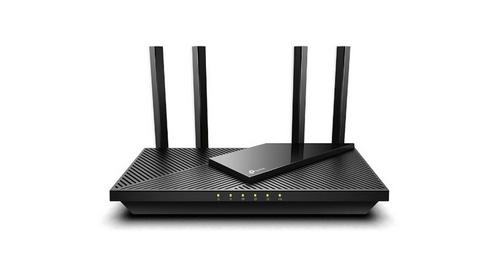
wis network WIS-AX3000 WiFi 6 Gigabit PoE Router User Guide

wis network 5G CPE Pro -Home Router User Guide Overview
Summary of Contents
- Page 1: Page 1
- Page 2: Thank you for choosing WIS-AX3000-5G CPE Wireless Router. This Quick Start Guide is designed to familiarize you with the use of the CPE and describes how to apply it in your family and small business. Accessories include antenna x 4, power adapter x 1, and quick start guide x 1.
- Page 3: Hardware overview includes back ports and their functions. The LTE/5G antenna is essential for connectivity. A micro-SIM card is required for network access. The power switch controls the device's power state. When powered on, the power indicator will be lit. When powered off, the power indicator will not be lit. The power supply operates at DC 12V. LAN ports support 10/100/1000 Mbps connections. WAN port supports 10/100/1000/2500 Mbps connections. The reset button restores factory settings when pressed for more than 6 seconds. Ports include WAN, LAN, and antenna connections. Ensure proper installation of the SIM card for functionality.
- Page 4: Wi-Fi is available when the LED is on. Wi-Fi is disabled when the LED is off. No signal is indicated by 0 LED. Weak signal is indicated by 1 LED. Middle signal is indicated by 2 LED. Good signal is indicated by 3 LED. Excellent signal is indicated by 4 LED.
- Page 5: Hardware installation involves inserting a micro-SIM card into the SIM card slot at the top of the CPE. Insert the SIM card in the direction indicated by the silk screen, with the notch facing in. Do not insert or remove the SIM card when the CPE is powered on.
- Page 6: Connecting to the local power supply involves using the power adapter to connect the power port of the CPE to the local power source. Observe the status of each LED to judge whether the device starts normally. Connecting to the network device can be done through a wireless network. The internet access device can be connected to the CPE through the wireless network. The default WLAN wireless network names (SSID) are Wi-Fi 2.4G and Wi-Fi 5G.
- Page 7: Connection through an Ethernet cable allows the internet access device to be connected to any LAN port of the CPE. To configure the 5G CPE using the web-based interface, connect your internet access device to any LAN port of the CPE. Open a web browser and enter the IP address (192.168.1.1) shown on the nameplate at the bottom of the CPE to access the web management interface. The default login password is admin. Modify the default WiFi settings, including the SSID and password in the Wi-Fi configuration interface. Set the CPE to Ethernet uplink by connecting the WAN interface of the device to the broadband network port of the operator's home. Configure the internet parameters in the WAN settings of the web management interface, consulting the broadband operator for specific internet parameters.
- Page 8: Page 8

SENWA 4G LTE CPE Router User Guide

NETGEAR RAX36 Nighthawk AX4 4-Stream AX3000 Wi-Fi Router Owner’s Manual

Juniper NETWORKS ACX7024 Cloud Metro Router User Guide

LANCOM SYSTEMS 1790-4G+ High-Performance VPN Router Installation Guide

HUAWEI Router User Guide

TP-Link ER706W4G Gigabit VPN Router Installation Guide

TP-Link Archer BE9700 Tri-Band Wi-Fi 7 Router Owner’s Manual

TELTONIKA Networks RUT956 4G LTE Router User Guide

ASUS ZenWiFi Pro XT12 AX11000 Tri Band Router User Manual

DBIT AC1200 Dual Band WiFi Router Instructions