
AT T 5G Mobile Router User Guide


Connect to the Internet
Note:ꢀThe mobile hotspot Home screen goes dark to save
power. Quick press and release the Power button to wake the
screen.
WiFi Manager
For more information
Manage your account
You can use a browser to view the device
information and messages, and to change the
mobile hotspot settings.
On the web: att.com/my ATT
QR code connect from a smartphone
1 Tap the QR code icon on the mobile hotspot
LCD Home screen.
Compatible device and online account
required. Data and messaging rates may apply
for download and app usage.
Log In
1 On the WiFi device that is connected to your
mobile hotspot, type
browser bar.
3 Log in using your admin password.
The default admin login password is
attadmin.
Need more help?
QR code for quick
connect to WiFi
On the web: att.com/DeviceHowTo
A QR code displays.
Give us a call
2 Point your phone’s camera at the QR code.
Your phone connects to the mobile hotspot
WiFi network.
3 Launch your Internet browser.
611 from any AT&T wireless phone, or
800.331.0500. When prompted, enter your
device’s 10-digit number.
On your laptop or other WiFi device
1 Open your WiFi network connection
manager.
2 Find your mobile hotspot’s WiFi network
name (ATT-WIFI-XXXX) and connect.
3 Enter your mobile hotspot’s WiFi password.
4 Launch your Internet browser.
Your mobile hotspot might become warm
when you’re using it. This is normal for a fast
5G network device.
NETGEAR Insight Pro Cloud Management
LCD WiFi Manager
Manage, deploy, and configure enterprise
mobile hotspots with complete visibility and
simple control—centrally applying company
policies, profiles, monitoring, and more for
one or a group of devices.
You can manage the WiFi network from the
LCD screen.
Change the WiFi network name and
password
1 On the Home screen, tap the WiFi tile.
For more information about
NETGEAR Insight Pro, visit this site
or scan this QR code:
2. Tap WiFi and then select an available WiFi
network.
3. Tap WiFi Name and enter your changes.
Manage settings using the NETGEAR
mobile app
1. Make sure your device is connected to the
Internet.
2. Download the NETGEAR mobile app from
netgear.com/mobileapps.
4. Tap WiFi Password and enter your changes.

| General | Details |
|---|---|
| Name | AT T 5G Mobile Router User Guide |
| Make | AT&T |
| Language | English |
| Filetype | PDF (Download) |
| File size | 0.34 MB |
 (1 votes, average: 5.00 out of 5)
 Loading...
If you have any questions regarding AT T 5G Mobile Router User Guide, please ask here and describe the problem in detail.
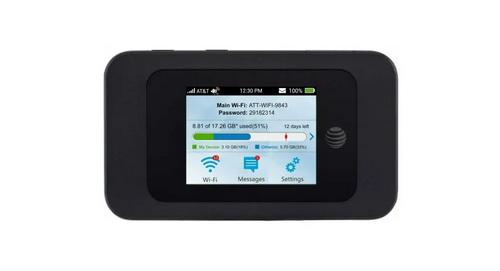
AT T MF985 Velocity 2 WiFi Hotspot Router Instruction Manual


Cudy LT700 4G LTE CAT 6 Wi-Fi Router Installation Guide

NRadio Technologies CC 4G LTE Router Installation Guide

Synology RT6600ax Router Installation Guide

Cudy WR1300 Gigabit Dual Band Wi-Fi Router Installation Guide

TP-Link Archer AX53 Gigabit Wi-Fi 6 Router User Guide

VEVOR 0700C Wood Router User Manual

Doonink FW40-WIFI Wi-Fi Router User Manual
3onedata IRT5300L-5T2D-2P12_36 4G Wireless Router Installation Guide

APRISM MI12 Wi-Fi 6 Dual Radio Router User Guide

MobileMark TX54-A106 LTE Advanced Cellular Router User Manual