
Cudy LT500-OUTDOOR Outdoor 4G Cat 4 AC1200 Wi-Fi Router Installation Guide


LED e Pulsante
Ho bisogno di aiuto?
Italiano
1. Collegare al router tramite cavo Ethernet o WiFi.
come password per accedere.
4. Quindi controlla la scheda informativa "Cellulare" della pagina
di stato. Se lo stato è connesso, significa connesso a Internet
correttamente.
Q1. Cosa devo fare se non riesco ad accedere alla pagina di
Nome
Stato
/
Indicazione
Solto segnale 4G
Status
Internet
gestione del web?
Cablato
Not connected
Collegare il computer alle porte LAN dell'adattatore Poe tramite
cavo Ethernet.
A1: se il computer è impostato su un indirizzo IP statico, modificare
automaticamente le sue impostazioni per ottenere un indirizzo IP.
correttamente nel browser Web.
/
Il segnale 4G è nella media
Segnale 4G debole
Work Mode
Public IP
4G Router
/
Cellulare
Status
Cellulare
Status
-
Off
Wifi 5 GHz disabilitato
Abbinamento WPS da 5 GHz
5 GHz WiFi abilitato
A3: usa un altro browser Web e riprova.
Collegato
SIM ready
Auto
Non collegata
SIM ready
Auto
Veloce
On
A4: Riavvia il router e riprova.
Setup rapido
PoE Adapter
SIM Status
SIM Status
A5: disabilitare e abilitare l'adattatore di rete attivo in uso.
Auto
APN Profile
APN Profile
PoE LAN
Off
WiFi a 2.4 GHz disabilitato
Abbinamento WPS da 2.4 GHz
WiFi a 2.4 GHz abilitato
Non collegato a un dispositivo Ethernet
Collegato a un dispositivo Ethernet
Non connesso a Internet
Connesso a Internet
2
More Details
More Details
1
3
4
Veloce
On
Password
Q2. Come posso ripristinare il router alle sue impostazioni
predefinite di fabbrica?
Timezone
Cellular
Wireless
Summary
Collegato
Non collegata
Wi-Fi
Log In
2.4G SSID
Password
Cudy-XXXXX-XXXXX
********
Off
Connettiti alla rete WiFi del router, al nome della rete WiFi e alla
password, elencati come di seguito:
A1: con il router acceso, premere e tenere premuto il pulsante di RESET per
5 secondi prima del rilascio. Aspetta il router ripristinato.
A2: accedi alla pagina di gestione web del router e vai a
Impostazioni avanzate> Ripristino, fare clic su Reimposta e attendi fino al
completamento del processo di ripristino.
On
5. Se Cellular non è collegato o se si desidera personalizzare il
router da solo, fare clic su "Setup rapido" e seguire le istruzioni
passo-passo per personalizzare 4G, WiFi o altri parametri.
Back
Next
Off
WiFi Network Name: Cudy-Outdoor
WiFi Network Name: Cudy-Outdoor-5G
WiFi Password: XXXXXXXX
3. Seguente la pagina verrebbe visualizzata se la scheda SIM
necessita di PIN per sbloccare. Inserisci il pin e fai clic su "Salva e
applica", quindi attendi 15 secondi per connettersi a Internet.
On
Nota:
Off
Spegni
1. se non sei sicuro dei parametri APN, contatta il tuo provider Internet.
2. se si incontrano altri problemi, non esitare a contattare il nostro team di
supporto tecnico: support@cudy.com
Veloce
On
Processo di avvio del sistema
Accensione
4G Settings
PIN
Premere e tenere premuto per 5 secondi per avere effetto.
Dopo aver avuto effetto, tutte le luci a LED lampeggiano 3 volte, quindi
inseriscono il processo di riavvio.
RIPRISTINA
Salva e applica
Goditi Internet!
LED y Botón
Nombre Estado
¿Necesitas ayuda?
Español
1. Conéctese al enrutador a través del cable Ethernet o WiFi.
como contraseña para iniciar sesión.
4. Luego, consulte la tarjeta de información "Celular" de la página
de estado. Si el estado está conectado, significa con éxito a
Internet.
Q1. ¿Qué debo hacer si no puedo acceder a la página de
Indicación
Señal 4G fuerte
Status
administración web?
/
Cableado
Internet
Not connected
Conecte su computadora a los puertos LAN del adaptador POE
a través del cable Ethernet.
A1: si la computadora está configurada en una dirección IP estática, cambie
su configuración para obtener una dirección IP automáticamente.
correctamente en el navegador web.
/
La señal 4G es promedio
Señal 4G débil
Work Mode
Public IP
4G Router
/
Celular
Status
Celular
Status
-
Off
5 GHz wifi deshabilitado
Emparejamiento de 5 GHz WPS
WiFi de 5 GHz habilitado
2.4 GHz wifi deshabilitado
Emparejamiento de 2.4 GHz WPS
WiFi de 2.4 GHz habilitado
No conectado a un dispositivo Ethernet
Conectado a un dispositivo Ethernet
No conectado a Internet
Conectado a Internet
A3: Use otro navegador web y vuelva a intentarlo.
Conectado
SIM ready
Auto
No conectado
SIM ready
Auto
Destello
On
A4: reinicie su enrutador e intente nuevamente.
Configuración rápida
PoE Adapter
SIM Status
SIM Status
A5: Desactivar y habilitar el adaptador de red activo en uso.
Auto
APN Profile
APN Profile
PoE LAN
Off
2
More Details
More Details
1
3
4
Destello
On
Password
Q2. ¿Cómo restauro el enrutador a su configuración predetermi-
nada de fábrica?
Timezone
Cellular
Wireless
Summary
Conectado
No conectado
Wi-Fi
Log In
2.4G SSID
Password
Cudy-XXXXX-XXXXX
********
Off
Conéctese a la red WiFi de enrutador, nombre y contraseña de
red WiFi, enumerada como a continuación:
A1: con el enrutador encendido, presione y mantenga RESET el botón de
reinicio durante 5 segundos antes de la liberación. Espere el enrutador
restablecidos.
A2: inicie sesión en la página de administración web del enrutador y vaya a
Configuración avanzada> Restablecer, haga clic en Reiniciar y espere hasta
que se complete el proceso de reinicio.
On
5. Si Cellular no está conectado, o si desea personalizar el
enrutador usted mismo, haga clic en "Configuración rápida" y
siga las instrucciones paso a paso para personalizar el 4G, WiFi
u otros parámetros.
Back
Next
Off
WiFi Network Name: Cudy-Outdoor
WiFi Network Name: Cudy-Outdoor-5G
WiFi Password: XXXXXXXX
3. La página a continuación aparecería si su tarjeta SIM necesita
PIN para desbloquear. Ingrese su PIN y haga clic en "Guardar y
aplicar", luego espere 15 segundos para conectarse a Internet.
On
Nota:
Off
Apagado
1. si no está seguro de los parámetros APN, comuníquese con su proveedor
de Internet.
2. si cumple con otros problemas, no dude en comunicarse con nuestro
equipo de soporte técnico: support@cudy.com
Destello
On
Proceso de arranque del sistema
Encendido
4G Settings
PIN
Mantenga presionada durante 5 segundos para entrar en vigencia.
Después de entrar en efecto, todas las luces LED parpadean 3 veces,
luego ingrese el proceso de reinicio.
Guardar y aplicar
¡Disfruta de Internet!
REINICIAR
LED et Bouton
Besoin d'aide?
Français
1. Connectez-vous au routeur via un câble Ethernet ou WiFi.
comme mot de passe pour vous connecter.
4. Veuillez ensuite vérifier la carte d'information «Cellulaire» de la
page d'état. Si le statut est connecté, signifie connecté avec
succès à Internet.
Q1. Que dois-je faire si je ne peux pas accéder à la page de
Nom
Statut
/
Indication
Signal 4G fort
Status
gestion du Web?
Câblé
Internet
Not connected
Connectez votre ordinateur aux ports LAN de l'adaptateur PoE
via un câble Ethernet.
A1: Si l'ordinateur est défini sur une adresse IP statique, modifiez
automatiquement ses paramètres pour obtenir une adresse IP.
correctement entré dans le navigateur Web.
/
Le signal 4G est moyen
Signal 4G faible
Work Mode
Public IP
4G Router
/
Cellulaire
Status
Cellulaire
Status
-
Off
Désactivé WiFi de 5 GHz
Appariement WPS à 5 GHz
Activé Wi-Fi de 5 GHz
Désactivé WiFi de 2.4 GHz
Appariement WPS à 2.4 GHz
Activé WIFI de 2,4 GHz
Non connecté à un appareil Ethernet
Connecté à un appareil Ethernet
Non connecté à Internet
Connecté à Internet
A3: Utilisez un autre navigateur Web et réessayez.
Connecté
SIM ready
Auto
Pas connecté
SIM ready
Auto
Éclair
On
A4: Redémarrez votre routeur et réessayez.
Configuration rapide
PoE Adapter
SIM Status
SIM Status
A5: désactiver et activer l'adaptateur réseau actif utilisé.
Auto
APN Profile
APN Profile
PoE LAN
Off
2
More Details
More Details
1
3
4
Éclair
On
Password
Q2. Comment restaurer le routeur à ses paramètres par défaut
d'usine?
Timezone
Cellular
Wireless
Summary
Connecté
Pas connecté
Wi-Fi
Log In
2.4G SSID
Password
Cudy-XXXXX-XXXXX
********
Off
Connectez-vous au réseau WiFi du routeur, au nom et au mot de
passe du réseau WiFi, répertoriés comme ci-dessous:
A1: Avec le routeur allumé, appuyez et maintenez le bouton de RESET
pendant 5 secondes avant la libération. Attendez le réinitialisation du
routeur.
A2: Connectez-vous à la page de gestion Web du routeur et allez à
Paramètres avancés> Réinitialiser, cliquez sur Réinitialiser et attendez que le
processus de réinitialisation soit terminé."
On
3. La page ci-dessous apparaîtrait si votre carte SIM avait besoin de
broches pour se déverrouiller. Veuillez saisir votre broche et
cliquez sur «Enregistrer et appliquer», puis attendez 15
secondes pour vous connecter à Internet.
5. Si cellulaire n'est pas connecté, ou si vous souhaitez personnalis-
er le routeur vous-même, cliquez sur "Configuration rapide" et
suivez les instructions étape par étape pour personnaliser le 4G,
le WiFi ou d'autres paramètres.
Back
Next
Off
WiFi Network Name: Cudy-Outdoor
WiFi Network Name: Cudy-Outdoor-5G
WiFi Password: XXXXXXXX
On
Note:
Off
Éteindre
1. si vous n'êtes pas sûr des paramètres APN, veuillez contacter votre
fournisseur Internet.
2. si vous rencontrez d'autres problèmes, n'hésitez pas à contacter notre
équipe d'assistance technique: support@cudy.com
Éclair
On
Processus de démarrage du système
Allumer
4G Settings
PIN
Appuyez sur et maintenez pendant 5 secondes pour prendre effet.
Après avoir pris effet, toutes les lumières LED clignotent 3 fois,
puis entrez le processus de redémarrage.
RÉINITIALISER
Profitez d'Internet!
Enregistrer et appliquer
LED i Przycisk
Potrzebuję pomocy?
Polski
1. Podłącz do routera za pomocą kabla Ethernet lub Wi -Fi.
2. Uruchom przeglądarkę internetową i wprowadź http://cudy.net/
hasła do logowania.
4. Następnie sprawdź kartę informacyjną „Komórkową” na stronie
statusu. Jeśli status jest podłączony, oznacza pomyślnie
połączony z Internetem.
Q1. Co powinienem zrobić, jeśli nie mogę uzyskać dostępu do
Nazwa
Status
Wskazanie
Silny sygnał 4G
Status
strony zarządzania stroną?
/
Przewodowe
Internet
Not connected
Podłącz komputer do portów LAN adaptera Poe za pomocą
A1: Jeśli komputer jest ustawiony na statyczny adres IP, zmień jego
ustawienia, aby automatycznie uzyskać adres IP.
/
Sygnał 4G jest średni
kabla Ethernet.
Work Mode
Public IP
4G Router
/
Słaby sygnał 4G
wprowadzony do przeglądarki internetowej.
Komórkową
Status
Komórkową
Status
-
Wyłączony
Błysk
NA
WIFI 5 GHz niepełnosprawne
Parowanie 5 GHz WPS
Włączone Wi -Fi 5 GHz
WIFI 2.4 GHz niepełnosprawne
Parowanie 2.4 GHz WPS
Włączone Wi -Fi 2.4 GHz
Nie podłączone do urządzenia Ethernet
Podłączony do urządzenia Ethernet
Nie połączone z Internetem
Podłączony do internetu
Zasilaj
A3: Użyj innej przeglądarki internetowej i spróbuj ponownie.
A4: Uruchom ponownie router i spróbuj ponownie.
Połączony
SIM ready
Auto
Nie połączony
SIM ready
Auto
Szybką konfigurację
PoE Adapter
SIM Status
SIM Status
A5: Wyłącz i włącz aktywny adapter sieciowy w użyciu.
Auto
APN Profile
APN Profile
PoE LAN
Wyłączony
Błysk
NA
2
More Details
More Details
1
3
4
Password
Q2. Jak przywrócić router do ustawień domyślnych fabrycznych?
Timezone
Cellular
Wireless
Summary
Połączony
Nie połączony
Wi-Fi
A1: Po włączeniu routera naciśnij i przytrzymaj przycisk resetowania przez 5
sekund przed zwolnieniem. Poczekaj, aby router resetuje się.
A2: Zaloguj się do strony zarządzania internetem routera i przejdź do
Zaawansowane ustawienia> Zresetuj, kliknij wykonaj reset i poczekaj, aż
proces resetowania zostanie zakończony.
Log In
2.4G SSID
Password
Cudy-XXXXX-XXXXX
********
Wyłączony
NA
Połącz się z siecią Wi -Fi Router, nazwą sieci WIFI i hasłem,
wymienione jak poniżej:
5. Jeśli komórkowy nie jest podłączony lub jeśli chcesz samodziel-
nie dostosować router, kliknij „Szybką konfigurację” i postępuj
zgodnie z instrukcjami krok po kroku, aby dostosować parametry
4G, Wi-Fi lub inne.
Back
Next
Wyłączony
NA
WiFi Network Name: Cudy-Outdoor
WiFi Network Name: Cudy-Outdoor-5G
WiFi Password: XXXXXXXX
3. Poniższa strona pojawiłaby się, jeśli karta SIM potrzebuje pinu,
aby odblokować. Wprowadź swój PIN i kliknij „Zapisz i zastosuj”,
a następnie poczekaj 15 sekund, aby połączyć się z Internetem.
Notatka:
Wyłączony
Błysk
NA
1. jeśli nie jesteś pewien parametrów APN, skontaktuj się z dostawcą
Internetu.
2. jeśli napotkasz jakiekolwiek inne problemy, nie wahaj się skontaktować z
naszym zespołem wsparcia technicznego: support@cudy.com
Proces rozruchu systemu
Zasilanie włączone
4G Settings
PIN
Naciśnij i przytrzymaj przez 5 sekund, aby wejść w życie.
Po przejściu wszystkie światła LED migają 3 razy, a następnie
wprowadź proces restartu.
RESETOWANIE
Zapisz i zastosuj
Ciesz się Internetem!
810600176

| General | Details |
|---|---|
| Name | Cudy LT500-OUTDOOR Outdoor 4G Cat 4 AC1200 Wi-Fi Router Installation Guide |
| Make | Cudy |
| Language | English |
| Filetype | PDF (Download) |
| File size | 0.75 MB |
 (1 votes, average: 5.00 out of 5)
 Loading...
If you have any questions regarding Cudy LT500-OUTDOOR Outdoor 4G Cat 4 AC1200 Wi-Fi Router Installation Guide, please ask here and describe the problem in detail.

Cudy WR1200 AC1200 Dual Band Wi-Fi Router Installation Guide

Cudy X6 AX1800 1800mbps Dual Band Wi-Fi 6 Router Installation Guide

Cudy WR1200 Dual Band Wi-Fi Router Installation Guide

Cudy WR300 Multi Mode WiFi Router Installation Guide

Cudy TR3000 AX3000 2.5G Wi-Fi 6 Mini VPN Router Installation Guide

Cudy X6 AX1800 Dual Band Gigabit Wi-Fi 6 Mesh Router Installation Guide

Cudy WR3000E Gigabit Mesh WiFi 6 Router Installation Guide

Cudy AC1200 4G LTE Wi-Fi Router Instruction Manual

Cudy LT450 4G LTE AC1200 Dual Band WiFi Router User Manual

Cudy WR1300 Gigabit Dual Band Wi-Fi Router Installation Guide


LANCOM Systems 1793VA VDSL Voip VPN Router User Guide

TANGERINE DSL-AC68U Modem Router User Manual

Cudy WR3600 Wi-Fi 7 Router Installation Guide

Infinite Clouds 110 Wireless Router User Manual

westermo Merlin 4700 Series VDSL Cellular Router User Guide

TP-Link Archer AX3200 Tri Band Wifi 6 Router Installation Guide

D-Link M60 AX6000 Wi-Fi 6 Mesh Router Installation Guide
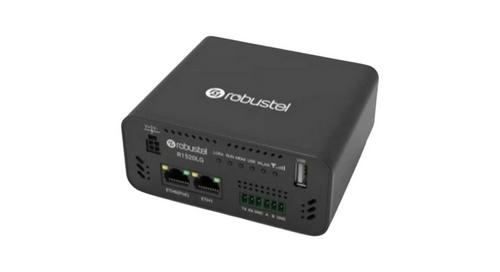
robustel R1520LG Dual SIM LTE Router User Manual

FALCON 1800 5G Ready Omni Directional Antenna Plus Router User Manual

Cudy WR1300 Wi-Fi Mesh Router Instruction Manual