
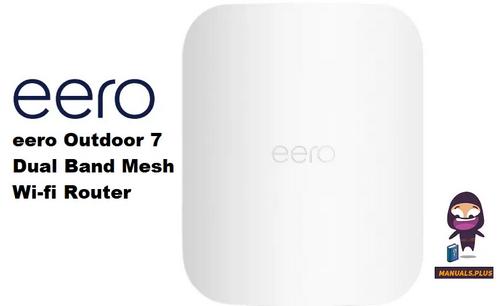
eero Outdoor 7 Dual Band Mesh Wi-fi Router Installation Guide




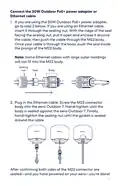


Connect the 30W Outdoor PoE+ power adapter or
Ethernet cable.
1. If you are using the 30W Outdoor PoE+ power adapter,
go to step 2 below. If you are using an Ethernet cable,
insert it through the sealing nut. With the ridge of the seal
facing the sealing nut, pull it open and enclose it around
the cable; then push the cable through the M22 body.
Once your cable is through the body, push the seal inside
the prongs of the M22 body.
Note: Some Ethernet cables with large outer moldings
will not fit into the M22 body.
Sealing
nut
Seal
Body
2. Plug in the Ethernet cable. Screw the M22 connector
body into the eero Outdoor 7. Hand-tighten until the
body is sealed against the eero Outdoor 7. Finally,
hand-tighten the sealing nut until the gasket is sealed
around the cable.
After confirming both sides of the M22 connector are
sealed—and you have powered on your eero—you’re done!
11

| General | Details |
|---|---|
| Name | eero Outdoor 7 Dual Band Mesh Wi-fi Router Installation Guide |
| Make | eero |
| Language | English |
| Filetype | PDF (Download) |
| File size | 0.2 MB |
 (1 votes, average: 5.00 out of 5)
 Loading...
If you have any questions regarding eero Outdoor 7 Dual Band Mesh Wi-fi Router Installation Guide, please ask here and describe the problem in detail.

eero 609R010111 6+ Dual-Band Mesh Wi-Fi 6 Router User Guide

eero 7 Dual Band Mesh Wi-Fi 7 Router User Guide

eero Max 7 Mesh Wifi Router Owner’s Manual

eero N010001 AX1800 Dual Band Mesh WiFi 6 Router User Manual

eero V010001 Router User Guide

eero Pro 6E Mesh Router User Guide

eero Pro 6 Mesh Wi-Fi Router User Guide

eero SN10001 Outdoor 7 PoE Mesh Wi-Fi Router Installation Guide

HiKOKI M12V2 Variable Speed Router Instruction Manual

Xiaomi CB0401V2 5G CPE Pro V2 Wi-Fi 6 Router User Manual

airlive W6-184QAX AX1800 Router Installation Guide

Promethean OPS-A Router Installation Guide

GL iNet XE3000 MBPS M519 Portable Router User Manual

ASUS ExpertWiFi EBG15 Gigabit VPN Router User Guide

ioGiant AX1800 Wi-Fi Router Wireless Router Installation Guide

TELTONIKA RUT260 LTE Router User Manual

D-Link DWR-930M 4G LTE Mobile Router Installation Guide

TP-Link AX5400 Multi Gigabit Wi-Fi 6 Router Installation Guide