
eero Outdoor 7 Dual Band Mesh Wi-fi Router Installation Guide


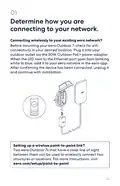




Using a wired connection to your existing eero network?
Before mounting your eero Outdoor 7, make sure the CAT5e
(or better) Ethernet cable being used to power the eero and
connect to your eero network is rated for outdoor use and is
long enough to reach your desired location.
Power up the eero and connect to your existing eero network.
To power your eero, use a PoE+ switch or injector and a
round CAT5e (or better) Ethernet cable.
Once you connect the eero Outdoor 7 to your eero network,
the LED next to the Ethernet port will blink white when
the device is powered on. The eero app will automatically
add the device to your network. If it isn’t added, the app
will detect an eero device and prompt you to add it to the
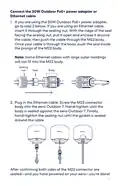
network. After confirming the device has been connected,
unplug the Ethernet cable and continue with installation.
05

| General | Details |
|---|---|
| Name | eero Outdoor 7 Dual Band Mesh Wi-fi Router Installation Guide |
| Make | eero |
| Language | English |
| Filetype | PDF (Download) |
| File size | 0.2 MB |
 (1 votes, average: 5.00 out of 5)
 Loading...
If you have any questions regarding eero Outdoor 7 Dual Band Mesh Wi-fi Router Installation Guide, please ask here and describe the problem in detail.

eero 609R010111 6+ Dual-Band Mesh Wi-Fi 6 Router User Guide

eero 7 Dual Band Mesh Wi-Fi 7 Router User Guide

eero Max 7 Mesh Wifi Router Owner’s Manual

eero N010001 AX1800 Dual Band Mesh WiFi 6 Router User Manual

eero V010001 Router User Guide

eero Pro 6E Mesh Router User Guide

eero Pro 6 Mesh Wi-Fi Router User Guide

eero SN10001 Outdoor 7 PoE Mesh Wi-Fi Router Installation Guide

trend T8EK Electric Router Instruction Manual

Cudy WR300 Multi Mode WiFi Router Installation Guide

GRANDSTREAM GWN700x VPN Router User Guide

VEVOR 0700C Wood Router User Manual

NETGEAR RS300S Nighthawk Tri Band WiFi 7 Router Instructions

BEC 7000 R26-W Gigabit LTE Outdoor Router with Hotspot User Guide

TP-Link TL-WR940N Wireless N Router Installation Guide

Bytelogistic SR600 Mesh Wifi Router User Manual

Tenda AC1200 WiFi 6 Router Installation Guide

Sagemcom Broadband FAST 5290 Fiber Wireless Router Installation Guide