
Home > LINOVISION > LINOVISION IoT-R32L Router User Guide
LINOVISION IoT-R32L Router User Guide



Click “Save & Apply” button to make the changes take effect.
C. Connect WAN port to another router or modem.
D. Log in R32L web GUI via WAN port IP address and go to “Status > Network” to check if
status is “up”.
E. Go to “Network > Interface > Link Failover” to rise the WAN priority to 1.
F. Open your preferred browser on PC, then type any available web address into address bar
and see if it is able to visit Internet via R32L router.
12

| General | Details |
|---|---|
| Name | LINOVISION IoT-R32L Router User Guide |
| Make | LINOVISION |
| Language | English |
| Filetype | PDF (Download) |
| File size | 0.37 MB |
 (1 votes, average: 5.00 out of 5)
 Loading...
If you have any questions regarding LINOVISION IoT-R32L Router User Guide, please ask here and describe the problem in detail.

LINOVISION IOT-R32W 4G LTE Cat4 Cellular Router Owner’s Manual

LINOVISION IOT-R32W Versatile Cellular Router User Guide

LINOVISION IOT-R32 Wholesale Rugged and Versatile Cellular Router User Guide

LINOVISION IOT-R41 Mini 4G LTE Router User Manual
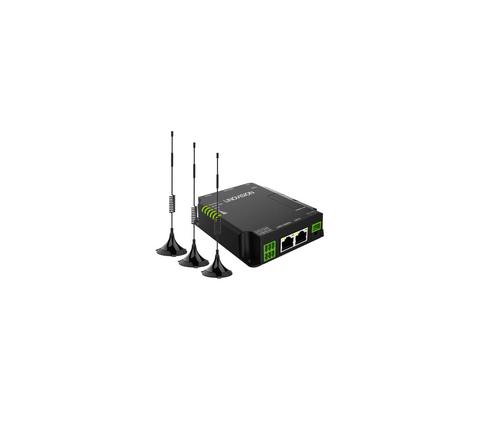
LINOVISION IOT-R32W Unlocked 4G LTE Router User Manual

LINOVISION IOT-R32W Rugged and Versatile Cellular Router Instructions

LINOVISION IOT-R32W Cellular Router User Manual


eero Pro 6 Mesh Wi-Fi Router User Guide

Amped Wireless R10000 High Power Wireless N 600mW Smart Router User Guide

MikroTIK CCR2004-1G-12S+2XS Cloud Core Router User Manual

QNAP QMiroPlus-201W Router Installation Guide

Linksys WRT300N Wireless-N Broadband Router User Guide

robustel R5020 5G WiFi Wireless Router Owner’s Manual

Gemma Group Flex L Copy Router User Guide

DrayTek VigorLTE 200 Series LTE Router User Guide

GL iNet GL-SFT1200 AC1200 Opal Wireless Travel Router User Manual

ASUS RT-ACRH18 Dual band AC WiFi Router User Guide