
Home > LINOVISION > LINOVISION IoT-R32L Router User Guide
LINOVISION IoT-R32L Router User Guide

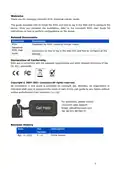


Method 2: click “Use the
following IP address” to
assign a static IP manually
within the same subnet of
⑤ Double Click “Internet
Protocol Version 4
(TCP/IPv4)”
⑥ Method 1: click “Obtain an
IP address
automatically”;
to configure IP address and
DNS server.
4.2 Log in the Router
If this is the first time you configure the router, please use the default settings below:
IP Address: 192.168.1.1
Username: admin
Password: password
A. Start a Web browser on your PC (Chrome is recommended), type in the IP address, and
press Enter on your keyboard.
B. Enter the username and password, click “Login”.
9

| General | Details |
|---|---|
| Name | LINOVISION IoT-R32L Router User Guide |
| Make | LINOVISION |
| Language | English |
| Filetype | PDF (Download) |
| File size | 0.37 MB |
 (1 votes, average: 5.00 out of 5)
 Loading...
If you have any questions regarding LINOVISION IoT-R32L Router User Guide, please ask here and describe the problem in detail.

LINOVISION IOT-R32W 4G LTE Cat4 Cellular Router Owner’s Manual

LINOVISION IOT-R32W Versatile Cellular Router User Guide

LINOVISION IOT-R32 Wholesale Rugged and Versatile Cellular Router User Guide

LINOVISION IOT-R41 Mini 4G LTE Router User Manual
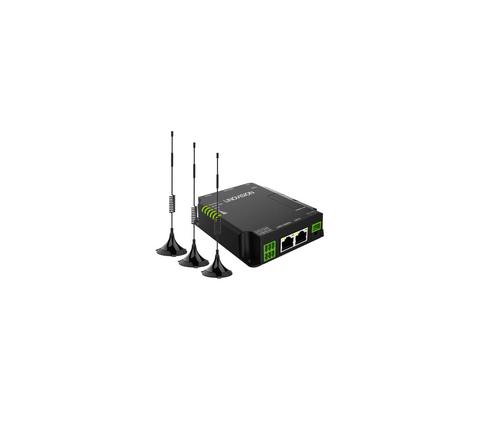
LINOVISION IOT-R32W Unlocked 4G LTE Router User Manual

LINOVISION IOT-R32W Rugged and Versatile Cellular Router Instructions

LINOVISION IOT-R32W Cellular Router User Manual


evolution DIGITAL SG0006D2VA GPON WiFi6 Mesh Router Installation Guide

POOLEX WIFI-LINK Outdoor Wifi Antenna and 4G Router Instruction Manual

Cudy WR1200 Dual Band Wi-Fi Router Installation Guide

wis network 5G CPE Pro -Home Router User Guide

inhandgo CR202 InHand Networks Portable 4G Router User Manual

cradlepoint E110 Enterprise Branch Router User Manual

AZORES AX3000 PRO WiFi-6 Wireless Router Instruction Manual

WAVLINK 575A3 Dual Band WiFi Extender Repeater Access Point Router Instruction Manual

DrayTek VDSL2 Security Router User Guide

inseego FX3100 Wavemaker 5G Router User Guide