
Home > LINOVISION > LINOVISION IoT-R32L Router User Guide
LINOVISION IoT-R32L Router User Guide

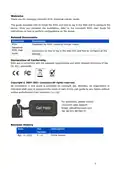


5.2 Cellular Connection Configuration
A. Click “Network > Interface > Cellular > Cellular Setting” to configure the cellular info, like
APN and network type.
B. Click “Save” and “Apply” for configuration to take effect.
If you select “Auto”, the router will obtain ISP information from SIM card to set APN, Username,
and Password automatically. This option will only be taken effect when the SIM card is issued
from a well-known ISP.
C. Go to “Network > Interface > Link Failover” to enable SIM and rise link priority.
D. Click
to configure ICMP ping detection information.
13

| General | Details |
|---|---|
| Name | LINOVISION IoT-R32L Router User Guide |
| Make | LINOVISION |
| Language | English |
| Filetype | PDF (Download) |
| File size | 0.37 MB |
 (1 votes, average: 5.00 out of 5)
 Loading...
If you have any questions regarding LINOVISION IoT-R32L Router User Guide, please ask here and describe the problem in detail.

LINOVISION IOT-R32W 4G LTE Cat4 Cellular Router Owner’s Manual

LINOVISION IOT-R32W Versatile Cellular Router User Guide

LINOVISION IOT-R32 Wholesale Rugged and Versatile Cellular Router User Guide

LINOVISION IOT-R41 Mini 4G LTE Router User Manual
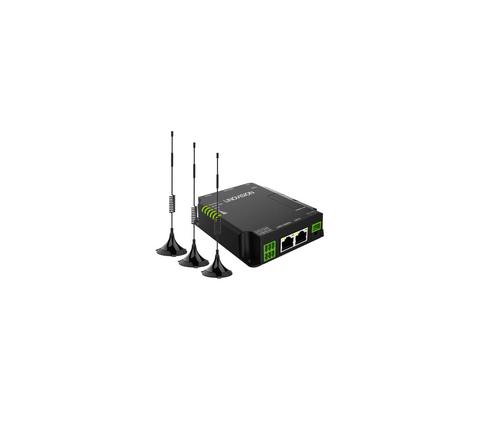
LINOVISION IOT-R32W Unlocked 4G LTE Router User Manual

LINOVISION IOT-R32W Rugged and Versatile Cellular Router Instructions

LINOVISION IOT-R32W Cellular Router User Manual


TP-Link Archer AX10 Dual Band Wi-Fi 6 Router Installation Guide

ASUS RT-AXE7800 Dual Band WiFi Router User Guide

LEAX ARKIVATOR TELECOM LCE4121S Mesh Router User Manual

Ruijie E4 Networking Router Instruction Manual

xiaomi RA70 Mi Home Router User Guide

NETGEAR Nighthawk BE6500 BE5000 Dual Band Wi-Fi Router User Guide

ADVANTECH ICR-2701 Engineering Portal Cellular Router User Guide

HKBN AX5400 Oppo WiFi 6 Router User Guide

ASUS RT-AX52 AX1800 AiMesh Wireless Router User Guide

TP-Link Archer NX600 5G CPE Router Installation Guide