×
- 1. Rv2458 Router Quickstart Guide
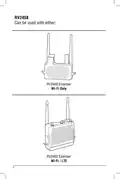
- 2. Rv2458 (Can Be Used With Either: → Rv2400 Extender → Wi-fi Only → Rv2402 Extender → Wi-fi / Lte)
- 3. How To Activate Your Data Plan (Important: Access To The Internet Is Required For Lte Data Plan Activation → Iccid # → Imei#)
- 4. Rv2458softwarequickstartguide (Press Power Button On The Rv2458 To Power Up The Router (approximately 2 Min). → Go To The Wifi Setting On Your Device (phone, Tablet, Laptop, Etc., Make Sure Your Wifi Is Turned On) And Click On The Rv2458-2.4g Network. → Note: If Your Phone Is Being Used As A Hot Spot Connection It Will Not Be Able To Be Used As A Configuration Device.)
- 5. In The Password Field Type In The Password Rv2458wifi And Click The Join Button. Wait Until Your Device Is Connected To The Rv2458-2.4g Netw…
- 6. Go To Your Web Browser And In The Address Field Type In 192.168.10.1 And Click Go Or Hit Enter. The Login Screen Will Open. In The Password …
- 7. If Wifi Is Selected Proceed To Step 8. If Lte Is Selected Proceed To Step 15.
- 8. The Available Wifi List (Please Acquire Password From Wifi Host At Your Location → If The Unit Will Not Connect At This Step → Start Again From Step 1 And Wait 2 Minutes For Boot Cycle To Complete → If The Scroll Bar Isnt Showing And You Are Using A Mac Computer)
- 9. The Connecting Countdown (Login Screen → Password Field → Login Button → Successful Login → Wait 2 Minutes → Failed Connection)
- 10. Rv2458 Software Quickstart Guide (If The Password Was Not Typed Correctly A Pop-up Window Will Appear Stating That The Connection To The Network Failed. Click The Ok Button.)
- 11. If You Are Using The Recommended At&t Preferred Plan, Then Click The Start Lte Button To Begin The Lte Connection. If Using A Different Carr…
- 12. Login Procedure (Password Requirements → Successful Login Confirmation)
- 13. At This Point You Have A Successful Connection To The Lte Carrier.
- 14. Rv2458 Software Quickstart Guide
- 15.
- 16. One (1) Year Limited Warranty (Defective Merchandise Should Be Returned To The Original Point Of Purchase → Return Authorization Must Be Obtained Before Sending)
×
MAGNADYNE RV2458 Router User Guide
| General | Details |
|---|---|
| Name | MAGNADYNE RV2458 Router User Guide |
| Make | MAGNADYNE |
| Language | English |
| Filetype | PDF (Download) |
| File size | 0.28 MB |
If you have any questions regarding MAGNADYNE RV2458 Router User Guide, please ask here and describe the problem in detail.


LINKSYS EA7500 AC1900 Max Stream Wifi Router User Guide

MetaBlox MBWF-P100 WiFi Router User Guide

ASUS RT-AX82U AX5400 Dual Band WiFi Router User Guide

NETGEAR RS300S Nighthawk Tri Band WiFi 7 Router Instructions

NETGEAR RS700S Tri Band WiFi 7 Router Instruction Manual

NETGEAR RS200 Nighthawk WiFi 7 Dual Band Router Owner’s Manual

Cudy WR1300 Gigabit Dual Band Wi-Fi Router Installation Guide

DrayTek Vigor2762 Series ADSL2-2+ and VDSL2 Router User Guide

CP PLUS CP-GR-DE412 Dual-Band 4G Router Installation Guide

GlocalMe G4 Pro 4G LTE Mobile WiFi Router User Guide
Table of Contents
- 1. Rv2458 Router Quickstart Guide →
- 2. Rv2458 - Can Be Used With Either: →
- 3. How To Activate Your Data Plan - Important: Access To The In... →
- 4. Rv2458softwarequickstartguide - Press Power Button On The Rv... →
- 5. In The Password Field Type In The Password Rv2458wifi And Cl... →
- 6. Go To Your Web Browser And In The Address Field Type In 192.... →
- 7. If Wifi Is Selected Proceed To Step 8. If Lte Is Selected Pr... →
- 8. The Available Wifi List - Please Acquire Password From Wifi ... →
- 9. The Connecting Countdown - Login Screen →
- 10. Rv2458 Software Quickstart Guide - If The Password Was Not T... →
- 11. If You Are Using The Recommended At&t Preferred Plan, Then C... →
- 12. Login Procedure - Password Requirements →
- 13. At This Point You Have A Successful Connection To The Lte Ca... →
- 14. Rv2458 Software Quickstart Guide →
- 15. Page 15 →
- 16. One (1) Year Limited Warranty - Defective Merchandise Should... →


