×
- 1. Installation (Setup → Configuration)
- 2. We Appreciate Your Trust And Preference For Purchasing One Of Our Devices, We Are Sure That You Will Obtain Great Benefits.
- 3. Legal Information (Limitation Of Liability)
- 4. Know The Product (Instruction And Operations → Sim Installation → Battery Charging → Turn On Your Hotspot Hs2 → Internet Connection → Change Ssid And Password)
- 5. Get To Know The Product (Package Content → Warning: Use Only Accessories And Devices Approved By Quamtum Connectivity De Sa De Cv)
- 6. Product Diagram (General Specifications → Led Indicators → Device Case → Power Button → Usb Connector → Wps Button)
- 7. Led Indicators (G(lte) Indicator → Message → Battery → Wi-fi)
- 8. Sim Card Installation (Battery Charge)
- 9. Turn On Your Hotspot (Internet Connection → Logging In To The Web Administration Page)
- 10. Configure Your Wi-fi Network (Manage Connected Devices → Access Your Statistics → Status Information Section → Usb Connection)
- 11. Press To Start The Installation: Choose The Path Where The Hotspot Hs2 Program Will Be Installed, As Well As Its Shortcut On The Desktop Of …
- 12. Once The Installation Process Is Complete, Confirm The Path In The Program Has Been Installed And Press That.
- 13. When Installing The Driver It Will Allow The Connection Of Router Portable Wireless (lte) And Internet Use Through The Port Usb.
- 14. Restore Factory Settings (Hold Down The Reset Button Until The Device Reboots → Through The Web Manager → Connect Your Portable Wireless (lte) Router → Enter The Following Ip Address: 192.168.8.1 → Enter The Default Credentials)
- 15. Factory Reset
- 16. Changingssidandpassword (Locatenetworkname(ssid) → Logintothewebui → Defaultcredentials → Managementip → Webuser → Webpassword)
- 17. Now, Inside The Web Manager, Go To Fi
- 18. Enter Your Preferred Network Name And Password. Press The Apply Button. Devices Previously Connected To Your Network Will Ask You To Enter T…
- 19. Establish Wireless Connection (Connect To The Network → Management Ip Configuration → Web User And Password Setup)
- 20. Establishwpsconnection (To Connect Using The Wps Connection Please Follow The Steps Below: → Turnonthedevicethatneedstobeconnected → Activate Thewpsfunctionontheterminaltobecconnected → Pressandholdthewpsbuttonofyourportablewirelessrouter(lte)devicefor3seconds)
- 21. Use Of The Interface (Access To The Web Administrator → Main Screen)
- 22. Within This Interface We Can See Information Related To Imei, Serial Number (s/n), Imsi, Service Provider, Type Of Network, Signal Reception…
- 23. Messages (Contacts)
- 24. Advanced Configuration (Energy Saving → Wifi Waiting Time)
- 25. Quick Setup (Configure Basic Parameters → Network Name → Password → Apply Button → Advanced Options)
- 26. Battery Care
- 27. Notes (Radio → On Use With Children)
- 28. Product Disposal (Declaration Of Environmental Protection)
- 29. Applicable Environment (Electrical Specifications → Use Of The Radioelectric Spectrum)
- 30. Frequently Asked Questions (Low Signal Or No 4g Signal → It Does Not Recognize The Sim Card → The Equipment Does Not Have Internet)
- 31. Imei Location
- 32. The Quamtum Hotspot Hs2 Product Complies With Part 15 The Us Federal Communications Commission (fcc) Rules. Its Operation Is Subject To The …
- 33. $5 Phdvxuhphqw Uhvxowv ($5 9doxh → Rvlwlrq → Fdohg → &rqgxfwhg 7xqhꢇxs → Rzhu → Rgh)
- 34. Installation (Setup → Configuration → Power Mode → Test Channel → Data Plot → Front)
- 35. Installation (Setup → Configuration → Power → Test → Troubleshooting → Maintenance)
- 36. Installation Instructions (Configuration Settings → Setup Requirements → Troubleshooting Guide → Safety Precautions → User Guidelines → Maintenance Procedures)
- 37. Installation (Configuration → Setup → Troubleshooting → Power Requirements → Safety Information → Maintenance)
- 38. Installation (Setup → Configuration → Power Requirements → Test Results → Troubleshooting → Maintenance)
- 39. Installation (Setup → Configuration → Testing → Power → Warning → Reference)
- 40. Installation (Setup → Configuration → Testing → Power → Warning → Positioning)
- 41. Installation Instructions (Compliance Information → Interference Mitigation Measures → Equipment Testing And Compliance → User Authority And Modifications)
×
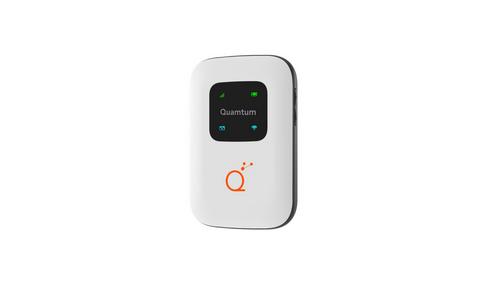
Quamtum HS2 HotSpot Wireless Portable Router User Manual
2.13 Use of the interface
2.13.1 Access to the WEB administrator
1.Start your internet browser and enter the following address
2. Enter the following credentials: Web
User: Telcel_Admin Web
Password: TelcelXXXX
Note: At any time you can change the username and password to enter the WEB interface.
2.13.2. Main screen
This interface will allow you to observe the data consumption both upload
and download, the number of users connected to your PORTABLE WIRELESS
ROUTER (LTE), the IMEI, IMSI, signal strength, network name, network
settings, SMS , Phonebook, Advanced Settings and Quick Settings.
twenty-one
| General | Details |
|---|---|
| Name | Quamtum HS2 HotSpot Wireless Portable Router User Manual |
| Make | Quamtum |
| Language | English |
| Filetype | PDF (Download) |
| File size | 0.6 MB |
If you have any questions regarding Quamtum HS2 HotSpot Wireless Portable Router User Manual, please ask here and describe the problem in detail.


EDR-G9004 Series Moxa Secure Router Installation Guide

TP-Link TD-W8951ND Wireless DSL Modem Router Installation Guide

NETGEAR PR60X Pro 10G Multi Gigabit Dual WAN Pro Router Installation Guide

Ningbo Sunvot Technology Co Ltd LC600-202302 4G LTE CPE Router User Guide

ARISTA AWE-5510 Wifi Router User Guide

ADVANTECH ICR-2531 LTE Router User Manual

D-Link R95 BE9500 Wi-Fi 7 Router User Guide

TP-Link MR600 4G Cat6 Wireless Dual Band Gigabit Router User Manual

D-Link R95 BE9500 Wi-Fi 7 Smart Router User Guide

cradlepoint E100 Enterprise Router Endpoints User Guide
Table of Contents
- 1. Installation - Setup →
- 2. We Appreciate Your Trust And Preference For Purchasing One O... →
- 3. Legal Information - Limitation Of Liability →
- 4. Know The Product - Instruction And Operations →
- 5. Get To Know The Product - Package Content →
- 6. Product Diagram - General Specifications →
- 7. Led Indicators - G(lte) Indicator →
- 8. Sim Card Installation - Battery Charge →
- 9. Turn On Your Hotspot - Internet Connection →
- 10. Configure Your Wi-fi Network - Manage Connected Devices →
- 11. Press To Start The Installation: Choose The Path Where The H... →
- 12. Once The Installation Process Is Complete, Confirm The Path ... →
- 13. When Installing The Driver It Will Allow The Connection Of R... →
- 14. Restore Factory Settings - Hold Down The Reset Button Until ... →
- 15. Factory Reset →
- 16. Changingssidandpassw... - Locatenetworkname(ss... →
- 17. Now, Inside The Web Manager, Go To Fi →
- 18. Enter Your Preferred Network Name And Password. Press The Ap... →
- 19. Establish Wireless Connection - Connect To The Network →
- 20. Establishwpsconnection - To Connect Using The Wps Connection... →
- 21. Use Of The Interface - Access To The Web Administrator →
- 22. Within This Interface We Can See Information Related To Imei... →
- 23. Messages - Contacts →
- 24. Advanced Configuration - Energy Saving →
- 25. Quick Setup - Configure Basic Parameters →
- 26. Battery Care →
- 27. Notes - Radio →
- 28. Product Disposal - Declaration Of Environmental Protection →
- 29. Applicable Environment - Electrical Specifications →
- 30. Frequently Asked Questions - Low Signal Or No 4g Signal →
- 31. Imei Location →
- 32. The Quamtum Hotspot Hs2 Product Complies With Part 15 The Us... →
- 33. $5 Phdvxuhphqw Uhvxowv - $5 9doxh →
- 34. Installation - Setup →
- 35. Installation - Setup →
- 36. Installation Instructions - Configuration Settings →
- 37. Installation - Configuration →
- 38. Installation - Setup →
- 39. Installation - Setup →
- 40. Installation - Setup →
- 41. Installation Instructions - Compliance Information →