
Quamtum HS2 HotSpot Wireless Portable Router User Manual




8. Frequently asked questions
Low signal or no 4G
signal -Make sure your HotSpot HS2 is charged correctly, you can
use a compatible charger for your device.
-Place your HotSpot HS2 in a central area with no obstructions and
close to the devices to be connected.
It does not recognize the
SIM card -Check that the SIM Card (mini SIM format) is correctly
installed in the HotSpot HS2.
-The SIM Card must be in good condition (no traces of damage such
as breaks in the tracks or bent).
-Validate that the connector of your HotSpot HS2 is in good condition.
The equipment does not
have Internet -Validate that the battery of your HotSpot HS2 is
charged by means of the battery indicator LED, which should be lit in
green.
-In case you do not have a full charge, you can connect a power
adapter compatible with your HotSpot HS2.
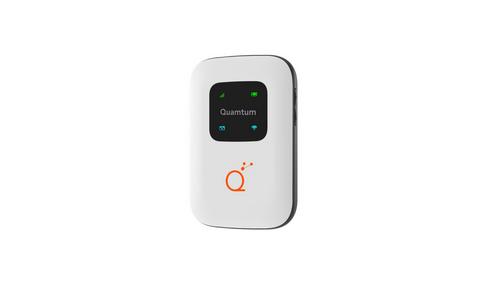
Check the status of the following indicator LEDs, which should be on:
- Green signal indicator LED.
- Blue Wi-Fi indicator LED.
- Blue message indicator LED.
-Make sure you are in an area with good LTE coverage and no signal
obstructions.
-Verify with your Internet service provider that your plan is active and
that you have a data bag available to use the service.
30

| General | Details |
|---|---|
| Name | Quamtum HS2 HotSpot Wireless Portable Router User Manual |
| Make | Quamtum |
| Language | English |
| Filetype | PDF (Download) |
| File size | 0.6 MB |
 (1 votes, average: 5.00 out of 5)
 Loading...
If you have any questions regarding Quamtum HS2 HotSpot Wireless Portable Router User Manual, please ask here and describe the problem in detail.

DIGITAL DEEP SEA 5G Xtream 5G/4G Router Instruction Manual

LANCOM SYSTEMS 1790-4G+ High-Performance VPN Router Installation Guide

Tenda AC9 AC1200 Dual Band Gigabit WiFi Router Installation Guide

TP-Link Deco X50-DSL Whole Home Mesh WiFi 6 Router User Guide

CP PLUS DN211-S Dual-Band 4G Router Installation Guide

cradlepoint E110 Enterprise Branch Router User Manual

toob Wifi Router User Guide

ADTRAN 1200824G1 Netvanta 3458 Access Router User Guide

Danone CPF101 4G Router User Manual

D-Link G530 5G NR AX3000 Wi-Fi 6 Router User Guide