×
- 1. Installation (Setup → Configuration)
- 2. We Appreciate Your Trust And Preference For Purchasing One Of Our Devices, We Are Sure That You Will Obtain Great Benefits.
- 3. Legal Information (Limitation Of Liability)
- 4. Know The Product (Instruction And Operations → Sim Installation → Battery Charging → Turn On Your Hotspot Hs2 → Internet Connection → Change Ssid And Password)
- 5. Get To Know The Product (Package Content → Warning: Use Only Accessories And Devices Approved By Quamtum Connectivity De Sa De Cv)
- 6. Product Diagram (General Specifications → Led Indicators → Device Case → Power Button → Usb Connector → Wps Button)
- 7. Led Indicators (G(lte) Indicator → Message → Battery → Wi-fi)
- 8. Sim Card Installation (Battery Charge)
- 9. Turn On Your Hotspot (Internet Connection → Logging In To The Web Administration Page)
- 10. Configure Your Wi-fi Network (Manage Connected Devices → Access Your Statistics → Status Information Section → Usb Connection)
- 11. Press To Start The Installation: Choose The Path Where The Hotspot Hs2 Program Will Be Installed, As Well As Its Shortcut On The Desktop Of …
- 12. Once The Installation Process Is Complete, Confirm The Path In The Program Has Been Installed And Press That.
- 13. When Installing The Driver It Will Allow The Connection Of Router Portable Wireless (lte) And Internet Use Through The Port Usb.
- 14. Restore Factory Settings (Hold Down The Reset Button Until The Device Reboots → Through The Web Manager → Connect Your Portable Wireless (lte) Router → Enter The Following Ip Address: 192.168.8.1 → Enter The Default Credentials)
- 15. Factory Reset
- 16. Changingssidandpassword (Locatenetworkname(ssid) → Logintothewebui → Defaultcredentials → Managementip → Webuser → Webpassword)
- 17. Now, Inside The Web Manager, Go To Fi
- 18. Enter Your Preferred Network Name And Password. Press The Apply Button. Devices Previously Connected To Your Network Will Ask You To Enter T…
- 19. Establish Wireless Connection (Connect To The Network → Management Ip Configuration → Web User And Password Setup)
- 20. Establishwpsconnection (To Connect Using The Wps Connection Please Follow The Steps Below: → Turnonthedevicethatneedstobeconnected → Activate Thewpsfunctionontheterminaltobecconnected → Pressandholdthewpsbuttonofyourportablewirelessrouter(lte)devicefor3seconds)
- 21. Use Of The Interface (Access To The Web Administrator → Main Screen)
- 22. Within This Interface We Can See Information Related To Imei, Serial Number (s/n), Imsi, Service Provider, Type Of Network, Signal Reception…
- 23. Messages (Contacts)
- 24. Advanced Configuration (Energy Saving → Wifi Waiting Time)
- 25. Quick Setup (Configure Basic Parameters → Network Name → Password → Apply Button → Advanced Options)
- 26. Battery Care
- 27. Notes (Radio → On Use With Children)
- 28. Product Disposal (Declaration Of Environmental Protection)
- 29. Applicable Environment (Electrical Specifications → Use Of The Radioelectric Spectrum)
- 30. Frequently Asked Questions (Low Signal Or No 4g Signal → It Does Not Recognize The Sim Card → The Equipment Does Not Have Internet)
- 31. Imei Location
- 32. The Quamtum Hotspot Hs2 Product Complies With Part 15 The Us Federal Communications Commission (fcc) Rules. Its Operation Is Subject To The …
- 33. $5 Phdvxuhphqw Uhvxowv ($5 9doxh → Rvlwlrq → Fdohg → &rqgxfwhg 7xqhꢇxs → Rzhu → Rgh)
- 34. Installation (Setup → Configuration → Power Mode → Test Channel → Data Plot → Front)
- 35. Installation (Setup → Configuration → Power → Test → Troubleshooting → Maintenance)
- 36. Installation Instructions (Configuration Settings → Setup Requirements → Troubleshooting Guide → Safety Precautions → User Guidelines → Maintenance Procedures)
- 37. Installation (Configuration → Setup → Troubleshooting → Power Requirements → Safety Information → Maintenance)
- 38. Installation (Setup → Configuration → Power Requirements → Test Results → Troubleshooting → Maintenance)
- 39. Installation (Setup → Configuration → Testing → Power → Warning → Reference)
- 40. Installation (Setup → Configuration → Testing → Power → Warning → Positioning)
- 41. Installation Instructions (Compliance Information → Interference Mitigation Measures → Equipment Testing And Compliance → User Authority And Modifications)
×
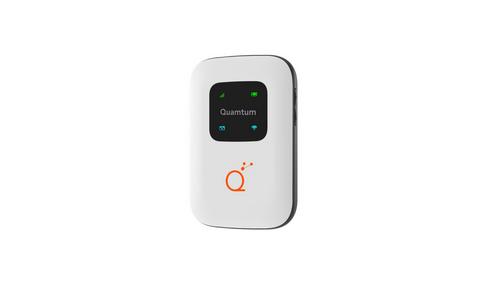
Quamtum HS2 HotSpot Wireless Portable Router User Manual
2.9. Restore Factory Settings
To do it there are 2 ways:
1. Hold down the RESET button until the device reboots.
RESET button
2. Through the web manager through the following steps: 1.
Connect your PORTABLE WIRELESS (LTE) ROUTER to
your computer using a USB cable after
2. Then enter your preferred browser and enter the following
IP address: 192.168.8.1
3. Enter the default credentials: Web
User: Telcel_Admin Web
Password: TelcelXXXX
14
| General | Details |
|---|---|
| Name | Quamtum HS2 HotSpot Wireless Portable Router User Manual |
| Make | Quamtum |
| Language | English |
| Filetype | PDF (Download) |
| File size | 0.6 MB |
If you have any questions regarding Quamtum HS2 HotSpot Wireless Portable Router User Manual, please ask here and describe the problem in detail.


TELTONIKA RUTM31 Router User Guide

Datto DSE641T 2×2 WiFi 6 Router User Guide

Cudy WR2100 Gigabit Dualband WLAN Mesh Router Installation Guide

Tenda AC1200 WiFi 6 Router Installation Guide

NETGEAR RS600 Tri Band WiFi 7 Router User Guide

TELTONIKA RUT142 Router User Guide

Antena Gear TX54 5G Cellular Router User Guide

inhand IR305 LTE Router Instruction Manual

porodo PD-4GCPMF-BK 4G/LTE Home and Outdoor Portable Router Instruction Manual

HITRON CODA-4582 Cable Modem Router User Guide
Table of Contents
- 1. Installation - Setup →
- 2. We Appreciate Your Trust And Preference For Purchasing One O... →
- 3. Legal Information - Limitation Of Liability →
- 4. Know The Product - Instruction And Operations →
- 5. Get To Know The Product - Package Content →
- 6. Product Diagram - General Specifications →
- 7. Led Indicators - G(lte) Indicator →
- 8. Sim Card Installation - Battery Charge →
- 9. Turn On Your Hotspot - Internet Connection →
- 10. Configure Your Wi-fi Network - Manage Connected Devices →
- 11. Press To Start The Installation: Choose The Path Where The H... →
- 12. Once The Installation Process Is Complete, Confirm The Path ... →
- 13. When Installing The Driver It Will Allow The Connection Of R... →
- 14. Restore Factory Settings - Hold Down The Reset Button Until ... →
- 15. Factory Reset →
- 16. Changingssidandpassw... - Locatenetworkname(ss... →
- 17. Now, Inside The Web Manager, Go To Fi →
- 18. Enter Your Preferred Network Name And Password. Press The Ap... →
- 19. Establish Wireless Connection - Connect To The Network →
- 20. Establishwpsconnection - To Connect Using The Wps Connection... →
- 21. Use Of The Interface - Access To The Web Administrator →
- 22. Within This Interface We Can See Information Related To Imei... →
- 23. Messages - Contacts →
- 24. Advanced Configuration - Energy Saving →
- 25. Quick Setup - Configure Basic Parameters →
- 26. Battery Care →
- 27. Notes - Radio →
- 28. Product Disposal - Declaration Of Environmental Protection →
- 29. Applicable Environment - Electrical Specifications →
- 30. Frequently Asked Questions - Low Signal Or No 4g Signal →
- 31. Imei Location →
- 32. The Quamtum Hotspot Hs2 Product Complies With Part 15 The Us... →
- 33. $5 Phdvxuhphqw Uhvxowv - $5 9doxh →
- 34. Installation - Setup →
- 35. Installation - Setup →
- 36. Installation Instructions - Configuration Settings →
- 37. Installation - Configuration →
- 38. Installation - Setup →
- 39. Installation - Setup →
- 40. Installation - Setup →
- 41. Installation Instructions - Compliance Information →