Home >
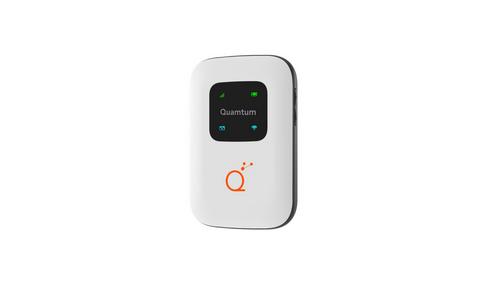
Quamtum > Quamtum HS2 HotSpot Wireless Portable Router User Manual
× 1. Installation (Setup → Configuration) 2. We Appreciate Your Trust And Preference For Purchasing One Of Our Devices, We Are Sure That You Will Obtain Great Benefits. 3. Legal Information (Limitation Of Liability) 4. Know The Product (Instruction And Operations → Sim Installation → Battery Charging → Turn On Your Hotspot Hs2 → Internet Connection → Change Ssid And Password) 5. Get To Know The Product (Package Content → Warning: Use Only Accessories And Devices Approved By Quamtum Connectivity De Sa De Cv) 6. Product Diagram (General Specifications → Led Indicators → Device Case → Power Button → Usb Connector → Wps Button) 7. Led Indicators (G(lte) Indicator → Message → Battery → Wi-fi) 8. Sim Card Installation (Battery Charge) 9. Turn On Your Hotspot (Internet Connection → Logging In To The Web Administration Page) 10. Configure Your Wi-fi Network (Manage Connected Devices → Access Your Statistics → Status Information Section → Usb Connection) 11. Press To Start The Installation: Choose The Path Where The Hotspot Hs2 Program Will Be Installed, As Well As Its Shortcut On The Desktop Of … 12. Once The Installation Process Is Complete, Confirm The Path In The Program Has Been Installed And Press That. 13. When Installing The Driver It Will Allow The Connection Of Router Portable Wireless (lte) And Internet Use Through The Port Usb. 14. Restore Factory Settings (Hold Down The Reset Button Until The Device Reboots → Through The Web Manager → Connect Your Portable Wireless (lte) Router → Enter The Following Ip Address: 192.168.8.1 → Enter The Default Credentials) 15. Factory Reset 16. Changingssidandpassword (Locatenetworkname(ssid) → Logintothewebui → Defaultcredentials → Managementip → Webuser → Webpassword) 17. Now, Inside The Web Manager, Go To Fi 18. Enter Your Preferred Network Name And Password. Press The Apply Button. Devices Previously Connected To Your Network Will Ask You To Enter T… 19. Establish Wireless Connection (Connect To The Network → Management Ip Configuration → Web User And Password Setup) 20. Establishwpsconnection (To Connect Using The Wps Connection Please Follow The Steps Below: → Turnonthedevicethatneedstobeconnected → Activate Thewpsfunctionontheterminaltobecconnected → Pressandholdthewpsbuttonofyourportablewirelessrouter(lte)devicefor3seconds) 21. Use Of The Interface (Access To The Web Administrator → Main Screen) 22. Within This Interface We Can See Information Related To Imei, Serial Number (s/n), Imsi, Service Provider, Type Of Network, Signal Reception… 23. Messages (Contacts) 24. Advanced Configuration (Energy Saving → Wifi Waiting Time) 25. Quick Setup (Configure Basic Parameters → Network Name → Password → Apply Button → Advanced Options) 26. Battery Care 27. Notes (Radio → On Use With Children) 28. Product Disposal (Declaration Of Environmental Protection) 29. Applicable Environment (Electrical Specifications → Use Of The Radioelectric Spectrum) 30. Frequently Asked Questions (Low Signal Or No 4g Signal → It Does Not Recognize The Sim Card → The Equipment Does Not Have Internet) 31. Imei Location 32. The Quamtum Hotspot Hs2 Product Complies With Part 15 The Us Federal Communications Commission (fcc) Rules. Its Operation Is Subject To The … 33. $5 Phdvxuhphqw Uhvxowv ($5 9doxh → Rvlwlrq → Fdohg → &rqgxfwhg 7xqhꢇxs → Rzhu → Rgh) 34. Installation (Setup → Configuration → Power Mode → Test Channel → Data Plot → Front) 35. Installation (Setup → Configuration → Power → Test → Troubleshooting → Maintenance) 36. Installation Instructions (Configuration Settings → Setup Requirements → Troubleshooting Guide → Safety Precautions → User Guidelines → Maintenance Procedures) 37. Installation (Configuration → Setup → Troubleshooting → Power Requirements → Safety Information → Maintenance) 38. Installation (Setup → Configuration → Power Requirements → Test Results → Troubleshooting → Maintenance) 39. Installation (Setup → Configuration → Testing → Power → Warning → Reference) 40. Installation (Setup → Configuration → Testing → Power → Warning → Positioning) 41. Installation Instructions (Compliance Information → Interference Mitigation Measures → Equipment Testing And Compliance → User Authority And Modifications)
Close
Quamtum HS2 HotSpot Wireless Portable Router User Manual
436.ꢄꢍꢁꢒꢉꢈꢅ
127(ꢑ +RWVSRW 6$5 WHVW UHVXOWV RI /7( %DQG ꢎ
6LGH
ꢈꢁ
6$5 PHDVXUHPHQW 5HVXOW RI /7( %DQG ꢆꢆ
7HVW
3RVLWLRQ
RI
6$5 9DOXH
ꢄ:ꢂNJꢅ
6FDOHG
6$5
&RQGXFWHG 7XQHꢇXS
7HVW FKDQQHO
0RGH
3RZHU
3RZHU
ꢄG%Pꢅ
3RZHU
ꢄG%Pꢅ
'DWH
3ORW
+RWVSRW
ꢂ)UHTꢃ
'ULIWꢄꢆꢅ
ꢀꢇJ
ꢀꢇJ
ꢀꢁꢇJ
ꢄ:ꢂ.Jꢅ
ZLWK
ꢀꢁPP
ꢀ5%
)URQW
ꢋꢁ0
436.ꢄꢀꢒꢁꢅ
ꢋꢁ0
ꢀꢌꢋꢌꢋꢋꢂꢀꢎꢉꢍ
ꢀꢌꢋꢌꢋꢋꢂꢀꢎꢉꢍ
ꢀꢌꢋꢌꢋꢋꢂꢀꢎꢉꢍ
ꢀꢌꢋꢌꢋꢋꢂꢀꢎꢉꢍ
ꢀꢌꢋꢌꢋꢋꢂꢀꢎꢉꢍ
ꢀꢌꢋꢌꢋꢋꢂꢀꢎꢉꢍ
ꢁꢃꢌꢁꢁ
ꢁꢃꢉꢐꢈ
ꢁꢃꢀꢉꢎ
ꢁꢃꢀꢉꢉ
ꢁꢃꢀꢀꢋ
ꢁꢃꢋꢉꢁ
ꢁꢃꢀꢉꢊ
ꢁꢃꢋꢌꢀ
ꢁꢃꢁꢎꢀ
ꢁꢃꢁꢎꢁ
ꢁꢃꢁꢐꢋ
ꢁꢃꢀꢀꢌ
ꢇꢌꢃꢀꢋ
ꢇꢋꢃꢐꢈ
ꢇꢌꢃꢐꢁ
ꢋꢃꢈꢍ
ꢋꢋꢃꢍꢁ
ꢋꢋꢃꢍꢁ
ꢋꢋꢃꢍꢁ
ꢋꢋꢃꢍꢁ
ꢋꢋꢃꢍꢁ
ꢋꢋꢃꢍꢁ
ꢋꢌꢃꢍꢁ
ꢋꢌꢃꢍꢁ
ꢋꢌꢃꢍꢁ
ꢋꢌꢃꢍꢁ
ꢋꢌꢃꢍꢁ
ꢋꢌꢃꢍꢁ
ꢁꢃꢌꢎꢊ
ꢁꢃꢍꢈꢁ
ꢁꢃꢀꢊꢍ
ꢁꢃꢀꢊꢀ
ꢁꢃꢀꢉꢀ
ꢁꢃꢌꢁꢋ
ꢋꢁꢋꢌꢂꢍꢂꢋꢐ
ꢋꢁꢋꢌꢂꢍꢂꢋꢐ
ꢋꢁꢋꢌꢂꢍꢂꢋꢐ
ꢋꢁꢋꢌꢂꢍꢂꢋꢐ
ꢋꢁꢋꢌꢂꢍꢂꢋꢐ
ꢋꢁꢋꢌꢂꢍꢂꢋꢐ
6LGH
%DFN
6LGH
ꢀꢁꢏ
436.ꢄꢀꢒꢁꢅ
ꢋꢁ0
/HIW
6LGH
5LJKW
436.ꢄꢀꢒꢁꢅ
ꢋꢁ0
436.ꢄꢀꢒꢁꢅ
ꢋꢁ0
6LGH
7RS
ꢁꢃꢀꢋ
436.ꢄꢀꢒꢁꢅ
ꢋꢁ0
6LGH
%RWWRP
6LGH
ꢇꢉꢃꢁꢁ
436.ꢄꢀꢒꢁꢅ
ꢍꢁꢆ5%
)URQW
ꢋꢁ0
436.ꢄꢍꢁꢒꢁꢅ
ꢋꢁ0
ꢀꢌꢋꢌꢋꢋꢂꢀꢎꢉꢍ
ꢀꢌꢋꢌꢋꢋꢂꢀꢎꢉꢍ
ꢀꢌꢋꢌꢋꢋꢂꢀꢎꢉꢍ
ꢀꢌꢋꢌꢋꢋꢂꢀꢎꢉꢍ
ꢀꢌꢋꢌꢋꢋꢂꢀꢎꢉꢍ
ꢀꢌꢋꢌꢋꢋꢂꢀꢎꢉꢍ
ꢁꢃꢀꢐꢁ
ꢁꢃꢋꢉꢁ
ꢁꢃꢁꢊꢉ
ꢁꢃꢁꢊꢉ
ꢁꢃꢁꢐꢋ
ꢁꢃꢀꢌꢁ
ꢁꢃꢁꢊꢎ
ꢁꢃꢀꢌꢌ
ꢁꢃꢁꢉꢀ
ꢁꢃꢁꢉꢀ
ꢁꢃꢁꢌꢁ
ꢁꢃꢁꢐꢎ
ꢁꢃꢍꢁ
ꢇꢌꢃꢊꢉ
ꢉꢃꢐꢋ
ꢋꢃꢌꢌ
ꢀꢃꢋꢍ
ꢀꢃꢈꢉ
ꢋꢀꢃꢉꢌ
ꢋꢀꢃꢉꢌ
ꢋꢀꢃꢉꢌ
ꢋꢀꢃꢉꢌ
ꢋꢀꢃꢉꢌ
ꢋꢀꢃꢉꢌ
ꢋꢋꢃꢍꢁ
ꢋꢋꢃꢍꢁ
ꢋꢋꢃꢍꢁ
ꢋꢋꢃꢍꢁ
ꢋꢋꢃꢍꢁ
ꢋꢋꢃꢍꢁ
ꢁꢃꢋꢁꢍ
ꢁꢃꢌꢁꢎ
ꢁꢃꢀꢁꢎ
ꢁꢃꢀꢁꢎ
ꢁꢃꢁꢎꢈ
ꢁꢃꢀꢐꢐ
ꢋꢁꢋꢌꢂꢍꢂꢋꢐ
ꢋꢁꢋꢌꢂꢍꢂꢋꢐ
ꢋꢁꢋꢌꢂꢍꢂꢋꢐ
ꢋꢁꢋꢌꢂꢍꢂꢋꢐ
ꢋꢁꢋꢌꢂꢍꢂꢋꢐ
ꢋꢁꢋꢌꢂꢍꢂꢋꢐ
6LGH
%DFN
6LGH
/HIW
436.ꢄꢍꢁꢒꢁꢅ
ꢋꢁ0
436.ꢄꢍꢁꢒꢁꢅ
ꢋꢁ0
6LGH
5LJKW
436.ꢄꢍꢁꢒꢁꢅ
ꢋꢁ0
6LGH
7RS
436.ꢄꢍꢁꢒꢁꢅ
ꢋꢁ0
6LGH
%RWWRP
6LGH
436.ꢄꢍꢁꢒꢁꢅ
127(ꢑ +RWVSRW 6$5 WHVW UHVXOWV RI /7( %DQG ꢐꢐ
General Details Name Quamtum HS2 HotSpot Wireless Portable Router User Manual Make Quamtum Language English Filetype PDF (Download) File size 0.6 MB
Download PDF Loading...




 Loading...