
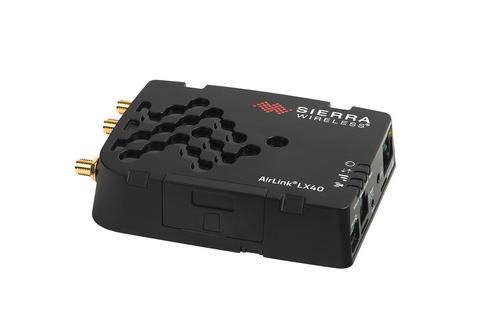
Home > SIERRA WIRELESS > SIERRA WIRELESS AirLink LX40 Enterprise LTE Router User Guide
SIERRA WIRELESS AirLink LX40 Enterprise LTE Router User Guide


Installation and Startup
Note: When you use ACEmanager to reset the router to the factory default settings, some settings
such the user password, network ID, network password, custom APNs, and low voltage standby are
preserved by default. However, you can configure the LX40 Reset Mode to reset all values,
including the user password. For more details, refer to the ALEOS Software Configuration User
Guide for AirLink LX40 (Admin chapter).
–Or–
•
On the router, press the Reset button for between 5 and 20 seconds. (Release the
button when the Power LED flashes red.)
Once the LEDs resume their normal operating behavior, the reset is complete.
Note: When you use the Reset button to reset the router to the factory default settings, some
settings such the user password, network ID, network password, custom APNs, and low voltage
standby are preserved by default. However, you can configure the Reset button to reset all values,
including the user password. For more details, refer to the ALEOS Software Configuration User
Guide for AirLink LX40 (Admin chapter).
Warning: Before installation, please record the default password on the device label and store it
in a secure place.
Avertissement : Avant déploiement de l'unité, veuillez enregistrer le mot de passe indique sur
l'étiquette et le garder dans un endroit sûr.
Recovery Mode
If the router fails to boot properly, it automatically enters recovery mode, or, if the router is
unresponsive to ACEmanager input and AT commands, you can manually put the router
into recovery mode.
Recovery mode enables you to update the ALEOS software and return the router to
working order. (For details, refer to the ALEOS Software Configuration User Guide for
AirLink LX40—Configuring your router chapter.)
To enter Recovery mode manually:
•
On the router, press the Reset button for more than 20 seconds. (Release the button
when the Power LED flashes amber.)
To recover the router:
•
Update ALEOS using the Recovery mode interface. Once the new ALEOS version is
successfully uploaded and installed, the router reboots and exits recovery mode.
When the process is complete, the ACEmanager login screen appears.
Note: After the recovery, you need to reload the radio module firmware store and templates.
To exit Recovery mode, if it has been inadvertently entered, do one of the following:
•
•
Press the reset button on the router to reboot it.
Click the Reboot button on the Recovery screen.
Rev. 4 January 2022
35
41112510

| General | Details |
|---|---|
| Name | SIERRA WIRELESS AirLink LX40 Enterprise LTE Router User Guide |
| Make | SIERRA WIRELESS |
| Language | English |
| Filetype | PDF (Download) |
| File size | 0.96 MB |
 (1 votes, average: 5.00 out of 5)
 Loading...
If you have any questions regarding SIERRA WIRELESS AirLink LX40 Enterprise LTE Router User Guide, please ask here and describe the problem in detail.

SIERRA WIRELESS XR80 5G Cellular Router Instructions

peplink P1MT08 MAX BR1 Classic Automatic Failover 4G LTE Mobile Router User Manual

robustel R5020 Lite 5G Router Instruction Manual

PANORAMA ANTENNAS Megalodon All in One Antenna 5G Dual Modem Router Owner’s Manual

MOXA TN-5916 ToughNet NAT Router Installation Guide

Tenda Dual Band WiFi 6 Router Installation Guide

Edge-corE AS9947-36XKB AC Ethernet Switch and Router User Guide
3onedata IRT5300L-5T2D-2P12_36 4G Wireless Router Installation Guide

FIRSTNUM C600C 4G LTE Broadband Router User Manual

CalAmp LMU-5541 Telematics Router Installation Guide
wildanet SDG 800 Series Broadband Router User Guide