
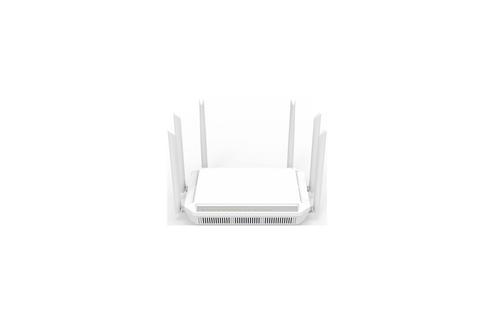
SKYWORTH GN630V GPON ONT WiFi Router Installation Guide


Please pay attention to the following important safety instructions for ONT installation
and use.
Safety Instructions
Product Specifications
Install the ONT
Notes: Additional items such as optical fiber patch cord that are not included with the
ONT may be needed to complete your ONT installation.
Item
Product Name
Specification
1. This equipment is a Class III electrical appliance which is designed to be supplied
from a separated/safety extra-low voltage (SELV) power source. The voltage from a
SELV supply is low enough that under normal conditions a person can safely come
into contact with it without risk of electrical shock.
GPON ONT
Please stop using the device during a lightning storm. To avoid damage
by lightning strike, please cut off power and disconnect all the cables.
GPON Standard
ITU-T G.984, TR156/TR255
2.5Gbps/1.25Gbps
IEEE802.11b/g/n/ac/ax
Maximum PON speed
Wi-Fi Standard
2. WARNING: To reduce the risk of fire or electric shock, do not expose this device to
rain or moisture. The device shall not be exposed to dripping or splashing and that
objects filled with liquids, such as vases, shall not be placed on apparatus.
Please keep device on a stable platform, and make device in well-
ventilated and sunlight-free environment.
2.4G: 2x2 Wi-Fi 6 (802.11ax) 574Mbps
5G: 2x2 Wi-Fi 6 (802.11ax) 2402Mbps
Maximum Wi-Fi speed
During storage, transport and use of this device, please keep it dry
strictly, If any liquid accidently fall inside the device, please cut off
power supply immediately, and contact your local operator
3. WARNING: the power plug/direct plug-in adapter is used as disconnect device, the
disconnect device shall remain readily operable.
Optical Interface
LAN Interface
Wi-Fi Antenna
1*SC/APC, 1310/1490WDM
4*Gigabit Ethernet Ports, RJ45
2.4G: 2*5dBi; 5G: 2*5dBi, Omni-directional
Environment
4.
Correct Disposal of this product. This marking indicates that this product
should not be disposed with other household wastes throughout the EU. To
prevent possible harm to the environment or human health from
uncontrolled waste disposal, recycle it responsibly to promote the
sustainable reuse of material resources. To return your used device, please use the
return and collection systems or contact the retailer or service operator where the
product was purchased. They can take this product for environmental safe recycling.
Please use the original power adapter and other accessories. To avoid
electric shock, please keep the power plug dry and clean, and never use
damaged power cord.
Quick Installation Guide
Rated Power Input
12VDC/1.5A
Operating Temperature
Storage Temperature
Operating Humidity
0 ~ 45 (32~113
)
GPON ONT
GN630V
To avoid swallowing and other dangerous behavior, do not allow
unsupervised children to use or play with this device and accessories.
-20 ~ 65 (-4~149
)
0 ~ 95% non-condensing
5. For the terminals marked with symbol of
“
” may be of sufficient magnitude to
If any abnormal phenomena found, such as smoke, abnormal sound
or peculiar smell, please stop using it immediately and cut off power
immediately.
constitute a risk of electric shock. The external wiring connected to the terminals
requires installation by an instructed person or the used of ready-made leads or
cords.
Installation Steps:
1. Connect the optical fiber patch cord to the Optical socket at the bottom of your ONT.
The connector of the fiber cord shall be SC/APC usually in green color.
6.
This lightning flash with arrowhead symbol within
CAUTION !
Please keep at least 10cm space around this device for ventilation when
place it, and away from heat/fire source, such as heater or candle
Packaging Items
RISK OF ELECTRIC SHOCK
DO NOT OPEN
an equilateral triangle is intended to alert the user
2. Connect the Ethernet cable to the LAN port on your computer and then to any of the
LAN ports at the rear of your ONT.
to the presence of non-insulated “dangerous voltage” within the product’s
enclosure that may be of sufficient magnitude to constitute a risk of electric shock.
GN630V
GPON ONT, with 4 Wi-Fi antennas
3. Connect power adapter to the DC Power jack on the rear of your ONT and then plug
the power adapter into an electrical wall outlet. Press the ON/OFF button on your
ONT, this will then power ON the ONT. Check the LEDs on your ONT. Please Refer to
“Front Panel LEDs” section for more information.
Do not place any objects on the device or power cord/plug, and never
cover ventilation holes with any objects
Warning: to reduce the risk of electric shock, do not remove cover (or back) as there
are no user-serviceable parts inside. Refer servicing to qualified personnel.
Power
7. Use only the AC adapter which is included in the product package. Any other
adapter may cause damage to the device. Such damage is not covered under
warranty.
Output 12VDC/1.5A Switching Power Adapter
Stop using the device and cut off power supply before cleaning. Please
use a soft, dry cloth to clean outer case while it’s necessary.
Adapter
Ethernet
Cable
Standard CAT5e Ethernet cable for connecting your
devices to the ONT
To reduce the risk of electric shock, do not open the outer case of the
device. Please refer servicing to qualified personnel only.
Quick
This QIG provides basic product specification and
information for installing the device and get it up
and running on your home network
Shenzhen Skyworth Digital Technology Co., LTD.
14/F, Unit A, Skyworth Building, Gaoxin Ave.1.S., Nanshan District, Shenzhen, China
Installation
Guide
The outer case will have a certain degree of heat after long-running, don’t worry, this
device can still work normally.
How to change Web Login Password
FCC Statement
Front Panel LEDs
Rear Panel
This equipment has been tested and found to comply with the limits for a Class B
digital device, pursuant to part 15 of the FCC rules. These limits are designed to
provide reasonable protection against harmful interference in a residential installation.
This equipment generates, uses and can radiate radio frequency energy and, if not
installed and used in accordance with the instructions, may cause harmful
interference to radio communications. However, there is no guarantee that
interference will not occur in a particular installation. If this equipment does cause
harmful interference to radio or television reception, which can be determined by
turning the equipment off and on, the user is encouraged to try to correct the
interference by one or more of the following measures:
Step1: Login Web Manager first
Step2: Click "Management" on main menu
Step3: Click "User Management" on submenu
Step4: Enter your new password
Power
PON
LOS
Internet
LAN1
LAN2
LAN3
LAN4
2.4G
5G
WPS
Step5: Click on "Confirm" button to submit your change
LED
Color
Status
On
Description
How to restore the ONT Configurations to Factory Default
DC 12V ON/OFF
RST WPS
LAN4
LAN3
LAN2
LAN1
Power On
Power Off
Power
Green
You have two options to reset the device's configuration to its factory default settings.
Off
Option 1:
PON
LOS
Green
Red
Refer to table below: “PON LED Status Instruction”
Refer to table below: “PON LED Status Instruction”
Step1: Login Web Manager first
-Reorient or relocate the receiving antenna.
No.
1.
Name
12V/1.5A
ON/OFF
Description
-Increase the separation between the equipment and receiver.
-Connect the equipment into an outlet on a circuit different from that to which the
receiver is connected.
Step2: Click "Management" on main menu, then select "Restore Default” on the
DC12V Power Input Jack
Power On/Off Button
submenu
On
Flash
Off
Got WAN IP Address Successfully
Data Under Transmitting
Device in bridged mode or no IP
LAN device Connected
Data Under Transmitting
No Connection
2.
Step3: Click on “Restore Default” button, this will then reset the device’s
configurations to its factory default settings.
Internet
LAN1~4
2.4G
Green
Green
Green
Green
Green
-Consult the dealer or an experienced radio/TV technician for help.
To assure continued compliance, any changes or modifications not expressly
approved by the party.
3.
LAN4/3/2/1 Four RJ45 Gigabit Ethernet Port
Option2:
Press and hold for 5 seconds to activate WPS pairing for both
2.4G and 5G.
4.
5.
6.
WPS
RST
Press and hold the ‘RST’ button at rear panel of your GN630V for more than 5 seconds
using the end of a paper clip or other small object with a narrow tip such as a pencil,
and then release.
On
Responsible for compliance could void the user’s authority to operate this equipment.
(Example- use only shielded interface cables when connecting to computer or
peripheral devices).
Flash
Off
Reset button. Press and hold for 5 seconds to Reset
configuration to the factory default settings.
SC/APC socket for optical fiber patch cord.
Note: the optical interface is located at the bottom of the ONT.
Optical
On
2.4G Wi-Fi Enabled
Data Under Transmitting
Disable
Troubleshooting
This equipment complies with Part 15 of the FCC Rules. Operation is subject to the
following two conditions:
Flash
Off
Trouble
Troubleshooting
(1) This device may not cause harmful interference, and
(2) This device must accept any interference received, including interference that may
cause undesired operation.
Make sure the power adapter is plugged in the electrical wall outlet
Check the power adapter is also plugged in the DC jack at the rear of
the ONT
Login Web Manager and Setup the ONT
On
5G Wi-Fi Enabled
ONT not
work
5G
Flash
Off
Data Under Transmitting
Disable
FCC Radiation Exposure Statement:
Make sure the power On/Off button on the rear panel is set to ON status
If the ONT can’t power on or often restart, please contact your ISP
How to login the ONT Web Manager
The equipment complies with FCC Radiation exposure limits set forth for uncontrolled
enviroment. This equipment should be installed and operated with minimum distance
20cm between the radiator and your body.
Open the web browser and input the IP as well the username and password:
Default login IP: 192.168.1.1
On
Pairing ok
Plug out the Ethernet cable then plug in the Ethernet cable, wait one
minute, check the problem again
WPS
Flash
Off
In pairing
Username: admin
Can not
Access
Internet
Power Off the ONT, then power On, wait five minutes, check the problem
again
Password: <please check the label on your ONT>
Not activated/not triggered
Check LED status, if LOS LED is flashing, or PON and Internet LED are Off,
please check your optical fiber connection, or contact your ISP for help
How to setup Wi-Fi Network Name (SSID) and Password
Step1: Login Web Manager first
PON LED Status Instruction
LOS Description
PON
Off
Check whether the WAN and 2.4G/5G Wi-Fi indicators on the ONT front
panel are all ON or flashing
Step2: Click "Network”, then select “WLAN 2.4G" or “WLAN 5G”
Step3: Input your new SSID name in "SSID"
Off
Off
The ONT is disabled by the OLT
The ONT is registering to the OLT
The ONT has already registered to OLT
The fiber is not connected properly
Can not
access
Make sure your wireless device has connected the correct Wi-Fi SSID
Modify the encryption type of Wi-Fi, check the problem again
Modify the Wi-Fi SSID name and password, check the problem again
Power Off the ONT then power On, wait five minutes, check the problem again
If all the above operations can’t solve the problem, please contact your ISP
Step4: Input your new password in "WPA Pre-Shared Key"
Step5: Click the "Confirm" button to submit your change and the change will be taken
effect immediately
Flash
On
Internet
via Wi-Fi
Off
Off
Flash
料号(Part No.):
展开尺寸(Unfolding Size):
成品尺寸(Folded Size):
印刷颜色(Print Color):
材质(Material):
475x145 mm
95x145 mm
黑色(Black)
技术要求(NOTES):
80g书纸(80g Writing paper)
1: 公差(Tolerance): ±2mm
2: 原材料及后处理工艺均能满足ROHS和WEEE的要求.
(Raw materials and the corresponding post processing
should meet requirements defined in the ROHS and WEEE.)
厂家/Manufacturer: Voion/Fuweizhi/Jiahui
设计/Designer: 罗运鸿
日期/Date: 2023.09.0
认证加签/Certification Audit:
审核/Audit:


| General | Details |
|---|---|
| Name | SKYWORTH GN630V GPON ONT WiFi Router Installation Guide |
| Make | SKYWORTH |
| Language | English |
| Filetype | PDF (Download) |
| File size | 0.18 MB |
 (1 votes, average: 5.00 out of 5)
 Loading...
If you have any questions regarding SKYWORTH GN630V GPON ONT WiFi Router Installation Guide, please ask here and describe the problem in detail.
SKYWORTH GN543V GPON ONT WiFi Router Installation Guide

SKYWORTH R6215 Wi-Fi 6 Mesh Router Installation Guide

SKYWORTH GN630 GPON ONT Wi-Fi Router Installation Guide


CNCU FC300 Easy Route CNC Router Instructions

TP-Link AX1800 Gigabit Dual Band Wi-Fi 6 Router User Manual

ASUS U18086 ROG GT-AXE11000 Wireless Router User Guide

GL iNet GL-XE300 Puli 4G LTE Wireless Router User Manual

ASUS RT-AX57GO Dual Band WiFi 6 Router User Guide

NETGEAR RS600 Nighthawk WiFi 7 Tri-Band Router User Manual

CSG F219 5G Wi-Fi 6 Router User Guide

Milesight Routers Installation Guide

AZORES AX6600 WiFi-6 Wireless Router Instruction Manual

Cudy LT15E 4G Cat 12 AX3000 Wi-Fi 6 Router Installation Guide