
TP-Link AC1900 Archer AC1900 MU-MIMO Wi-Fi Router User Guide






Chapter 12
Customize Your Network Settings
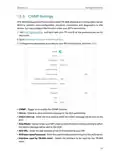
1. Go to Wireless or Advanced > Wireless > Wireless Settings.
2. The wireless function is enabled by default. If you want to disable the wireless function
of the router, just untick the Enable checkbox of each wireless network. In this case,
all the wireless settings will be invalid.
•
To change the wireless network name (SSID) and wireless password:
1. Go to Wireless or Advanced > Wireless > Wireless Settings.
2. Create a new SSID in Network Name (SSID) and customize the password for the
network in Password. The value is case-sensitive.
Note: If you change the wireless settings with a wireless device, you will be disconnected when the settings are
effective. Please write down the new SSID and password for future use.
•
To hide SSID:
1. Go to Wireless or Advanced > Wireless > Wireless Settings.
2. Select Hide SSID, and your SSID won’t display when you scan for local wireless
networks on your wireless device and you need to manually join the network.
•
To use the Smart Connect function:
The Smart Connect function lets you to enjoy a more high-speed network by assigning
your devices to best wireless bands based on actual conditions to balance network
demands.
1. Go to Advanced > Wireless > Wireless Settings.
2. Enable Smart Connect.
3. Keep the default values or set a new SSID and password, and click SAVE. This SSID
and password will be applied to the 2.4GHz and 5GHz wireless networks.
•
To change the security option:
1. Go to Advanced > Wireless > Wireless Settings.
2. Select an option from the Security drop-down list. We recommend you don’t change
the default settings unless necessary.
In addition
• Transmit Power - Select either High, Middle or Low to specify the data transmit power.
The default and recommended setting is High.
• Channel Width - Select a channel width (bandwidth) for the wireless network.
62

| General | Details |
|---|---|
| Name | TP-Link AC1900 Archer AC1900 MU-MIMO Wi-Fi Router User Guide |
| Make | TP-Link |
| Language | English |
| Filetype | PDF (Download) |
| File size | 1.9 MB |
 (1 votes, average: 5.00 out of 5)
 Loading...
If you have any questions regarding TP-Link AC1900 Archer AC1900 MU-MIMO Wi-Fi Router User Guide, please ask here and describe the problem in detail.

TP-Link VR300 Archer Modem Router User Guide

TP-Link T150500-2-DT WiFi Router Instruction Manual

TP-Link Archer AX55 Wi-Fi 6 Router Installation Guide

TP-Link Omada ER8411 VPN Router Instructions

TP-Link Configure VDSL Router User Guide

TP-Link Archer BE805 BE19000 Tri-Band Wi-Fi 7 Router User Manual

TP-Link VR600 Wireless DSL Modem Router Installation Guide

TP-Link AX58 Dual Band Gigabit Wi-Fi 6 Router Installation Guide

TP-Link AC750 Wireless Dual Band Router Owner’s Manual

TP-Link AX6000 8-Stream Wi-Fi 6 Router Installation Guide


TELTONIKA Networks QSG RUT956 Cellular Router Instruction Manual

more BYO Router Installation Guide

MifiData MIFSPOTE5573S 4G Hotspot Wifi Router User Manual

Cudy WR3600E Gigabit Wi-Fi 7 Router Installation Guide

NETGEAR R6700AX 4 Stream WiFi 6 Router Instructions

Tenda F9 Wireless Router Installation Guide

TELTONIKA RUTX11 CAT6 Cellular IoT Router User Guide

TUGE TR10NA IOT 4G Router User Guide

TP-Link AX6000 Stream Wi-Fi 6 Router Installation Guide

tp-Link BE6500 Dual Band Wi-Fi 7 Router Installation Guide