
TP-Link C201-V5 Wireless Dual Band Router User Guide


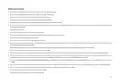




Install a microSD Card
Follow the steps below or or follow the setup video at https://www.tp-link.com/support/setup-video/#cloud-cameras to install the microSD card for
local recording. You can go to Camera Settings > Storage & Recording > microSD Card in the Tapo app to check the card status or format your card.
Note:
Please initialize the microSD card in the Tapo app first after inserting it.
1. Tilt the camera lens up and find the microSD card slot.
2. Identify the direction of the microSD card and carefully insert the card
into the slot. Push in the card until you hear a clicking sound.
Micro SD RESET
Micro SD RESET
5

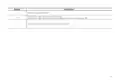
| General | Details |
|---|---|
| Name | TP-Link C201-V5 Wireless Dual Band Router User Guide |
| Make | TP-Link |
| Language | English |
| Filetype | PDF (Download) |
| File size | 0.88 MB |
 (1 votes, average: 5.00 out of 5)
 Loading...
If you have any questions regarding TP-Link C201-V5 Wireless Dual Band Router User Guide, please ask here and describe the problem in detail.

TP-Link VR300 Archer Modem Router User Guide

TP-Link T150500-2-DT WiFi Router Instruction Manual

TP-Link Archer AX55 Wi-Fi 6 Router Installation Guide

TP-Link Omada ER8411 VPN Router Instructions

TP-Link Configure VDSL Router User Guide

TP-Link Archer BE805 BE19000 Tri-Band Wi-Fi 7 Router User Manual

TP-Link VR600 Wireless DSL Modem Router Installation Guide

TP-Link AX58 Dual Band Gigabit Wi-Fi 6 Router Installation Guide

TP-Link AC750 Wireless Dual Band Router Owner’s Manual

TP-Link AX6000 8-Stream Wi-Fi 6 Router Installation Guide


AntennaGear TX54 5G Dual Cellular Router Owner’s Manual

NETGEAR RS100 Nighthawk Dual Band WiFi 7 Router User Guide

TRENDNET AX1800 Dual Band Wifi 6 Gigabit Dual Wan VPN SMB Router User Guide

MIKroTik D53G-5HacD2HnD Chateau 5G LTE Dual Band AC 5 Port Gigabit Router User Guide

JUNIPER SSR1300 Session Smart Router User Guide

FiberHome SR1021E Wireless Router User Manual

Mercury Netcomm NB16DG Fibre Router User Manual

TOTOLINK LR350 4G LTE Router Installation Guide

TP-Link Archer BE9700 Tri-Band Wi-Fi 7 Router Owner’s Manual

CRAFTSMAN 315.25031 Heavy Duty Router User Manual