
TP-Link C201-V5 Wireless Dual Band Router User Guide


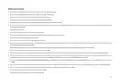




Mount Your Camera
When you finish adding your camera in the Tapo app, you can set it on a flat surface such as a table or shelf. You can also mount it on a wall
or ceiling with the provided mounting template and screws. Follow the steps below to mount your new camera or follow the setup video at
Note: Make sure you affix the camera base using screws before securing the camera.
3. Secure Camera
2. Mount Base
1. Mark Position
Place the mounting template where you
want the camera. For wall mounting, drill
two holes through two circles.
Affix the camera base using the screws.
For wall mounting, insert two anchors
into the holes and use the screws to
affix the camera base over the anchors.
Attach the camera on the base
and rotate to secure the camera.
Φ=6 mm (15/64 in.)
6

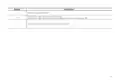
| General | Details |
|---|---|
| Name | TP-Link C201-V5 Wireless Dual Band Router User Guide |
| Make | TP-Link |
| Language | English |
| Filetype | PDF (Download) |
| File size | 0.88 MB |
 (1 votes, average: 5.00 out of 5)
 Loading...
If you have any questions regarding TP-Link C201-V5 Wireless Dual Band Router User Guide, please ask here and describe the problem in detail.

TP-Link VR300 Archer Modem Router User Guide

TP-Link T150500-2-DT WiFi Router Instruction Manual

TP-Link Archer AX55 Wi-Fi 6 Router Installation Guide

TP-Link Omada ER8411 VPN Router Instructions

TP-Link Configure VDSL Router User Guide

TP-Link Archer BE805 BE19000 Tri-Band Wi-Fi 7 Router User Manual

TP-Link VR600 Wireless DSL Modem Router Installation Guide

TP-Link AX58 Dual Band Gigabit Wi-Fi 6 Router Installation Guide

TP-Link AC750 Wireless Dual Band Router Owner’s Manual

TP-Link AX6000 8-Stream Wi-Fi 6 Router Installation Guide


CONNECTIZE G6 AC2100 Dual Band Gigabit WiFi Router Installation Guide

TP-Link BE550PROV2 BE9700 Tri-Band Wi-Fi 7 Router Installation Guide

eero SN10001 Outdoor 7 PoE Mesh Wi-Fi Router Installation Guide

Cudy LT500 Outdoor 4G WiFi Router Installation Guide

ASUS RT-AX58U AX3000 Dual Band Wi-Fi Router User Guide

Tenda RX12 Pro Wi-Fi 6 6E Router Installation Guide

Adtran 834-5 SDG PlumeOS Dual-Band Wi-Fi 5 Plume Enabled Ethernet Router User Manual

Cudy X6 AX1800 1800mbps Dual Band Smart Wi-Fi 6 Router Installation Guide

ASUS RT-AX57 Go AX3000 Dual Band Wi-Fi 6 Router User Guide

LANCOM 883+ VoIP Single Site Router Installation Guide