
TP-Link C201-V5 Wireless Dual Band Router User Guide




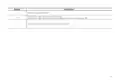


Reset Your Camera
Follow the steps below to reset your camera via the Reset button, or you can follow the setup video at https://www.tp-link.com/support/setup-
video/#cloud-cameras. You can also go to Camera Settings in the Tapo app and tap Remove Camera at the bottom to factory reset your camera.
2. Press and hold the RESET button for at least 5 seconds until the LED
blinks red quickly to reset the camera.
1. Manually rotate the camera downwards to find the Reset button.
Reset Button
Micro SD RESET
Micro SD RESET
7

| General | Details |
|---|---|
| Name | TP-Link C201-V5 Wireless Dual Band Router User Guide |
| Make | TP-Link |
| Language | English |
| Filetype | PDF (Download) |
| File size | 0.88 MB |
 (1 votes, average: 5.00 out of 5)
 Loading...
If you have any questions regarding TP-Link C201-V5 Wireless Dual Band Router User Guide, please ask here and describe the problem in detail.

TP-Link VR300 Archer Modem Router User Guide

TP-Link T150500-2-DT WiFi Router Instruction Manual

TP-Link Archer AX55 Wi-Fi 6 Router Installation Guide

TP-Link Omada ER8411 VPN Router Instructions

TP-Link Configure VDSL Router User Guide

TP-Link Archer BE805 BE19000 Tri-Band Wi-Fi 7 Router User Manual

TP-Link AC750 Wireless Dual Band Router Owner’s Manual

TP-Link AX6000 8-Stream Wi-Fi 6 Router Installation Guide

TP-Link VR600 Wireless DSL Modem Router Installation Guide

TP-Link AX58 Dual Band Gigabit Wi-Fi 6 Router Installation Guide


MOFI NETWORK MOFI6500 4G LTE Router User Manual

ZTE MC888 Ultra 5G Router Instruction Manual

Cudy WR2100 Gigabit Dualband WLAN Mesh Router Installation Guide

Mercury TD-W8960 Modem Router User Manual

GUBIA CPE 4G LTE Wireless Router User Manual

NETGEAR R7000P Nighthawk WiFi Router Installation Guide

NETGEAR MR90 Nighthawk Tri-band Mesh Wi-Fi 6E Router Owner’s Manual

ASUS RT-BE86U Wireless Router User Guide
cradlepoint R920 Series Ruggedized Router User Guide

CME H2MIDI PRO Compact USB Host MIDI Interface Plus Router User Manual