
TP-Link T150500-2-DT WiFi Router Instruction Manual






FAQ
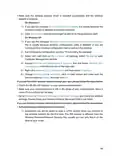
Q1 What should I do if I forget my wireless password?
The default wireless password is printed on the label of the router. If the password has
been altered:
1. Connect your computer to the router using an Ethernet cable.
the router.
3. Go to Wireless to retrieve or reset your wireless password.
Q2 What should I do if I forget my web management password?
• If you are using a TP-Link ID to log in, or you have enabled the Password Recovery
feature of the router, click Forgot password on the login page and then follow the
instructions to reset it.
• Alternatively, pressandholdtheResetbuttonoftherouterforabout6secondsuntilthe
Power LED blinks to restore factory default settings, and then visit http://tplinkwifi.net
to create a new login password.
Note:
•
•
Please refer to Password Recovery to learn how to configure Password Recovery.
You’ll need to reconfigure the router to surf the internet once the router is reset, and please mark down your new
password for future use.
Q3 What should I do if I can’t log in to the router’s web management
page?
This can happen for a variety of reasons. Please try the methods below to log in again.
• Make sure your computer is connected to the router correctly and the corresponding
LED indicator(s) light up.
• Make sure the IP address of your computer is configured as Obtain an IP address
automatically and Obtain DNS server address automatically.
• Check your computer’s settings:
1 ) Go to Start > Control Panel > Network and Internet, and click View network
status and tasks.
2 ) Click Internet Options on the bottom left.
3 ) Click Connections and select Never dial a connection.
133

| General | Details |
|---|---|
| Name | TP-Link T150500-2-DT WiFi Router Instruction Manual |
| Make | TP-Link |
| Language | English |
| Filetype | PDF (Download) |
| File size | 0.54 MB |
 (1 votes, average: 5.00 out of 5)
 Loading...
If you have any questions regarding TP-Link T150500-2-DT WiFi Router Instruction Manual, please ask here and describe the problem in detail.

TP-Link VR300 Archer Modem Router User Guide

TP-Link Archer AX55 Wi-Fi 6 Router Installation Guide

TP-Link Omada ER8411 VPN Router Instructions

TP-Link Configure VDSL Router User Guide

TP-Link Archer BE805 BE19000 Tri-Band Wi-Fi 7 Router User Manual

TP-Link VR600 Wireless DSL Modem Router Installation Guide

TP-Link AX58 Dual Band Gigabit Wi-Fi 6 Router Installation Guide

TP-Link AC750 Wireless Dual Band Router Owner’s Manual

TP-Link AX6000 8-Stream Wi-Fi 6 Router Installation Guide

TP-Link TD-W9970 300Mbps Wireless N VDSL ADSL Modem Router User Guide


XiXi A450L Router Installation Guide

PRISMXR P1411 Streaming Link Air Bridge WiFi6 Router User Guide

more BYO Router Installation Guide

UniFi WiFi 6 Router User Manual

TP-Link ER706W-4G Omada 4G Cat6 Gigabit VPN Router Instructions
Guangdong Xintengda Communication Technology WR300N-XXX WiFi Router Instruction Manual

NETGEAR RS100 Nighthawk Dual Band WiFi 7 Router User Guide

NETGEAR M5 Nighthawk 5G Mobile Router User Guide

STRONG 4GROUTER300M 4G LTE Router Instruction Manual

Banggood TC66 4G Wireless Router Instruction Manual