
TP-Link T150500-2-DT WiFi Router Instruction Manual


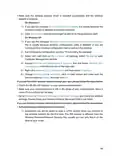




• Use another web browser or computer to log in again.
• Reset the router to factory default settings and try again. If login still fails, please
contact the technical support.
Note: You’ll need to reconfigure the router to surf the internet once the router is reset.
Q4 What should I do if I can’t access the internet even though the
configuration is finished?
the router.
2 Go to Advanced> Network > Status to check internet status:
If IP Address is a valid one, please try the methods below and try again:
• Your computer might not recognize any DNS server addresses. Please manually
configure the DNS server.
1 ) Go to Advanced > Network > DHCP Server.
2 ) Enter 8.8.8.8 as Primary DNS, click SAVE.
Tips: 8.8.8.8 is a safe and public DNS server operated by Google.
135

| General | Details |
|---|---|
| Name | TP-Link T150500-2-DT WiFi Router Instruction Manual |
| Make | TP-Link |
| Language | English |
| Filetype | PDF (Download) |
| File size | 0.54 MB |
 (1 votes, average: 5.00 out of 5)
 Loading...
If you have any questions regarding TP-Link T150500-2-DT WiFi Router Instruction Manual, please ask here and describe the problem in detail.

TP-Link Archer AX55 Wi-Fi 6 Router Installation Guide

TP-Link VR300 Archer Modem Router User Guide

TP-Link Omada ER8411 VPN Router Instructions

TP-Link Configure VDSL Router User Guide

TP-Link Archer BE805 BE19000 Tri-Band Wi-Fi 7 Router User Manual

TP-Link VR600 Wireless DSL Modem Router Installation Guide

TP-Link AX58 Dual Band Gigabit Wi-Fi 6 Router Installation Guide

TP-Link AC750 Wireless Dual Band Router Owner’s Manual

TP-Link AX6000 8-Stream Wi-Fi 6 Router Installation Guide

TP-Link TD-W9970 300Mbps Wireless N VDSL ADSL Modem Router User Guide


ASUS GT-AX6000 Dual-Band WiFi 6 Gaming Router User Guide

Cudy WR300 Multi Mode WiFi Router Installation Guide

cradlepoint E100 Enterprise Router Endpoints User Guide

TP-Link Omada Gigabit VPN Router with PoE+ Ports and Controller Ability Installation Guide

ASUS TUF-AX4200 Dual Band WiFi 6 Gaming Router User Guide

TP-Link X10-4G Deco Router Installation Guide

STRONG 4G LTE Wi-Fi Router Installation Guide

inseego FX3100 Wavemaker 5G Router User Guide

D-Link DIR-X1860 AX1800 Wifi 6 Router Installation Guide

D-Link DIR-601 Wireless-N 150 Home Router Instructions