
TP-Link TD-W9970 300Mbps Wireless N VDSL ADSL Modem Router User Guide

















6 ) Click OK.
•
For Windows 7/8/8.1/10:
1 ) Right-click the Network icon on the system tray and select Open Network and
Sharing Center > Change adapter settings.
2 ) Right-click your network connection (wired or wireless) and select Properties.
3 ) Double-click Internet Protocol Version 4 (TCP/IPv4).
4 ) Select both Obtain an IP address automatically and Obtain DNS server address
automatically, then click OK.
5 ) Click OK again to save your configuration.
•
For Windows XP:
1 ) Right-click the Network icon on the system tray and select Open Network
Connections.
2 ) Right-click your network connection (wired or wireless) and select Properties.
3 ) Double-click Internet Protocol (TCP/IP).
4 ) Select both Obtain an IP address automatically and Obtain DNS server address
automatically, then click OK.
5 ) Click OK again to save your configuration.
T7.What should I do if I cannot find my wireless network or I cannot
connect the wireless network?
•
If you fail to find any wireless network, follow the steps below:
1. Make sure the wireless function is enabled if you’re using a laptop with built-in
wireless adapter. You can refer to the relevant document or contact the laptop
manufacturer.
2. Make sure the wireless adapter driver is installed successfully and the wireless
adapter is enabled. You can refer to the relevant document or contact the wireless
adapter manufacturer.
•
If you can find other wireless network except your own, follow the steps below:
1. Make sure your computer/device is still in range of your router/modem. Move closer
if you are currently too far away.
2. Go to Basic > Wireless page, and check the wireless settings, double-check your
Wireless Name (SSID) is not hidden.
3. Connect to wireless network.
100

•
If you can find your wireless network but fail to connect, follow the steps below:
1. Authentication problem: Network Security Key Mismatch.
1 ) Sometimes you will be asked to type in a PIN number when you connect to
the wireless network for the first time. This PIN number is different from the
Wireless Password/Network Security Key, usually you can only find it on the
label of your modem router.
2 ) If you cannot find the PIN or PIN failed, you may choose “Connecting using
a security key instead”, and then type in the Network Security Key/Wireless
Password;
3 ) If you continue to be told there is a network security key mismatch, it is
suggested to check the wireless password on your modem router.
Note: Wireless password/Network Security Key is case sensitive.
101

| General | Details |
|---|---|
| Name | TP-Link TD-W9970 300Mbps Wireless N VDSL ADSL Modem Router User Guide |
| Make | TP-Link |
| Language | English |
| Filetype | PDF (Download) |
| File size | 2.17 MB |
 (1 votes, average: 5.00 out of 5)
 Loading...
If you have any questions regarding TP-Link TD-W9970 300Mbps Wireless N VDSL ADSL Modem Router User Guide, please ask here and describe the problem in detail.

TP-Link VR300 Archer Modem Router User Guide

TP-Link T150500-2-DT WiFi Router Instruction Manual

TP-Link Archer AX55 Wi-Fi 6 Router Installation Guide

TP-Link Omada ER8411 VPN Router Instructions

TP-Link Configure VDSL Router User Guide

TP-Link Archer BE805 BE19000 Tri-Band Wi-Fi 7 Router User Manual

TP-Link VR600 Wireless DSL Modem Router Installation Guide

TP-Link AX58 Dual Band Gigabit Wi-Fi 6 Router Installation Guide

TP-Link AC750 Wireless Dual Band Router Owner’s Manual

TP-Link AX6000 8-Stream Wi-Fi 6 Router Installation Guide


APRISM MI12 AX6000 Wi-Fi 6 Dual Radio Router User Guide

D-Link DSL-G225 Wireless N300 ADSL2+/VDSL2 Modem Router Installation Guide

TANGERINE BYO Router Instruction Manual

D-LINK DWM-311 LTE Portable Router User Manual

TP-Link Archer C80 Wi-Fi 5 Router Instructions

casa systems NTC-500 AurusXT 5G IoT Router Instructions

xiaomi BE3600-2.5G Router User Manual

TP-Link TL-WR845N Wireless N Router Installation Guide

NETGEAR Nighthawk AX6 6-Stream WiFi Router User Guide
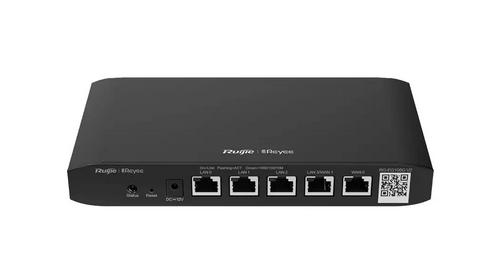
Ruijie RG-EG105G(V2) Cloud Managed Router User Guide