
TP-Link TD-W9970 300Mbps Wireless N VDSL ADSL Modem Router User Guide

















Chapter 13
Specify Your Network Settings
with another device in your local network or your network requires a specific IP subnet,
you can change it.
Follow the steps below to change your IP address.
1. Visit http://tplinkmodem.net, and log in with your TP-Link ID or the password you
set for the router.
2. Go to Advanced > Network > LAN Settings page and select IPv4.
Note:
If you have created an interface group, you can configure different IPv4 LAN settings for the default and created interface
groups.
3. Type in a new IP Address appropriate to your needs.
4. Select the Subnet Mask from the drop-down list. The subnet mask together with
the IP address identifies the local IP subnet.
5. Keep IGMP Snooping enabled by default. IGMP snooping is the process of listening
to IGMP (Internet Group Management Protocol) network traffic. The function
prevents hosts on a local network from receiving traffic for a multicast group they
have not explicitly joined.
6. You can configure the modem router’s Second IP and Subnet Mask for LAN interface
through which you can also access the web management page.
7. Leave the rest of the default settings as they are.
8. Click Save to make the settings effective.
13. 2. 2. Use the Modem Router as a DHCP Server
You can configure the modem router to act as a DHCP server to assign IP addresses to
its clients. To use the DHCP server function of the modem router, you must configure all
computers on the LAN to obtain an IP Address automatically.
Follow the steps below to configure DHCP server.
66

| General | Details |
|---|---|
| Name | TP-Link TD-W9970 300Mbps Wireless N VDSL ADSL Modem Router User Guide |
| Make | TP-Link |
| Language | English |
| Filetype | PDF (Download) |
| File size | 2.17 MB |
 (1 votes, average: 5.00 out of 5)
 Loading...
If you have any questions regarding TP-Link TD-W9970 300Mbps Wireless N VDSL ADSL Modem Router User Guide, please ask here and describe the problem in detail.

TP-Link VR300 Archer Modem Router User Guide

TP-Link T150500-2-DT WiFi Router Instruction Manual

TP-Link Archer AX55 Wi-Fi 6 Router Installation Guide

TP-Link Omada ER8411 VPN Router Instructions

TP-Link Configure VDSL Router User Guide

TP-Link Archer BE805 BE19000 Tri-Band Wi-Fi 7 Router User Manual

TP-Link VR600 Wireless DSL Modem Router Installation Guide

TP-Link AX58 Dual Band Gigabit Wi-Fi 6 Router Installation Guide

TP-Link AC750 Wireless Dual Band Router Owner’s Manual

TP-Link AX6000 8-Stream Wi-Fi 6 Router Installation Guide

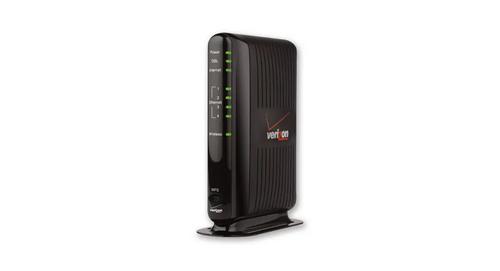
Verizon GT784 Gateway Router User Guide
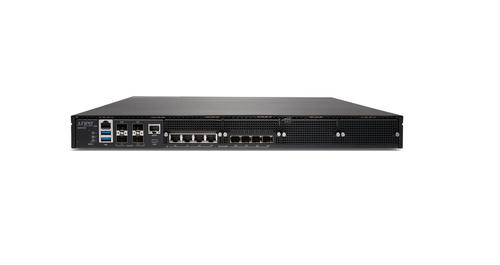
Juniper NETWORKS SSR1300 Smart Router User Guide

inhandgo CR202 InHand Networks Portable 4G Router User Manual

Starlink Mesh Nodes wifi router User Guide

Urocomm UROZETTA 2 4G LTE Mobile Router User Manual

Tenda 5G03 Wi-Fi 6 5G NR Router Installation Guide

GLiNet MT6000 Wireless Router User Guide

Yifan YF325 4G Router User Guide

Cudy WR3000S AX3000 Gigabit Mesh WiFi 6 Router Installation Guide

MAGNADYNE RV2458 Router User Guide