
WESTMANN GigaSpire BLAST U6 Router User Guide



GUEST NETWORK
CREATING A GUEST NETWORK HAS
NEVER BEEN EASIER!
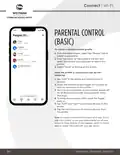
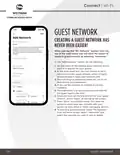
When you tap the “My Network” section from the
top of the main menu you will have the option to
create a guest network by selecting “Networks.”
In the “Add Network” screen, do the following:
1. Set the name of the wireless guest network as you
want it to appear for your guests.
2. In the drop-down box, you can choose to set a
password for this guest network, which is highly
recommended to keep your network safe.
3. This will bring up additional boxes for you to set
and confirm your password.
4. If you set this network to endless, it will stay
available.
5. The alternative is to set a start and end time for
this guest login to be valid.
6. Once you have set the parameters for your guest
network, select “Done” at the top of the screen.
7. Press “Done” to complete setup. You have the
option to share your new network with your
guests via text, email or other messaging service.
8. To edit your guest network, select “My Network”
from the home screen. Select “Networks” and
select the network you wish to edit or delete.
10
GUEST NETWORK

| General | Details |
|---|---|
| Name | WESTMANN GigaSpire BLAST U6 Router User Guide |
| Make | WESTMANN |
| Language | English |
| Filetype | PDF (Download) |
| File size | 1.02 MB |
 (1 votes, average: 5.00 out of 5)
 Loading...
If you have any questions regarding WESTMANN GigaSpire BLAST U6 Router User Guide, please ask here and describe the problem in detail.


TELTONIKA RUTC50 5G Router User Guide

Newland NL-81 Router User Manual

CNC3D QB2 CNC Router User Guide

Ridgid R860443 18-VOLT CORDLESS COMPACT ROUTER User Guide

HIRSCHMANN NB1800 NetModule Router User Manual

Cisco RV260P Router User Guide

MikroTik Cloud Hosted Router User Guide

ZTE E3330 WiFi 6 Wireless Router User Manual

NETGEAR Nighthawk Tri-Band WiFi 6 Router RAX200 User Guide

verizon CR1000 Router Instructions