
WESTMANN GigaSpire BLAST U6 Router User Guide



EXPERIENCEIQ®
ENHANCED PARENTAL CONTROL
®
If you subscribe to ExperienceIQ from your
service provider, you’ll have additional functionality
to help manage access to the Internet within your
home.
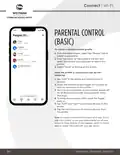
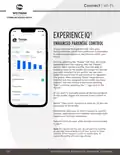
Start by selecting the “People” tab from the home
dashboard and then tapping into the “People”
section. Next, create a profile. You’ll be able to
assign a name to the profile and assign the devices
you want attached to this profile. You can also
select the photo icon to add a picture to represent
this profile. After selecting “Done” those devices
selected are now assigned to the profile you have
created. You can remove a device by selecting
“Edit,” and then selecting the “-” sign next to the
device.
If you want to manually pause all devices assigned
to this profile, toggle the internet access button to
off.
Select “Time Limits” to set time limits for all devices
connected to the profile.
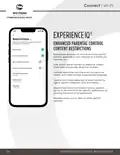
Restrictions allow you to restrict access to specific
content, applications and websites and enable Safe
Search and YouTube restrictions.
Parental controls work while devices are connected
to Wi-Fi.
Note: If a device has the app, do not add it to a profile,
as you may inadvertently cut off your access to these
controls. If this happens, switch to mobile data, to
restart the profile with your app device.
15
EXPERIENCEIQ ENHANCED PARENTAL CONTROL

| General | Details |
|---|---|
| Name | WESTMANN GigaSpire BLAST U6 Router User Guide |
| Make | WESTMANN |
| Language | English |
| Filetype | PDF (Download) |
| File size | 1.02 MB |
 (1 votes, average: 5.00 out of 5)
 Loading...
If you have any questions regarding WESTMANN GigaSpire BLAST U6 Router User Guide, please ask here and describe the problem in detail.


ZYXEL NBG6615 AC1200 MU MIMO Dual Band Wireless Gigabit Router User Guide

D-Link DBR-700 Router Installation Guide

COMFAST CF-WR631AX Wireless Router Installation Guide

ASUS ET12 ZenWiFi Pro AXE11000 Tri Band Router User Guide

Woodpeckers Multi Router Instruction Manual

robustel R5020 5G WiFi Wireless Router Owner’s Manual

D-Link DSL-G604T Wireless ADSL Router Instruction Manual

Dragonglass DGR7 1200M Wireless Router Installation Guide

NETGEAR Orbi RBR350 WiFi 6 Dual-band Mesh Router User Manual

NRadio Technologies CC 4G LTE Router Installation Guide