
WESTMANN GigaSpire BLAST U6 Router User Guide



EXPERIENCEIQ®
MY PRIORITIES ACTIVITY AND
DEVICE PRIORITIZATION
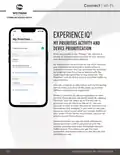
From any profile or the “Things” tab, tap into a
device to access network priority to view activity
and device prioritization settings.
By default, activity priorities on the Wi-Fi network
are organized according to a combination of
common activities. You can prioritize the activities
by ordering them from top to bottom with the
most important activities on top. Once set, “My
Priorities” will do all the work to prioritize traffic to
your activities.
You can schedule an alternative activity list during
certain times and days of the week. Up to three
different schedules are supported.
Prefer to prioritize by device regardless of what
activity those devices are performing? By tapping
“Devices” you can select up to five devices to
prioritize over all others on the Wi-Fi. You can
even set a timer to reset the priority once the time
has expired. For example, if you want to use your
Sonos surround sound while you stream Netflix on
your smart TV for family movie night, you can set
priority to just those devices.
Device priorities can also be made permanent.
Device priorities work in conjunction with the
activity priorities and share the fastest network
traffic queue. This means you get the most
bandwidth and lowest latency on the devices and
activities you set.
17
EXPERIENCEIQ MY PRIORITIES

| General | Details |
|---|---|
| Name | WESTMANN GigaSpire BLAST U6 Router User Guide |
| Make | WESTMANN |
| Language | English |
| Filetype | PDF (Download) |
| File size | 1.02 MB |
 (1 votes, average: 5.00 out of 5)
 Loading...
If you have any questions regarding WESTMANN GigaSpire BLAST U6 Router User Guide, please ask here and describe the problem in detail.


ASUS ET12 ZenWiFi Pro AXE11000 Tri Band WiFi Router User Guide

cradlepoint S5A037A Enterprise Branch Router User Manual

NETGEAR RS100 Nighthawk Dual Band WiFi 7 Router User Guide

DIGITAL DEEP SEA 5G Xtream 5G/4G Router Instruction Manual

TP-Link AX1800 Wi-Fi 6 Gigabit Dual Band Wireless Router User Guide

ioGiant AX1800 Wi-Fi Router Wireless Router Installation Guide

NETGEAR MR6110 5G WiFi 6 Mobile Router User Guide

CASTLENET EBM522 Mesh Wi-Fi Router Installation Guide

NETGEAR MR90 Nighthawk Tri-band Mesh Wi-Fi 6E Router Owner’s Manual

TP-Link AX1800 Wi-Fi Gigabit Dual Band Wireless Router Installation Guide