
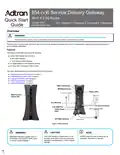
Adtran 854-(v)6 Service Delivery Gateway WiFi 6 2.5G Router User Guide


854-(v)6 2.5G Router QSG
Quick Setup for the 854-(v)6
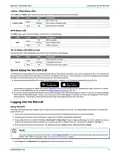
2.4GHz / 5GHz Status LEDs
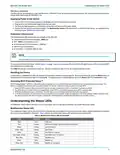
The 2.4GHz and 5GHz status LEDs indicate the state of the wireless connections on the gateway.
LED
Color
Green
None
State
On
Description
Wi-Fi radio is UP.
2.4GHz / 5GHz
Flashing
Off
Wi-Fi radio is transferring data.
Wi-Fi connection is DOWN.
WPS Status LED
The WPS status LED indicates the status of WPS (Wi-Fi protected setup).
LED
Color
Green
None
State
On
Description
WPS is enabled.
WPS is passing traffic.
WPS is not active.
WPS
Flashing
Off
Tel 1/2 Status LED (854-v6 only)
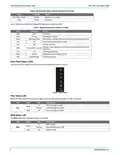
The Tel 1/2 status LED indicates the state of the voice connections on the gateway.
LED
Color
Green
None
State
On
Description
Voice connection(s) active.
Transferring voice data.
Voice connections are not active.
Tel 1/2
Flashing
Off
Quick Setup for the 854-(v)6
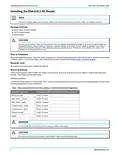
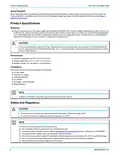
The SDG product line can ship with two possible firmware options: PlumeOS and SmartOS. Quick setup instructions of Wi-Fi and connection to
the Internet for your 854-(v)6 will vary based on which OS is installed on the device. Confirm whether your 854-(v)6 is deployed with SmartOS
firmware or PlumeOS firmware, then choose accordingly from the following options.
■ For devices shipped with PlumeOS installed, the setup requires installation of the HomePass smartphone app by Plume.
The workflow for initializing an Adtran SDG differs slightly from other Plume enabled devices. Detailed quick setup instructions for Adtran
SDGs using the HomePass app are available at the Adtran Support Community web site.
■ For devices shipped with SmartOS installed, scan the QR code labeled WiFi QuickStart located on the back of the unit. You will be presented
with a series of self-guided steps to choose your account password, select gateway or access point mode, and configure the Wi-Fi SSID
and passphrase. The specified account password will be used when logging into the GUI in the SDG.
Logging Into the 854-(v)6
Using SmartOS
A browser-based graphical user interface (GUI) is used to manually configure the 854-(v)6. The following steps describe how to connect and
login to the device:
1. Ensure your computer is connected to the 854-(v)6 either via Wi-Fi or Ethernet connection to one of the LAN ports.
2. Configure your computer’s network interface to acquire an IP address automatically using DHCP.
3. Open a web browser and enter the following: http://router or http://setup. A sign-in page should appear. If you are unable to connect to
the 854-(v)6 using either of these shortcuts, you can also enter the IP address of the unit. The default IP address is 192.168.1.1.
4. Enter the default username and password. The default username is admin and the default password is admin.
NOTE
g
If you have forgotten the password for this device, select Forgot password? and follow the instructions to reset the device to the factory
defaults. Next, follow the instructions under “Quick Setup for the 854-(v)6” on page 5.
5. Select Sign In. The Dashboard GUI page appears, showing data about the system.
6SDG8546V6-13A
5

| General | Details |
|---|---|
| Name | Adtran 854-(v)6 Service Delivery Gateway WiFi 6 2.5G Router User Guide |
| Make | ADTRAN |
| Language | English |
| Filetype | PDF (Download) |
| File size | 0.78 MB |
 (1 votes, average: 5.00 out of 5)
 Loading...

Adtran SDG-8610 Service Delivery Gateway WiFi 6 Gigabit Router Instruction Manual

Adtran 834-5 SDG PlumeOS Dual-Band Wi-Fi 5 Plume Enabled Ethernet Router User Manual

ADTRAN 17600021F1 834-5 Service Delivery Gateway Wi-Fi 5 Gigabit Router User Guide

ADTRAN 1200824G1 Netvanta 3458 Access Router User Guide


CP PLUS CP-GR-DE413-S Dual-Band 4G Router Installation Guide

ELPRO 641M-X Connectivity Router Instructions

Tenda AC5 Wi-Fi 5 Router Installation Guide

Ningbo Sunvot Technology Co Ltd LC600-202302 4G LTE CPE Router User Guide

GL iNet X3000NR 5G NR Wi-Fi 6 Router User Guide

STRONG 4GROUTER350M 4G LTE Router Instruction Manual

TP-Link Archer AX80 AX6000 8-Stream Wi-Fi 6 Router Installation Guide

Cisco Router RV345/RV345P User Guide

BEC MX-241NP 4G LTE CBRS Wi-Fi Router User Guide

FALCON 150 Mbps 4G LTE Portable Router User Manual