
Adtran 854-(v)6 Service Delivery Gateway WiFi 6 2.5G Router User Guide
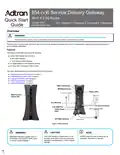


854-(v)6 2.5G Router QSG
Understanding the Status LEDs
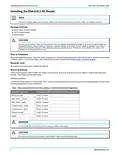
Wall Mount Installation
The 854-(v)6 can be mounted on a wall. Wall Mount Kit (17600192F1) can be ordered for mounting the 854-(v)6. Instructions are provided in the
related Quick Start Guide (617600192F1-13).
Supplying Power to the Device
1. Connect the end of the power adapter to the Power port on the back panel of the device
2. Plug the other end of the power adapter into the wall outlet.
3. The SDG will begin powering up immediately as the 854-(v)6 has no on/off power switch.
4. Confirm that the power is connected properly. The Multifunction Status LED should be lit on the front of the device, as described in the
following section “Multifunction Status LED”.
Subscriber Connections
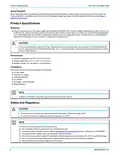
The following subscriber connections are available on the 854-(v)6:
■ 2.5G Ethernet port (RJ-45 Connector) - WAN port
■ SFP - WAN port (on bottom of unit)
■ 4x Ethernet port (RJ-45 Connector) – LAN port
■ USB 3.0 (Type A Connector)
■ 2x Voice (RJ-11) interfaces (854-v6 only)
NOTE
g
Only one WAN port may be connected at a time.
To connect the Ethernet interfaces, refer to Figure 1 on page 1 and insert a Category 5E (or better) RJ-45 cable into any LAN port and the WAN
port until there is an audible click.
The USB 3.0 host port is reserved for future use. This port currently provides +5 VDC for charging external devices.
Resetting the Device
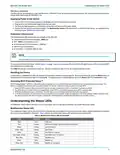
A reset button is available if the 854-(v)6 needs to be rebooted or restored to factory defaults. To reboot the 854-(v)6, press the Reset button on
the back panel of the device for less than 5 seconds. To reset the device to factory defaults, press the Reset button for 5 seconds or more.
Activating Wi-Fi Protected Setup™
Wi-Fi Protected Setup™ (WPS) is a standard means for creating secure connections between the 854-(v)6 and various wireless client devices. This
feature is designed to simplify the pairing process between the devices. Perform the following steps to activate WPS:
1. Press the WPS button on the back of the 854-(v)6 for less than 5 seconds for 5GHz or more than 5 seconds for 2.4GHz.
2. The WPS LED on the back of the unit is steady green when WPS is on and flashing green when WPS is passing traffic.
3. WPS search mode continues for 2 minutes. The next step must be completed before the 2 minutes have lapsed.
4. In the Wi-Fi settings for the LAN device to be connected to the local network, locate and select the name of the wireless network (SSID) to which
you want to connect. The 854-(v)6 should complete the connection without requiring the password to be manually entered.
Understanding the Status LEDs
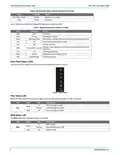
A multifunction status LED on the front of the unit and status LED’s on the back panel allow you monitor the device status.
Multifunction Status LED
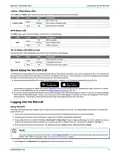
The multifunction status LED on the front of the unit indicates the device status.The meaning of the LED state is different depending on whether
the unit is running SmartOS or PlumeOS. Table 2 defines the multifunction status LED state when running SmartOS.
Table 2: Multifunction Status LED for SmartOS
Color
Blue
LEDState
Solid
Event
Cold boot
Red
Pulsing
Pulsing
Pulsing
Solid
Reboot and system upgrade (persists over uboot)
Linux booting up
Green
Green, Blue
White
Quick Start
Hub WAN up, Internet
Hub WAN down, no Internet
Satellite set up
Red, Green, Amber
Blue, Red
White
Pulsing
Pulsing
Solid
Satellite up
White, Red
Pulsing
Satellite up, fair signal
6SDG8546V6-13A
3

| General | Details |
|---|---|
| Name | Adtran 854-(v)6 Service Delivery Gateway WiFi 6 2.5G Router User Guide |
| Make | ADTRAN |
| Language | English |
| Filetype | PDF (Download) |
| File size | 0.78 MB |
 (1 votes, average: 5.00 out of 5)
 Loading...

Adtran SDG-8610 Service Delivery Gateway WiFi 6 Gigabit Router Instruction Manual

Adtran 834-5 SDG PlumeOS Dual-Band Wi-Fi 5 Plume Enabled Ethernet Router User Manual

ADTRAN 17600021F1 834-5 Service Delivery Gateway Wi-Fi 5 Gigabit Router User Guide

ADTRAN 1200824G1 Netvanta 3458 Access Router User Guide


FIRSTNUM CPE C1 WiFi Router User Manual

Milesight UR32S CCTV Router Owner’s Manual

NOKIA FRRX504C 5G Field Router User Guide

Starlink Mesh Nodes wifi router User Guide

CISCO RV320 Gigabit Dual WAN VPN Router User Guide

NEXXT NCM-X3000 Bolt AX3000 Router User Guide

PoEWit R-4 Preconfigured Enterprise-Class Router User Guide

robustel R5020 Lite 5G Router Instruction Manual

TP-Link ER706W Wi-Fi Router User Guide

Cudy WR3000E AX3000 Gigabit Mesh Wi-Fi 6 Router Owner’s Manual