
Adtran SDG-8610 Service Delivery Gateway WiFi 6 Gigabit Router Instruction Manual


Adtran
Resetting the SDG
Resetting the SDG
A reset button is available if the SDG-8610 needs to be rebooted or restored to factory defaults. To reboot the SDG-8610,
press the Reset button on the back panel of the device for less than 5 seconds. To reset the device to factory defaults,
press the Reset button for 5 seconds or more.
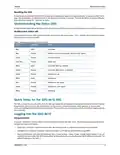
Understanding the Status LEDs
A multifunction status LED on the front of the unit and status LED’s on the back panel allow you monitor the device status.
Multifunction Status LED
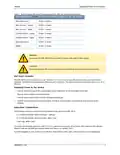
The multifunction status LED on the front of the unit indicates the device status. Table 2 defines the multifunction status
LED state when running SmartOS.
Table 2: Multifunction Status LED for SmartOS
Color
LED State
Event
Blue
Solid
Cold boot
Red
Pulsing
Pulsing
Pulsing
Solid
Reboot and System Upgrade (persists over uboot)
Linux booting up
Green
Light Blue
White
Amber
Purple
White
Red
Quick start
Controller WAN up, Internet
Controller WAN down, no Internet
Satellite Set Up
Pulsing
Pulsing
Solid
Satellite up
Pulsing
Pulsing
Pulsing
Satellite up, fair signal
Satellite up, poor signal
Reverting
Amber
White
Quick Setup for the SDG-8610 SDG
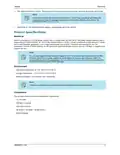
The SDG product line uses SmartOS. Scan the QR code labeled Intellifi QuickStart located on the back of the unit. You will
be presented with a series of self-guided steps to choose your account password, select gateway or access point
mode, and configure the WiFi SSID and passphrase. The specified account password will be used when logging into the
GUI in the SDG.
Logging Into the SDG-8610
Using SmartOS
A browser-based user interface (GUI) is used to manually configure the SDG-8610. The following steps describe how to
connect and login to the device:
1.
Ensure your computer is connected to the SDG-8610 either via Wi-Fi or Ethernet connection to the LAN port.
2.
Configure your computer’s network interface to acquire an IP address automatically using DHCP.
3.
Open a web browser and enter the following: http://router or http://setup. A sign-in page should appear. If you are
unable to connect to the SDG-8610 using either of these shortcuts, you can also enter the IP address of the unit. The
default IP address is 192.168.1.1.
6SDG8610-13A
4

| General | Details |
|---|---|
| Name | Adtran SDG-8610 Service Delivery Gateway WiFi 6 Gigabit Router Instruction Manual |
| Make | ADTRAN |
| Language | English |
| Filetype | PDF (Download) |
| File size | 0.23 MB |
 (1 votes, average: 5.00 out of 5)
 Loading...
If you have any questions regarding Adtran SDG-8610 Service Delivery Gateway WiFi 6 Gigabit Router Instruction Manual, please ask here and describe the problem in detail.

Adtran 834-5 SDG PlumeOS Dual-Band Wi-Fi 5 Plume Enabled Ethernet Router User Manual

Adtran 854-(v)6 Service Delivery Gateway WiFi 6 2.5G Router User Guide

ADTRAN 17600021F1 834-5 Service Delivery Gateway Wi-Fi 5 Gigabit Router User Guide

ADTRAN 1200824G1 Netvanta 3458 Access Router User Guide


ASUS RT-BE88U Dual Mand WiFi 7 AiMesh Extendable Performance Router Instructions

NETGEAR R6700AX 4 Stream WiFi 6 Router Instructions

D-Link DIR-X6080Z Multi Gigabit Wi-Fi 6 Router Instruction Manual

GLOBAL TELECOM TITAN 5000 5G NR and Wi-Fi 6 Router User Guide

GL iNet GL-MT1300 AC1300 Wireless Travel Router User Manual

Helmholz 700-875-LTE11, 700-875-LTE61 REX 100 Router User Guide

acer W6M W-Fi 6E Mesh Router User Manual

Ruijie RG-EW300T N300 Wireless 4G LTE Router User Guide

NETGEAR MR7500 M7 Ultra Mobile Router Owner’s Manual

NETGEAR LBR20 ORBI LTE Router Instructions