
CHEECENT QX210 Cellular Router User Guide

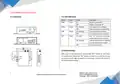
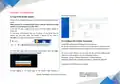
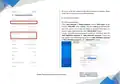


Connect an Ethernet cable to the “LAN” port (NOT “WAN/LAN”) of the
router, and connect the other end of the cable to your computer.
4.3 Mount the Router
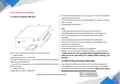
The router can be placed on a desktop or mounted to a wall.
Use 2 pieces of drywall screws to mount the router with the wall mounting
kit on the wall.
4.5 Power Supply
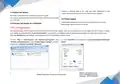
Connect the power adapter to the power input interface of the router.
Note:Voltage input is during 7.5V-32V DC.
4.4 Connect the Router to a Computer
5.PC Configuration
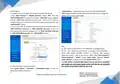
You need to prepare the PC environment (Ethernet IP) to access the router system. There are two methods to set an IP address for the PC. One is to obtain
an IP address automatically from “Local Area Connection”, and another is to configure a static IP address manually within the same subnet of the router.
Here take Windows 10 as an example, and the configuration for the windows system is similar.
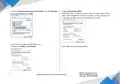
5.1 Click “Start” > “Control panel”, click “Network and Internet”, click
“Network and Sharing Center”, click “Change Adapter Settings”, and then
double-click “Local Area Connection” (Ethernet).
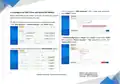
5.2 Click “Properties” in the window of “Local Area Connection (Ethernet)
Status”.
4
Website: www.keennew.com
Qixiang Technology, Contact Us for purchasing
Email: sales@keennew.com
Whatsapp: +86 13249165907


| General | Details |
|---|---|
| Name | CHEECENT QX210 Cellular Router User Guide |
| Make | CHEECENT |
| Language | English |
| Filetype | PDF (Download) |
| File size | 0.45 MB |
 (1 votes, average: 5.00 out of 5)
 Loading...
If you have any questions regarding CHEECENT QX210 Cellular Router User Guide, please ask here and describe the problem in detail.


TP-Link Archer BE550 Pro Tri-Band Wi-Fi 7 Router Instructions

PHILIPS PH-001 LTE Mi-Fi Router User Manual

TP-Link EC223-G5 Aginet AC1200 MU-MIMO Wi-Fi Router User Manual

TP-Link AX6600 Tri-Band WiFi 6 Gaming Router Installation Guide

TP-Link Archer AX6000 8-Stream Wi-Fi 6 Router Installation Guide

WAVLINK AC1200 Wireless WiFi Router User Guide

Keep Your Home IP MA-B256 Router Owner’s Manual

DrayTek Vigor3910 Series Multi-WAN Security Router User Guide

Mercury Netcomm NB16DG Fibre Router User Manual

netgate 6100 MAX Secure Router User Manual