
CHEECENT QX210 Cellular Router User Guide



6.Router Configuration
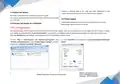
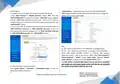
displayed, for example.
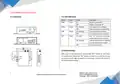
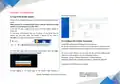
6.1 Log in the Router System
To log in to the management page and view the configuration status of your
router.
Make sure your PC is connecting with router’s LAN port via Ethernet cable,
and PC is not connecting to any other WiFi.
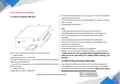
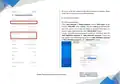
1) On your PC, open a web browser such as Internet Explorer, Google or
Firefox etc.
2) From your web browser, type the IP address of the router into the
address bar and press enter. The default IP address of the router is
192.168.1.1, though the actual address may vary.
6.2 Configure the Cellular Connection
1) Get APN name/username/password of your sim card
Set up APN information in the router is very important to make the router
works well. Please follow these steps to get your Sim Card APN information:
3) In the login page, enter the username and password, then click Login.
The default username and password are “admin”.
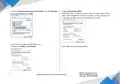
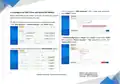
① If your carrier allows it, you can insert the sim card into cellphone and
collect your APN settings in one of the following locations:
# Settings > Cellular > Cellular Data Options > Cellular Network.
# Settings > Mobile Data > Mobile Data Options > Mobile Data Network.
Example of an APN information on phone:
4) After logging in, the home page of the Router’s web interface is
6
Website: www.keennew.com
Qixiang Technology, Contact Us for purchasing
Email: sales@keennew.com
Whatsapp: +86 13249165907


| General | Details |
|---|---|
| Name | CHEECENT QX210 Cellular Router User Guide |
| Make | CHEECENT |
| Language | English |
| Filetype | PDF (Download) |
| File size | 0.45 MB |
 (1 votes, average: 5.00 out of 5)
 Loading...
If you have any questions regarding CHEECENT QX210 Cellular Router User Guide, please ask here and describe the problem in detail.

Verizon GT784 Gateway Router User Guide
Juniper NETWORKS MX304 Universal Router User Guide

ASUS XD4S AX1800 Dual Band WiFi Router User Guide

Netcomm NF18MESH Upgraded WiFi Router User Guide

eSunFi SHFiEL40 4G LTE WiFi Mobile Hotspot Router User Manual

Tenda RX2 Pro, TX2 Pro Dual Band Gigabit WiFi 6 Router Installation Guide

TP-Link Archer AX55 Pro AX3000 Multi-Gigabit Wi-Fi 6 Router Installation Guide
tehnoteka AX3000 V2 TUF Gaming WiFi Router User Guide

Tenda 4G05 Wi-Fi 4G LTE Router Installation Guide

robustel R1510-4L VPN Router Owner’s Manual