
CHEECENT QX210 Cellular Router User Guide

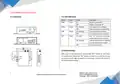
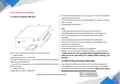
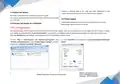
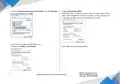
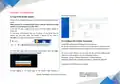


To solve the IP conflict issue, please go to “Basic Network” > “Wired
Network” > “LAN” > “General Setup” > “IPv4 address” change to
192.168.X.1 (X is different from the WiFi network segment). After this
change, you need to use 192.168.X.1 to login the router system.
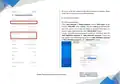
② WiFi Master/AP Mode: The router work as Access Point/Hot spot to
provide WiFi internet to other devices.
> The router’s default AP name is: QX210-xxxxxx, default AP password is:
admin123
> Check WiFi connection status, click “System Status” > “Overview” >
“Wireless” to view the status of the WiFi connection. The mode of “Client”
will get an IP address from upper-lever network.
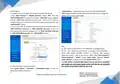
> If you want to change it, Click “Basic Network” > “Wireless Network”,
find the SSID “QX210-xxxxxx” and mode of “Master”, Click “EDIT”.
Important:
> “Interface Configuration” > “Mode” Select “Access Point”, Set “ESSID”
(WiFi AP name), “Wireless Security” Select “Encryption” and set “Key”
(password), click “SAVE & APPLY” button.
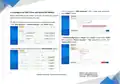
If the router WiFi client mode had connected and successfully gets an IP,
but your PC can not get internet when connects to the router’s LAN port. It
is mainly caused by IP segment conflict (the router LAN default IP is
192.168.1.1, which is in the same segment as the upper-level network IP
segment).
10
Website: www.keennew.com
Qixiang Technology, Contact Us for purchasing
Email: sales@keennew.com
Whatsapp: +86 13249165907


| General | Details |
|---|---|
| Name | CHEECENT QX210 Cellular Router User Guide |
| Make | CHEECENT |
| Language | English |
| Filetype | PDF (Download) |
| File size | 0.45 MB |
 (1 votes, average: 5.00 out of 5)
 Loading...
If you have any questions regarding CHEECENT QX210 Cellular Router User Guide, please ask here and describe the problem in detail.


ASUS BE6800 Dual Band WiFi Router User Guide

ASUS RT-AX57 Dual Band WiFi Router User Guide

vodafone PlusBox 340 SipTrunk Router User Guide

Tenda 4G180 4G LTE Advanced Pocket Mobile Wi-Fi Router User Manual

vantiva MGA5331 Unveils FWA Modem and Wi-Fi Router User Manual

Cudy WR1300 Gigabit Dual Band Wi-Fi Router Installation Guide

TechPowerUp Openwrt ONE Wi-Fi 6 Router User Manual

LANCOM SYSTEMS 1790-4G+ High-Performance VPN Router Installation Guide

ONEX RV Wifi Router User Manual

ARRIS G34 Multi Gigabit Cable Modem and Wi-Fi Router User Guide