
×
- 1. Surfboard G34/g36 (Docsis 3.1 → Wi-fi Cable Modem User Guide)
- 2. Commscope Copyrights And Trademarks (Wi-fi Alliance Trademarks → Commscope Guide Warranty → Surfboard G34/g36 Docsis 3.1 Wi-fi Cable Modem User Guide)
- 3. Safety And Regulatory Information (Important Safety Instructions → Installation Requirements → Power Source Requirements → Device Location Considerations)
- 4. Installation Instructions (Safety Precautions → Device Maintenance → Environmental Considerations → Service And Repairs)
- 5. Fcc Statements (Fcc Interference Statement → Fcc Declaration Of Conformity → Fcc Radiation Exposure Statement)
- 6. Wireless Lan (Restrictions On The Use Of Wireless Devices → Correction Of The Interference Caused By Unauthorized Modification → Note On Frequency Band Usage → Warning About Unauthorized Access To Wireless Networks)
- 7. Caring For The Environment By Recycling Your Arris Equipment (Contact Your Local Authorities For Information About Practices Established For Your Region → Arris Technical Support)
- 8. Introducon (Product Overview → Geng Started → Add Devices To Your Home Wi-fi Network → Using The Wi-fi Cable Modem Web Manager → Configuring Your Wi-fi Network → Protecng & Monitoring Your Wi-fi Network)
- 9. Chapter 1: Introduction (Additional Items Needed (not Included) → System Requirements → Contact Information)
- 10. Product Overview (Front Panel And Led Behavior → Led Behavior → Online Status In Docsis 3.0 Mode → Online Status In Docsis 3.1 Mode)
- 11. Chapter 2: Product Overview (Led Behavior → Wan Over Ethernet Mode → Firmware Download → Rear Panel And Connectors)
- 12. Chapter 2: Product Overview (Rear Panel And Connectors → Reset Button → Ethernet Ports → Coaxial Cable Connector → Power Port)
- 13. Chapter 2: Product Overview (Wi-fi Cable Modem Label → To Activate Your Internet Service, Contact Your Service Provider For Assistance.)
- 14. Geꢃng Started (Set Up Your G34/g36 Home Wi-fi Network Using The Surꢂoard Central App (sbc App) → Set Up Your G34/g36 Home Wi-fi Network Using Your Client Device → Ensure To Choose A Locaon In Your Home → Ensure To Keep The Informaon Such As Wifi Cable Modem Model Name → Your G34/g36 Supports Using An Ethernet Port Connecon)
- 15. Chapter 3: Geng Started (Set Up An Ethernet Port Connection → G36 Connection Diagram → G34 Connection Diagram)
- 16. Chapter 3: Geng Started (Connect The Power Cord → Power On The Computer → Contact Your Service Provider → Enter Your Service Providers Web Browser Url → Check That The Front Panel Led Lights Up)
- 17. Add Devices To Your Home Wi-fi Network (Personal Computer (pc) → Android Device → Apple Computer)
- 18. Chapter 4: Add Devices To Your Home Wi-fi Network (Apple Mobile Device → Quick Connect Using The Windows Task Bar)
- 19. Chapter 4: Add Devices To Your Home Wi-fi Network (Change Your Wi-fi Network Name (ssid) → Change The Login Password)
- 20. Chapter 4: Add Devices To Your Home Wi-fi Network (Connect Using The Windows Control Panel)
- 21. Chapter 4: Add Devices To Your Home Wi-fi Network
- 22. Chapter 4: Add Devices To Your Home Wi-fi Network (Change Your Wi-fi Network Name (ssid) → Change The Login Password)
- 23. Test Your Wi-fi Network Connection (Check Wi-fi Device Connections → Led Indicators → Open A Web Browser → Contacting Support)
- 24. Using The Wi-fi Cable Modem Web Manager (Best Practices For Creating Your Login Password → Start The G34/g36 Web Manager (first-time Login))
- 25. Chapter 6: Using The Wi-fi Cable Modem Web Manager (The G34/g36 Home Network Wizard Step 2 Screen Displays.)
- 26. Chapter 6: Using The Wi-fi Cable Modem Web Manager (Wi-fi Network Name (2.4 Ghz) → Wi-fi Network Security Options → Network Password (2.4 Ghz) → Ghz Wi-fi Network Settings)
- 27. Chapter 6: Using The Wi-fi Cable Modem Web Manager (Start The G34/g36 Web Manager)
- 28. Chapter 6: Using The Wi-fi Cable Modem Web Manager (The Product Registration Window Opens.)
- 29. Chapter 6: Using The Wi-fi Cable Modem Web Manager (G34/g36 Web Manager Menu Links)
- 30. Chapter 6: Using The Wi-fi Cable Modem Web Manager (Gateway → Firewall → Software → Hardware → Time → Wizard → Connected Devices)
- 31. Chapter 6: Using The Wi-fi Cable Modem Web Manager (Troubleshooting → Exit The G34/g36 Web Manager)
- 32. Conꢂguring Your Wi-fi Network (Set Up Your Wi-fi Network)
- 33. Chapter 7: Configuring Your Wi-fi Network (Network Security Mode For Your Wi-fi Home Network → Wi-fi Network Name (ssid) → Wi-fi Network Security Options)
- 34. Chapter 7: Configuring Your Wi-fi Network (Network Password → Broadcast Network Name (ssid) Enabled → Enable Wmm → Network Security Mode → Ap Isolation)
- 35. Chapter 7: Configuring Your Wi-fi Network (Note: When Ap Isolation Is Enabled, Each Of Your Wi-fi Clients Will Be In Its Own Virtual Network And Will Not Be Able To Communicate With The Other Wi-fi Clients. → To Turn On The 2.4 Ghz Wi-fi Frequency Range For Your Wi-fi Home Network, Click The 2.4 Ghz Radio Submenu And Then Click Enable Button. → Select The Wireless Networking Standard Mode For Your Wi-fi Home Network From The Mode Drop-down List. → Select The Tx (transmit) Power Level Of The Wi-fi Radio From The Tx Power Drop-down List. → Select A Channel Number (auto, 1 Through 11) From The Channel Drop-down List To Set The Communications Channel For Your Wi-fi Cable Modem. → Set The Channel Bandwidth For Your Wi-fi Cable Modem From The Channel Bandwidth Box. → Click Save Settings To Save The Changes.)
- 36. Chapter 7: Configuring Your Wi-fi Network (Change Your Wi-fi Network Name (ssid))
- 37. Chapter 7: Configuring Your Wi-fi Network (Wi-fi Screen → Home Wi-fi Network)
- 38. Chapter 7: Configuring Your Wi-fi Network (Set Up Wps On Your Wi-fi Network)
- 39. Chapter 7: Configuring Your Wi-fi Network (Wi-fi Protected Setup (wps) → Wps Pin Method → Push Button Option)
- 40. Protecng & Monitoring Your Wi-fi Network (Change The Login Password)
- 41. Chapter 8: Protecting & Monitoring Your Wi-fi Network (G34/g36 Login Screen → G34/g36 Change Password Screen)
- 42. Chapter 8: Protecting & Monitoring Your Wi-fi Network (Set Up Firewall Protection → Ipv4 Security)
- 43. Chapter 8: Protecting & Monitoring Your Wi-fi Network (Medium: Safer Configuration, Medium Security Level → Low: Common Security, Low Security Level, Higher Risk)
- 44. Chapter 8: Protecting & Monitoring Your Wi-fi Network (Ipv6 Security → Set Up Parental Control)
- 45. Chapter 8: Protecting & Monitoring Your Wi-fi Network
- 46. Chapter 8: Protecting & Monitoring Your Wi-fi Network (Manage Services → Blocked Services → Manage Devices)
- 47. Chapter 8: Protecting & Monitoring Your Wi-fi Network
- 48. Protecng & Monitoring Your Wi-fi Network (Set Up Port Forwarding)
- 49. Chapter 8: Protecting & Monitoring Your Wi-fi Network (Add Port Forward Screen → Common Service Drop-down List → Service Type Drop-down List → Server Ipv4 Address Field → Server Ipv6 Address Field)
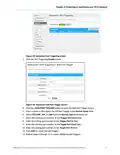
- 50. Chapter 8: Protecting & Monitoring Your Wi-fi Network (Set Up Port Triggers)
- 51. Chapter 8: Protecting & Monitoring Your Wi-fi Network
- 52. Chapter 8: Protecting & Monitoring Your Wi-fi Network (Set Up The Dmz Host → To Create The Dmz Host:)
- 53. Chapter 8: Protecting & Monitoring Your Wi-fi Network (Set Up The Alg)
- 54. Chapter 8: Protecting & Monitoring Your Wi-fi Network (Restore The G34/g36 Default Configuration → To Open The Restart/restore Gateway Screen: → Troubleshooting Restart/restore Gateway Screen)
- 55. Chapter 8: Protecting & Monitoring Your Wi-fi Network (Exchange The Routing Information → Set Up Dynamic Dns Client)
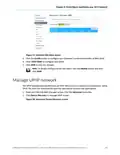
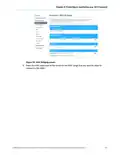
- 56. Chapter 8: Protecting & Monitoring Your Wi-fi Network (Manage Upnp Network)
- 57. Chapter 8: Protecting & Monitoring Your Wi-fi Network (Set Up Mac Bridging)
- 58. Chapter 8: Protecting & Monitoring Your Wi-fi Network
- 59. Managing Your Wi-fi Cable Modem And Connected Networks (View The G34/g36 System Hardware Information)
- 60. Chapter 9: Managing Your Wi-fi Cable Modem And Connected Networks (View The G34/g36 Software Version → Set Up An Ethernet Port Connection For Your Data Input)
- 61. Chapter 9: Managing Your Wi-fi Cable Modem And Connected Networks (Gateway → Software → Ethernet)
- 62. Chapter 9: Managing Your Wi-fi Cable Modem And Connected Networks (Reboot The G34/g36 → Reboot The G34/g36 Using The Reset Button → Reboot The G34/g36 Using The Web Manager)
- 63. Chapter 9: Managing Your Wi-fi Cable Modem And Connected Networks (Reboot The G34/g36 Using The Web Manager)
- 64. Chapter 9: Managing Your Wi-fi Cable Modem And Connected Networks (Restore The G34/g36 Default Configuration Settings → To Open The Reset/restore Gateway Screen:)
- 65. Chapter 9: Managing Your Wi-fi Cable Modem And Connected Networks (Exit The G34/g36 Web Manager)
- 66. Troubleshooting Tips (Solutions → Cannot Send Or Receive Data → Cannot Access The Internet → Wi-fi Devices Cannot Send Or Receive Data)
- 67. Warranty Information (Cable Operator Or Service Provider Arrangements → General Information)
×
ARRIS G34 Multi Gigabit Cable Modem and Wi-Fi Router User Guide















®
®
®
SURFboard G34/G36 DOCSIS 3.1 Wi-Fi Cable
Modem
User Guide, STANDARD Revision x.5
P/N 365-095-36134

| General | Details |
|---|---|
| Name | ARRIS G34 Multi Gigabit Cable Modem and Wi-Fi Router User Guide |
| Make | Arris |
| Language | English |
| Filetype | PDF (Download) |
| File size | 2.02 MB |
 (1 votes, average: 5.00 out of 5)
 Loading...
If you have any questions regarding ARRIS G34 Multi Gigabit Cable Modem and Wi-Fi Router User Guide, please ask here and describe the problem in detail.

ARRIS M6 Wireless Router User Manual


MERCUSYS EU2_16 Wireless Router Installation Guide

CSG M519 5G Gateway Router User Guide

ASUS RT-ACRH18 Dual band AC WiFi Router User Guide

Xiaomi AX3000T Wireless Router User Manual

cradlepoint S5A037A Enterprise Branch Router User Manual

inseego 5G Router FG2000e User Guide

Ruijie 2AX5J-EG105GWX All-in-One Wireless Router User Manual

GRANDSTREAM GWN7062E Wi-Fi 6 Router Instruction Manual

LOGIC ML8 4G MiFi Router User Manual

GlocalMe U5 Numen Air 5G Mobile WiFi Router User Guide
Table of Contents
- 1. Surfboard G34/g36 - Docsis 3.1 →
- 2. Commscope Copyrights And Trademarks - Wi-fi Alliance Tradema... →
- 3. Safety And Regulatory Information - Important Safety Instruc... →
- 4. Installation Instructions - Safety Precautions →
- 5. Fcc Statements - Fcc Interference Statement →
- 6. Wireless Lan - Restrictions On The Use Of Wireless Devices →
- 7. Caring For The Environment By Recycling Your Arris Equipment... →
- 8. Introducon - Product Overview →
- 9. Chapter 1: Introduction - Additional Items Needed (not Inclu... →
- 10. Product Overview - Front Panel And Led Behavior →
- 11. Chapter 2: Product Overview - Led Behavior →
- 12. Chapter 2: Product Overview - Rear Panel And Connectors →
- 13. Chapter 2: Product Overview - Wi-fi Cable Modem Label →
- 14. Geꢃng Started - Set Up Your G34/g36 Home Wi-fi Network Using... →
- 15. Chapter 3: Geng Started - Set Up An Ethernet Port Connection →
- 16. Chapter 3: Geng Started - Connect The Power Cord →
- 17. Add Devices To Your Home Wi-fi Network - Personal Computer (... →
- 18. Chapter 4: Add Devices To Your Home Wi-fi Network - Apple Mo... →
- 19. Chapter 4: Add Devices To Your Home Wi-fi Network - Change Y... →
- 20. Chapter 4: Add Devices To Your Home Wi-fi Network - Connect ... →
- 21. Chapter 4: Add Devices To Your Home Wi-fi Network →
- 22. Chapter 4: Add Devices To Your Home Wi-fi Network - Change Y... →
- 23. Test Your Wi-fi Network Connection - Check Wi-fi Device Conn... →
- 24. Using The Wi-fi Cable Modem Web Manager - Best Practices For... →
- 25. Chapter 6: Using The Wi-fi Cable Modem Web Manager - The G34... →
- 26. Chapter 6: Using The Wi-fi Cable Modem Web Manager - Wi-fi N... →
- 27. Chapter 6: Using The Wi-fi Cable Modem Web Manager - Start T... →
- 28. Chapter 6: Using The Wi-fi Cable Modem Web Manager - The Pro... →
- 29. Chapter 6: Using The Wi-fi Cable Modem Web Manager - G34/g36... →
- 30. Chapter 6: Using The Wi-fi Cable Modem Web Manager - Gateway →
- 31. Chapter 6: Using The Wi-fi Cable Modem Web Manager - Trouble... →
- 32. Conꢂguring Your Wi-fi Network - Set Up Your Wi-fi Network →
- 33. Chapter 7: Configuring Your Wi-fi Network - Network Security... →
- 34. Chapter 7: Configuring Your Wi-fi Network - Network Password →
- 35. Chapter 7: Configuring Your Wi-fi Network - Note: When Ap Is... →
- 36. Chapter 7: Configuring Your Wi-fi Network - Change Your Wi-f... →
- 37. Chapter 7: Configuring Your Wi-fi Network - Wi-fi Screen →
- 38. Chapter 7: Configuring Your Wi-fi Network - Set Up Wps On Yo... →
- 39. Chapter 7: Configuring Your Wi-fi Network - Wi-fi Protected ... →
- 40. Protecng & Monitoring Your Wi-fi Network - Change The Login ... →
- 41. Chapter 8: Protecting & Monitoring Your Wi-fi Network - G34/... →
- 42. Chapter 8: Protecting & Monitoring Your Wi-fi Network - Set ... →
- 43. Chapter 8: Protecting & Monitoring Your Wi-fi Network - Medi... →
- 44. Chapter 8: Protecting & Monitoring Your Wi-fi Network - Ipv6... →
- 45. Chapter 8: Protecting & Monitoring Your Wi-fi Network →
- 46. Chapter 8: Protecting & Monitoring Your Wi-fi Network - Mana... →
- 47. Chapter 8: Protecting & Monitoring Your Wi-fi Network →
- 48. Protecng & Monitoring Your Wi-fi Network - Set Up Port Forwa... →
- 49. Chapter 8: Protecting & Monitoring Your Wi-fi Network - Add ... →
- 50. Chapter 8: Protecting & Monitoring Your Wi-fi Network - Set ... →
- 51. Chapter 8: Protecting & Monitoring Your Wi-fi Network →
- 52. Chapter 8: Protecting & Monitoring Your Wi-fi Network - Set ... →
- 53. Chapter 8: Protecting & Monitoring Your Wi-fi Network - Set ... →
- 54. Chapter 8: Protecting & Monitoring Your Wi-fi Network - Rest... →
- 55. Chapter 8: Protecting & Monitoring Your Wi-fi Network - Exch... →
- 56. Chapter 8: Protecting & Monitoring Your Wi-fi Network - Mana... →
- 57. Chapter 8: Protecting & Monitoring Your Wi-fi Network - Set ... →
- 58. Chapter 8: Protecting & Monitoring Your Wi-fi Network →
- 59. Managing Your Wi-fi Cable Modem And Connected Networks - Vie... →
- 60. Chapter 9: Managing Your Wi-fi Cable Modem And Connected Net... →
- 61. Chapter 9: Managing Your Wi-fi Cable Modem And Connected Net... →
- 62. Chapter 9: Managing Your Wi-fi Cable Modem And Connected Net... →
- 63. Chapter 9: Managing Your Wi-fi Cable Modem And Connected Net... →
- 64. Chapter 9: Managing Your Wi-fi Cable Modem And Connected Net... →
- 65. Chapter 9: Managing Your Wi-fi Cable Modem And Connected Net... →
- 66. Troubleshooting Tips - Solutions →
- 67. Warranty Information - Cable Operator Or Service Provider Ar... →