
ARRIS G34 Multi Gigabit Cable Modem and Wi-Fi Router User Guide















Chapter 9: Managing your Wi-Fi cable modem and connected networks
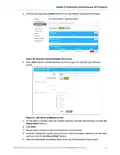
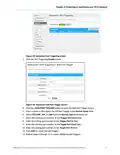
Figure 62: G34/G36 Connecꢀon WAN screen
3. Click EDIT on the WAN screen.
4. Click Interface CHANGE to select either DOCSIS (for a regular cable connecꢀon) or
Ethernet (for an input signal from a different modem device) with an Ethernet
connecꢀon from the modem device to the G34/G36 Ethernet port 4.
From any G34/G36 Web manager screen, click the Gateway menu link.
1. Click Soſtware from the Gateway submenu links to display the Gateway Soſtware screen.
2. Click Ethernet from the Hardware submenu links.
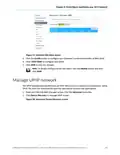
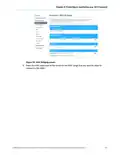
Figure 63: G34/G36 Gateway Hardware Ethernet screen
3. Click the Enable buꢁon in the LAN Ethernet Port 4 box.
®
®
®
SURFboard G34/G36 DOCSIS 3.1 Wi-Fi Cable Modem User Guide STANDARD Revision x.5
63

| General | Details |
|---|---|
| Name | ARRIS G34 Multi Gigabit Cable Modem and Wi-Fi Router User Guide |
| Make | Arris |
| Language | English |
| Filetype | PDF (Download) |
| File size | 2.02 MB |
 (1 votes, average: 5.00 out of 5)
 Loading...
If you have any questions regarding ARRIS G34 Multi Gigabit Cable Modem and Wi-Fi Router User Guide, please ask here and describe the problem in detail.

ARRIS M6 Wireless Router User Manual


ASUS RTAX6P00 ZenWiFi Hybrid MoCA Mesh Router User Manual

D-Link M60 AX6000 WiFi 6 Mesh Router User Guide

UBIQUITI ER-X-SFP Edge Router User Guide

Cudy WR3000H 2.5G Mesh Wi-Fi 6 Router Installation Guide

ExpressVPN AXG1800 Travel Router Instruction Manual

TP-Link ARCHER C7 AC1750 Wireless Dual Band Gigabit Router User Guide

TP-Link AC1900 Archer AC1900 MU-MIMO Wi-Fi Router User Guide

TP-Link TL-MR110 Outdoor Router Installation Guide

JUNIPer SSR120 Session Smart Router User Guide
Juniper NETWORKS PTX10003 Fixed Packet Transport Router User Guide