
ARRIS G34 Multi Gigabit Cable Modem and Wi-Fi Router User Guide















Chapter 9: Managing your Wi-Fi cable modem and connected networks
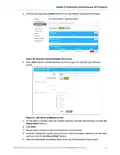
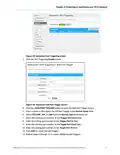
Figure 65: G34/G36 Restart/Restore seꢁngs screen
3. Click RESTART GATEWAY located in the Reset / Restore Gateway table.
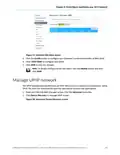
The following message will display:
Figure 66: Restart the Gateway message box
4. Click OK to reboot the G34/G36 and then log back in.
Restore the G34/G36 default conꢂguraꢀon
seꢃngs
Warning: This acꢀon will delete your current G34/G36 conꢂguraꢀon seꢃngs and
allow you to restore the default (original) G34/G36 conꢂguraꢀon.
Note: Aſter the conꢂguraꢀon seꢃngs are restored, the G34/G36 will automaꢀcally
reboot, and you will have to log in using the default username (admin) and your
current admin password.
To open the Reset/Restore Gateway screen:
1. From any G34/G36 Web Manager screen, click the Troubleshooꢀng menu link.
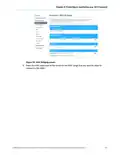
2. Click Reset / Restore Gateway from the Troubleshooꢀng submenu links to display the
Troubleshooꢀng Reset / Restore Gateway screen.
®
®
®
SURFboard G34/G36 DOCSIS 3.1 Wi-Fi Cable Modem User Guide STANDARD Revision x.5
66

| General | Details |
|---|---|
| Name | ARRIS G34 Multi Gigabit Cable Modem and Wi-Fi Router User Guide |
| Make | Arris |
| Language | English |
| Filetype | PDF (Download) |
| File size | 2.02 MB |
 (1 votes, average: 5.00 out of 5)
 Loading...
If you have any questions regarding ARRIS G34 Multi Gigabit Cable Modem and Wi-Fi Router User Guide, please ask here and describe the problem in detail.

ARRIS M6 Wireless Router User Manual


TP-Link Archer AX55 Wi-Fi 6 Router Installation Guide

MERCUSYS MR60X AX1500 Wi-Fi 6 Router User Guide

TP-Link Archer AC1900 MU MIMO Wi-Fi Router Installation Guide
Getic MikroTik CCR2004-16G-2S+PC Cloud Core Router User Manual

TP-Link BE19000 Tri-Band Wi-Fi 7 Router Installation Guide

MERCKU X6 Wi-Fi 6 Mesh Router User Manual

Tenda RX27 Pro AX5700 Tri Band Gigabit WiFi 6E Router Installation Guide

D-Link DIR-822 AC1200 Wave 2 WiFi Router Instruction Manual
cradlepoint R920 Series Ruggedized Router User Guide

Draytek Vigor C410 Series VPN Router User Guide