
ARRIS G34 Multi Gigabit Cable Modem and Wi-Fi Router User Guide















Chapter 8: Protecꢀng & monitoring your Wi-Fi network
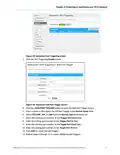
10. Select the days of the week in the Set Blocked Days secꢀon.
11. Click SAVE.
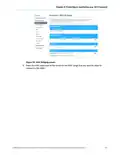
12. To manage network devices' access to speciꢂc services and applicaꢀons, click Manage
Services from the submenu and then click Enable.
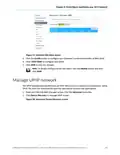
13. Click +ADD buꢁon in the Blocked Services secꢀon to add a service to be blocked.
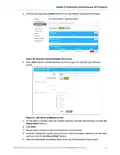
Figure 42: Managed Services screen - Add Blocked Service screen
14. Type the service that you want to block in the User Defined Service ꢂeld.
15. Select UDP, TCP, or TCP/UDP for the port ꢂlter type from the Protocol drop-down list.
16. Enter the range of port numbers for the port ꢂlter range in the Start Port and End Port
ꢂelds.
17. To fully block a service, click Yes, in the Always Block? ꢂeld.
18. To block a service for speciꢂc days and ꢀmes, click No, in the Always Block? ꢂeld and
then specify the ꢀme and days in the Set Block Time and Set Block Days ꢂelds.
19. Click SAVE to save the changes.
20. To manage access to speciꢂc devices on your network, click Manage Devices from the
submenu.
®
®
®
SURFboard G34/G36 DOCSIS 3.1 Wi-Fi Cable Modem User Guide STANDARD Revision x.5
48

| General | Details |
|---|---|
| Name | ARRIS G34 Multi Gigabit Cable Modem and Wi-Fi Router User Guide |
| Make | Arris |
| Language | English |
| Filetype | PDF (Download) |
| File size | 2.02 MB |
 (1 votes, average: 5.00 out of 5)
 Loading...
If you have any questions regarding ARRIS G34 Multi Gigabit Cable Modem and Wi-Fi Router User Guide, please ask here and describe the problem in detail.

ARRIS M6 Wireless Router User Manual


ASUS ZenWiFi BT10 BE18000 Tri Band WiFi Router User Guide

Tenda AX1800 Wi-Fi 6 5G NR Router User Manual

Taiko Audio V16.x22069 Extreme Router User Manual

EXPERT4HOUSE 4G Professional Router User Manual

TP-Link Archer NX600 5G CPE Router Installation Guide
Cudy WR3000 AX3000 Wi-Fi 6 Mesh Router User Guide

CalAmp LMU-5541 Telematics Router Installation Guide

GL-INET GL-AR300M Shadow Mini Router User Guide

BEC RidgeWave 7000 R26 MaxRange Gigabit LTE Outdoor Router Owner’s Manual

HUAWEI WiFi AX3 WS7100 WiFi 6 Plus Dual Core Router User Guide