
ARRIS G34 Multi Gigabit Cable Modem and Wi-Fi Router User Guide















Chapter 8: Protecꢀng & monitoring your Wi-Fi network
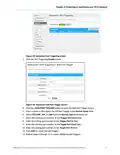
Figure 46: G34/G36 Advanced Port Forwarding screen
3. Click the Port Forwarding Enable buꢁon.
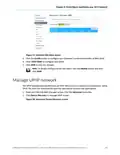
4. Click the +ADD SERVICE buꢁon to open the Add Port Forward screen.
Figure 47: Add Port Forward screen
5. Select FTP, AIM, HTTP, PPTP, HTTPs, Telnet, SSH, or Other for the Internet data transfer
protocol from the Common Service drop-down list.
Note: When Other is selected, the Service Name ꢂeld will display. Enter a name
for the service type you will be using.
6. Select TCP/UDP, TCP, or UDP for the Internet data transmission protocol from the
Service Type drop-down list.
7. Do one of the following:
■
Enter the IP address of your local computer that you are seꢃng up for port
forwarding in the Server IPv4 Address ꢂeld.
■
Enter the IP address for your local computer that you are seꢃng up for port
forwarding in the Server IPv6 Address ꢂeld.
®
®
®
SURFboard G34/G36 DOCSIS 3.1 Wi-Fi Cable Modem User Guide STANDARD Revision x.5
51

| General | Details |
|---|---|
| Name | ARRIS G34 Multi Gigabit Cable Modem and Wi-Fi Router User Guide |
| Make | Arris |
| Language | English |
| Filetype | PDF (Download) |
| File size | 2.02 MB |
 (1 votes, average: 5.00 out of 5)
 Loading...
If you have any questions regarding ARRIS G34 Multi Gigabit Cable Modem and Wi-Fi Router User Guide, please ask here and describe the problem in detail.

ARRIS M6 Wireless Router User Manual


ADDAC System ADDAC809 Chain Router User Guide

HITACHI M 12SA2 Bit Machine Molding Router Instruction Manual

MikroTik hAP ax³ Wireless Network Router User Manual

Sagemcom Fast 5298 Fiber Wireless Router User Guide

ASUS RT-AX55 Dual Band Router User Guide

Urant UNT8 Wireless Router Installation Guide

ASUS GT-AX6000 Dual Band WiFi 6 Extendable Gaming Router User Guide

Ruijie Reyee RG-EW1200 Dual-Band Wireless Router Installation Guide

technicolor CGA437T Router Instruction Manual

ASUS DSL-N12U 11N 300MBps Wireless ADSL Modem Router User Guide