
ARRIS G34 Multi Gigabit Cable Modem and Wi-Fi Router User Guide















Chapter 8: Protecꢀng & monitoring your Wi-Fi network
Restore the G34/G36 default conꢂguraꢀon
seꢃngs
Warning: This acꢀon will delete your current G34/G36 conꢂguraꢀon seꢃngs and
allow you to restore the default (original) G34/G36 conꢂguraꢀon.
Note: Aſter the conꢂguraꢀon seꢃngs are restored, the G34/G36 will automaꢀcally
reboot, and you will have to log in using the default username (admin) and your
current admin password.
To open the Restart/Restore Gateway screen:
1. From any G34/G36 Web Manager screen, click the Troubleshooꢀng menu link.
2. Click Restart/Restore from the Troubleshooꢀng submenu links to display the
Troubleshooꢀng Restart/Restore Gateway screen.
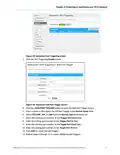
Figure 54: G34/G36 restore seꢁngs screen
3. Click RESTORE Wi-Fi SETTINGS to reset your G34/G36 Wi-Fi seꢃngs.
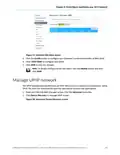
Figure 55: G34/G36 restore seꢁngs screen
4. Click OK to restore the Wi-Fi factory defaults.
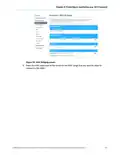
The Operation in Progressfor restarꢀng the Wi-Fi radios message displays.
®
®
®
SURFboard G34/G36 DOCSIS 3.1 Wi-Fi Cable Modem User Guide STANDARD Revision x.5
56

| General | Details |
|---|---|
| Name | ARRIS G34 Multi Gigabit Cable Modem and Wi-Fi Router User Guide |
| Make | Arris |
| Language | English |
| Filetype | PDF (Download) |
| File size | 2.02 MB |
 (1 votes, average: 5.00 out of 5)
 Loading...
If you have any questions regarding ARRIS G34 Multi Gigabit Cable Modem and Wi-Fi Router User Guide, please ask here and describe the problem in detail.

ARRIS M6 Wireless Router User Manual


TP-Link AC1200 Wireless Dual Band Router Installation Guide

ASUS RT-AX52 Dual Band Wi-Fi Router User Guide

ZTE MF296C WiFi Router User Manual

HKBN AX5400 Oppo WiFi 6 Router User Guide

SAX1V1R Spectrum WiFi 6 Router User Guide: Troubleshoot & Personalize

Ruijie E4 Networking Router Instruction Manual

PoEWit R10 Preconfiguration Enterprise Class Router User Manual
Spectrum MAX2V1K WiFi 6E MDU Router User Guide

BEC 7000 R26-W Gigabit LTE Outdoor Router with Hotspot User Guide

Inseego FX2000 5G Router User Guide