
ARRIS G34 Multi Gigabit Cable Modem and Wi-Fi Router User Guide












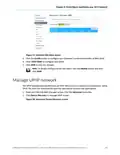

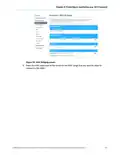


Chapter 7: Configuring your Wi-Fi network
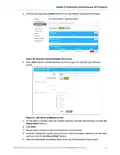
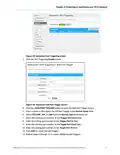
Figure 32: G34/G36 WPS device connecꢀon screen
4. Do one of the following:
■
Click the Wi-Fi Protected Setup (WPS) Enable buꢁon to turn ON WPS Wi-Fi
networking on your home network using the provided AP PIN number.
■
Click the Wi-Fi Protected Setup (WPS) Disable buꢁon to turn OFF WPS Wi-Fi
networking on your home network.
5. Do one of the following:
■
■
Click the WPS Pin Method Enable buꢁon to turn ON WPS Wi-Fi networking.
Click the WPS Pin Method Disable buꢁon to turn OFF WPS Pin connecꢀons.
6. To proceed with the PIN method, click the PIN Method opꢀon and then Enter the WPS
Pin number listed in the AP PIN ꢂeld when you are prompted on your WPS device
screen.
7. Click PAIR to connect your WPS-enabled device.
8. Repeat steps 6 through 8 for each addiꢀonal WPS-enabled device that you want to
connect to your Wi-Fi home network.
9. To proceed with the Push buꢁon opꢀon, click the Push Buꢃon (recommended) opꢀon
to connect your wireless client to your network.
10. Click PAIR to connect your WPS-enabled device.
®
®
®
SURFboard G34/G36 DOCSIS 3.1 Wi-Fi Cable Modem User Guide STANDARD Revision x.5
41

| General | Details |
|---|---|
| Name | ARRIS G34 Multi Gigabit Cable Modem and Wi-Fi Router User Guide |
| Make | Arris |
| Language | English |
| Filetype | PDF (Download) |
| File size | 2.02 MB |
 (1 votes, average: 5.00 out of 5)
 Loading...
If you have any questions regarding ARRIS G34 Multi Gigabit Cable Modem and Wi-Fi Router User Guide, please ask here and describe the problem in detail.

ARRIS M6 Wireless Router User Manual


ASUS ZenWiFi BD4 Be3600 Dual Band Wi-Fi Router User Guide

UniFi WiFi 6 Router User Manual

TP-Link Archer C7 Dual Band Gigabit Wireless Cable Router User Guide

D-Link G530 5G Router Instructions

Synology RT6600AX Tri-Band Mesh 11ax Router Installation Guide

UBIQUITI UMR-US UniFi Mobile Router Installation Guide

Cudy WR300 Multi Mode WiFi Router Installation Guide

TP-Link AX53 Internet Router User Guide

TP-Link TLMR6400 Wireless 4G LTE Router Installation Guide

Netcomm NF18MESH Upgraded WiFi Router User Guide