×
- 1. Surfboard G34/g36 (Docsis 3.1 → Wi-fi Cable Modem User Guide)
- 2. Commscope Copyrights And Trademarks (Wi-fi Alliance Trademarks → Commscope Guide Warranty → Surfboard G34/g36 Docsis 3.1 Wi-fi Cable Modem User Guide)
- 3. Safety And Regulatory Information (Important Safety Instructions → Installation Requirements → Power Source Requirements → Device Location Considerations)
- 4. Installation Instructions (Safety Precautions → Device Maintenance → Environmental Considerations → Service And Repairs)
- 5. Fcc Statements (Fcc Interference Statement → Fcc Declaration Of Conformity → Fcc Radiation Exposure Statement)
- 6. Wireless Lan (Restrictions On The Use Of Wireless Devices → Correction Of The Interference Caused By Unauthorized Modification → Note On Frequency Band Usage → Warning About Unauthorized Access To Wireless Networks)
- 7. Caring For The Environment By Recycling Your Arris Equipment (Contact Your Local Authorities For Information About Practices Established For Your Region → Arris Technical Support)
- 8. Introducon (Product Overview → Geng Started → Add Devices To Your Home Wi-fi Network → Using The Wi-fi Cable Modem Web Manager → Configuring Your Wi-fi Network → Protecng & Monitoring Your Wi-fi Network)
- 9. Chapter 1: Introduction (Additional Items Needed (not Included) → System Requirements → Contact Information)
- 10. Product Overview (Front Panel And Led Behavior → Led Behavior → Online Status In Docsis 3.0 Mode → Online Status In Docsis 3.1 Mode)
- 11. Chapter 2: Product Overview (Led Behavior → Wan Over Ethernet Mode → Firmware Download → Rear Panel And Connectors)
- 12. Chapter 2: Product Overview (Rear Panel And Connectors → Reset Button → Ethernet Ports → Coaxial Cable Connector → Power Port)
- 13. Chapter 2: Product Overview (Wi-fi Cable Modem Label → To Activate Your Internet Service, Contact Your Service Provider For Assistance.)
- 14. Geꢃng Started (Set Up Your G34/g36 Home Wi-fi Network Using The Surꢂoard Central App (sbc App) → Set Up Your G34/g36 Home Wi-fi Network Using Your Client Device → Ensure To Choose A Locaon In Your Home → Ensure To Keep The Informaon Such As Wifi Cable Modem Model Name → Your G34/g36 Supports Using An Ethernet Port Connecon)
- 15. Chapter 3: Geng Started (Set Up An Ethernet Port Connection → G36 Connection Diagram → G34 Connection Diagram)
- 16. Chapter 3: Geng Started (Connect The Power Cord → Power On The Computer → Contact Your Service Provider → Enter Your Service Providers Web Browser Url → Check That The Front Panel Led Lights Up)
- 17. Add Devices To Your Home Wi-fi Network (Personal Computer (pc) → Android Device → Apple Computer)
- 18. Chapter 4: Add Devices To Your Home Wi-fi Network (Apple Mobile Device → Quick Connect Using The Windows Task Bar)
- 19. Chapter 4: Add Devices To Your Home Wi-fi Network (Change Your Wi-fi Network Name (ssid) → Change The Login Password)
- 20. Chapter 4: Add Devices To Your Home Wi-fi Network (Connect Using The Windows Control Panel)
- 21. Chapter 4: Add Devices To Your Home Wi-fi Network
- 22. Chapter 4: Add Devices To Your Home Wi-fi Network (Change Your Wi-fi Network Name (ssid) → Change The Login Password)
- 23. Test Your Wi-fi Network Connection (Check Wi-fi Device Connections → Led Indicators → Open A Web Browser → Contacting Support)
- 24. Using The Wi-fi Cable Modem Web Manager (Best Practices For Creating Your Login Password → Start The G34/g36 Web Manager (first-time Login))
- 25. Chapter 6: Using The Wi-fi Cable Modem Web Manager (The G34/g36 Home Network Wizard Step 2 Screen Displays.)
- 26. Chapter 6: Using The Wi-fi Cable Modem Web Manager (Wi-fi Network Name (2.4 Ghz) → Wi-fi Network Security Options → Network Password (2.4 Ghz) → Ghz Wi-fi Network Settings)
- 27. Chapter 6: Using The Wi-fi Cable Modem Web Manager (Start The G34/g36 Web Manager)
- 28. Chapter 6: Using The Wi-fi Cable Modem Web Manager (The Product Registration Window Opens.)
- 29. Chapter 6: Using The Wi-fi Cable Modem Web Manager (G34/g36 Web Manager Menu Links)
- 30. Chapter 6: Using The Wi-fi Cable Modem Web Manager (Gateway → Firewall → Software → Hardware → Time → Wizard → Connected Devices)
- 31. Chapter 6: Using The Wi-fi Cable Modem Web Manager (Troubleshooting → Exit The G34/g36 Web Manager)
- 32. Conꢂguring Your Wi-fi Network (Set Up Your Wi-fi Network)
- 33. Chapter 7: Configuring Your Wi-fi Network (Network Security Mode For Your Wi-fi Home Network → Wi-fi Network Name (ssid) → Wi-fi Network Security Options)
- 34. Chapter 7: Configuring Your Wi-fi Network (Network Password → Broadcast Network Name (ssid) Enabled → Enable Wmm → Network Security Mode → Ap Isolation)
- 35. Chapter 7: Configuring Your Wi-fi Network (Note: When Ap Isolation Is Enabled, Each Of Your Wi-fi Clients Will Be In Its Own Virtual Network And Will Not Be Able To Communicate With The Other Wi-fi Clients. → To Turn On The 2.4 Ghz Wi-fi Frequency Range For Your Wi-fi Home Network, Click The 2.4 Ghz Radio Submenu And Then Click Enable Button. → Select The Wireless Networking Standard Mode For Your Wi-fi Home Network From The Mode Drop-down List. → Select The Tx (transmit) Power Level Of The Wi-fi Radio From The Tx Power Drop-down List. → Select A Channel Number (auto, 1 Through 11) From The Channel Drop-down List To Set The Communications Channel For Your Wi-fi Cable Modem. → Set The Channel Bandwidth For Your Wi-fi Cable Modem From The Channel Bandwidth Box. → Click Save Settings To Save The Changes.)
- 36. Chapter 7: Configuring Your Wi-fi Network (Change Your Wi-fi Network Name (ssid))
- 37. Chapter 7: Configuring Your Wi-fi Network (Wi-fi Screen → Home Wi-fi Network)
- 38. Chapter 7: Configuring Your Wi-fi Network (Set Up Wps On Your Wi-fi Network)
- 39. Chapter 7: Configuring Your Wi-fi Network (Wi-fi Protected Setup (wps) → Wps Pin Method → Push Button Option)
- 40. Protecng & Monitoring Your Wi-fi Network (Change The Login Password)
- 41. Chapter 8: Protecting & Monitoring Your Wi-fi Network (G34/g36 Login Screen → G34/g36 Change Password Screen)
- 42. Chapter 8: Protecting & Monitoring Your Wi-fi Network (Set Up Firewall Protection → Ipv4 Security)
- 43. Chapter 8: Protecting & Monitoring Your Wi-fi Network (Medium: Safer Configuration, Medium Security Level → Low: Common Security, Low Security Level, Higher Risk)
- 44. Chapter 8: Protecting & Monitoring Your Wi-fi Network (Ipv6 Security → Set Up Parental Control)
- 45. Chapter 8: Protecting & Monitoring Your Wi-fi Network
- 46. Chapter 8: Protecting & Monitoring Your Wi-fi Network (Manage Services → Blocked Services → Manage Devices)
- 47. Chapter 8: Protecting & Monitoring Your Wi-fi Network
- 48. Protecng & Monitoring Your Wi-fi Network (Set Up Port Forwarding)
- 49. Chapter 8: Protecting & Monitoring Your Wi-fi Network (Add Port Forward Screen → Common Service Drop-down List → Service Type Drop-down List → Server Ipv4 Address Field → Server Ipv6 Address Field)
- 50. Chapter 8: Protecting & Monitoring Your Wi-fi Network (Set Up Port Triggers)
- 51. Chapter 8: Protecting & Monitoring Your Wi-fi Network
- 52. Chapter 8: Protecting & Monitoring Your Wi-fi Network (Set Up The Dmz Host → To Create The Dmz Host:)
- 53. Chapter 8: Protecting & Monitoring Your Wi-fi Network (Set Up The Alg)
- 54. Chapter 8: Protecting & Monitoring Your Wi-fi Network (Restore The G34/g36 Default Configuration → To Open The Restart/restore Gateway Screen: → Troubleshooting Restart/restore Gateway Screen)
- 55. Chapter 8: Protecting & Monitoring Your Wi-fi Network (Exchange The Routing Information → Set Up Dynamic Dns Client)
- 56. Chapter 8: Protecting & Monitoring Your Wi-fi Network (Manage Upnp Network)
- 57. Chapter 8: Protecting & Monitoring Your Wi-fi Network (Set Up Mac Bridging)
- 58. Chapter 8: Protecting & Monitoring Your Wi-fi Network
- 59. Managing Your Wi-fi Cable Modem And Connected Networks (View The G34/g36 System Hardware Information)
- 60. Chapter 9: Managing Your Wi-fi Cable Modem And Connected Networks (View The G34/g36 Software Version → Set Up An Ethernet Port Connection For Your Data Input)
- 61. Chapter 9: Managing Your Wi-fi Cable Modem And Connected Networks (Gateway → Software → Ethernet)
- 62. Chapter 9: Managing Your Wi-fi Cable Modem And Connected Networks (Reboot The G34/g36 → Reboot The G34/g36 Using The Reset Button → Reboot The G34/g36 Using The Web Manager)
- 63. Chapter 9: Managing Your Wi-fi Cable Modem And Connected Networks (Reboot The G34/g36 Using The Web Manager)
- 64. Chapter 9: Managing Your Wi-fi Cable Modem And Connected Networks (Restore The G34/g36 Default Configuration Settings → To Open The Reset/restore Gateway Screen:)
- 65. Chapter 9: Managing Your Wi-fi Cable Modem And Connected Networks (Exit The G34/g36 Web Manager)
- 66. Troubleshooting Tips (Solutions → Cannot Send Or Receive Data → Cannot Access The Internet → Wi-fi Devices Cannot Send Or Receive Data)
- 67. Warranty Information (Cable Operator Or Service Provider Arrangements → General Information)
×
ARRIS G34 Multi Gigabit Cable Modem and Wi-Fi Router User Guide
Chapter 9: Managing your Wi-Fi cable modem and connected networks
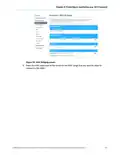
Figure 65: G34/G36 Reset buꢃon
2. Press and hold the small object in place for three to four seconds.
Warning: Do not press the Reset buꢁon for more than ꢂve seconds. If you do,
your G34/G36 will automaꢀcally reset and your custom gateway conꢂguraꢀon
seꢃngs (e.g., admin password, network name (SSID) and password) will be
deleted and replaced with the factory default conꢂguraꢀon.
3. Remove the paper clip or small object from the Reset opening.
Reboot the G34/G36 using the Web Manager
To reboot (or restart) your G34/G36 using the G34/G36 Web Manager:
1. From any G34/G36 Web Manager screen, click the Troubleshooꢀng menu link.
2. Click Restart/Restore Gateway from the Troubleshooꢀng submenu links.
®
®
®
SURFboard G34/G36 DOCSIS 3.1 Wi-Fi Cable Modem User Guide STANDARD Revision x.5
65
| General | Details |
|---|---|
| Name | ARRIS G34 Multi Gigabit Cable Modem and Wi-Fi Router User Guide |
| Make | Arris |
| Language | English |
| Filetype | PDF (Download) |
| File size | 2.02 MB |
If you have any questions regarding ARRIS G34 Multi Gigabit Cable Modem and Wi-Fi Router User Guide, please ask here and describe the problem in detail.

ARRIS M6 Wireless Router User Manual


Spectrum 20230810 WiFi 6E Wall Mounted Router User Guide

LTC 1221 4G Wireless Router Installation Guide

Notion R023 LTE CPE Router User Guide
Bytelogistic SR600 Mesh Wifi Router User Manual

UBIQUITI ER-X-SFP Edge Router User Guide

CNCU CoreDraw Plugin For Router User Guide

LINOVISION IOT-R41 Mini 4G LTE Router User Manual

HABITECH Vigor 2865 Series WiFi Router User Guide

Juniper NETWORKS SSR1300 Router User Guide

NETGEAR AC2600 Wi-Fi Router User Guide
Table of Contents
- 1. Surfboard G34/g36 - Docsis 3.1 →
- 2. Commscope Copyrights And Trademarks - Wi-fi Alliance Tradema... →
- 3. Safety And Regulatory Information - Important Safety Instruc... →
- 4. Installation Instructions - Safety Precautions →
- 5. Fcc Statements - Fcc Interference Statement →
- 6. Wireless Lan - Restrictions On The Use Of Wireless Devices →
- 7. Caring For The Environment By Recycling Your Arris Equipment... →
- 8. Introducon - Product Overview →
- 9. Chapter 1: Introduction - Additional Items Needed (not Inclu... →
- 10. Product Overview - Front Panel And Led Behavior →
- 11. Chapter 2: Product Overview - Led Behavior →
- 12. Chapter 2: Product Overview - Rear Panel And Connectors →
- 13. Chapter 2: Product Overview - Wi-fi Cable Modem Label →
- 14. Geꢃng Started - Set Up Your G34/g36 Home Wi-fi Network Using... →
- 15. Chapter 3: Geng Started - Set Up An Ethernet Port Connection →
- 16. Chapter 3: Geng Started - Connect The Power Cord →
- 17. Add Devices To Your Home Wi-fi Network - Personal Computer (... →
- 18. Chapter 4: Add Devices To Your Home Wi-fi Network - Apple Mo... →
- 19. Chapter 4: Add Devices To Your Home Wi-fi Network - Change Y... →
- 20. Chapter 4: Add Devices To Your Home Wi-fi Network - Connect ... →
- 21. Chapter 4: Add Devices To Your Home Wi-fi Network →
- 22. Chapter 4: Add Devices To Your Home Wi-fi Network - Change Y... →
- 23. Test Your Wi-fi Network Connection - Check Wi-fi Device Conn... →
- 24. Using The Wi-fi Cable Modem Web Manager - Best Practices For... →
- 25. Chapter 6: Using The Wi-fi Cable Modem Web Manager - The G34... →
- 26. Chapter 6: Using The Wi-fi Cable Modem Web Manager - Wi-fi N... →
- 27. Chapter 6: Using The Wi-fi Cable Modem Web Manager - Start T... →
- 28. Chapter 6: Using The Wi-fi Cable Modem Web Manager - The Pro... →
- 29. Chapter 6: Using The Wi-fi Cable Modem Web Manager - G34/g36... →
- 30. Chapter 6: Using The Wi-fi Cable Modem Web Manager - Gateway →
- 31. Chapter 6: Using The Wi-fi Cable Modem Web Manager - Trouble... →
- 32. Conꢂguring Your Wi-fi Network - Set Up Your Wi-fi Network →
- 33. Chapter 7: Configuring Your Wi-fi Network - Network Security... →
- 34. Chapter 7: Configuring Your Wi-fi Network - Network Password →
- 35. Chapter 7: Configuring Your Wi-fi Network - Note: When Ap Is... →
- 36. Chapter 7: Configuring Your Wi-fi Network - Change Your Wi-f... →
- 37. Chapter 7: Configuring Your Wi-fi Network - Wi-fi Screen →
- 38. Chapter 7: Configuring Your Wi-fi Network - Set Up Wps On Yo... →
- 39. Chapter 7: Configuring Your Wi-fi Network - Wi-fi Protected ... →
- 40. Protecng & Monitoring Your Wi-fi Network - Change The Login ... →
- 41. Chapter 8: Protecting & Monitoring Your Wi-fi Network - G34/... →
- 42. Chapter 8: Protecting & Monitoring Your Wi-fi Network - Set ... →
- 43. Chapter 8: Protecting & Monitoring Your Wi-fi Network - Medi... →
- 44. Chapter 8: Protecting & Monitoring Your Wi-fi Network - Ipv6... →
- 45. Chapter 8: Protecting & Monitoring Your Wi-fi Network →
- 46. Chapter 8: Protecting & Monitoring Your Wi-fi Network - Mana... →
- 47. Chapter 8: Protecting & Monitoring Your Wi-fi Network →
- 48. Protecng & Monitoring Your Wi-fi Network - Set Up Port Forwa... →
- 49. Chapter 8: Protecting & Monitoring Your Wi-fi Network - Add ... →
- 50. Chapter 8: Protecting & Monitoring Your Wi-fi Network - Set ... →
- 51. Chapter 8: Protecting & Monitoring Your Wi-fi Network →
- 52. Chapter 8: Protecting & Monitoring Your Wi-fi Network - Set ... →
- 53. Chapter 8: Protecting & Monitoring Your Wi-fi Network - Set ... →
- 54. Chapter 8: Protecting & Monitoring Your Wi-fi Network - Rest... →
- 55. Chapter 8: Protecting & Monitoring Your Wi-fi Network - Exch... →
- 56. Chapter 8: Protecting & Monitoring Your Wi-fi Network - Mana... →
- 57. Chapter 8: Protecting & Monitoring Your Wi-fi Network - Set ... →
- 58. Chapter 8: Protecting & Monitoring Your Wi-fi Network →
- 59. Managing Your Wi-fi Cable Modem And Connected Networks - Vie... →
- 60. Chapter 9: Managing Your Wi-fi Cable Modem And Connected Net... →
- 61. Chapter 9: Managing Your Wi-fi Cable Modem And Connected Net... →
- 62. Chapter 9: Managing Your Wi-fi Cable Modem And Connected Net... →
- 63. Chapter 9: Managing Your Wi-fi Cable Modem And Connected Net... →
- 64. Chapter 9: Managing Your Wi-fi Cable Modem And Connected Net... →
- 65. Chapter 9: Managing Your Wi-fi Cable Modem And Connected Net... →
- 66. Troubleshooting Tips - Solutions →
- 67. Warranty Information - Cable Operator Or Service Provider Ar... →