
ARRIS G34 Multi Gigabit Cable Modem and Wi-Fi Router User Guide















Chapter 9: Managing your Wi-Fi cable modem and connected networks
View the G34/G36 soſtware version
The Gateway Soſtware Version screen displays device soſtware related informaꢀon for your
G34/G36. This informaꢀon may be helpful if you have to contact ARRIS or Comcast for
technical support.
To open the G34/G36 Soſtware screen:
1. From any G34/G36 Web Manager screen, click the Gateway menu link.
2. Click Soſtware from the Gateway submenu links to display the Gateway Soſtware screen.
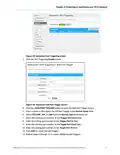
Figure 61: G34/G36 hardware informaꢀon screen
Set up an Ethernet port connecꢀon for your data
input
If you have installed your G34/G36 using an Ethernet port for your data input, perform the
following to acꢀvate the Ethernet port.
To open the Gateway hardware Ethernet screen:
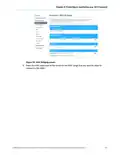
1. From any G34/G36 Web manager screen, click the Connecꢀon menu link to display the
Status and WAN submenu links.
2. Click the WAN submenu link to open the Gateway Connecꢀon WAN screen.
®
®
®
SURFboard G34/G36 DOCSIS 3.1 Wi-Fi Cable Modem User Guide STANDARD Revision x.5
62

| General | Details |
|---|---|
| Name | ARRIS G34 Multi Gigabit Cable Modem and Wi-Fi Router User Guide |
| Make | Arris |
| Language | English |
| Filetype | PDF (Download) |
| File size | 2.02 MB |
 (1 votes, average: 5.00 out of 5)
 Loading...
If you have any questions regarding ARRIS G34 Multi Gigabit Cable Modem and Wi-Fi Router User Guide, please ask here and describe the problem in detail.

ARRIS M6 Wireless Router User Manual


xiaomi 610645 4A Mi Router Instruction Manual

ASUS TUF-AX3000 V2 TUF Gaming AX3000 V2 Dual Band WiFi 6 Router User Guide

Enertex KNX IP Secure Router User Manual

HQTelecom HQ-3232B-911 Call Re Router Instruction Manual

GEWISS GW A9707 KNX/IP Router Installation Guide

acer 952483 WAVE 7 Wi-Fi Mesh Router User Guide

LINOVISION IOT-R32W Cellular Router User Manual

NRadio Technologies CC 4G LTE Router Installation Guide

ZYXEL EX5601 Hyperhub Router User Guide

TP-Link Archer AX53 Dual Band Wi-Fi 6 Router Installation Guide