
ARRIS G34 Multi Gigabit Cable Modem and Wi-Fi Router User Guide















Chapter 8: Protecꢀng & monitoring your Wi-Fi network
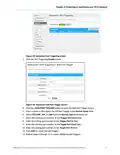
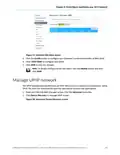
3. Click the DMZ Enable buꢁon to set up the DMZ Host on your home network.
4. Enter the last one to three digits (from 2 to 254) of the IP address of the computer or
gaming device that you are seꢃng up as the DMZ host
5. Click SAVE when you are ꢂnished.
Note: To disable the DMZ Host, click the DMZ Disable buꢁon and then click SAVE.
Note: Remember to reset the IP address back to 0 (zero) to close all the ports
when you are ꢂnished with the needed applicaꢀon. If you do not reset the IP
address, that computer will be exposed to the public Internet.
Set up the ALG
Applicaꢀon Layer Gateway (ALG) allows your router to recognize and treats certain network
protocols.
Note: Please change these seꢃngs if recommended by your service provider.
To set up the ALG:
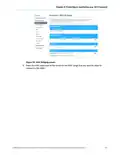
1. From any G34/G36 Web Manager screen, click the Advanced menu link.
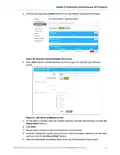
2. Click ALG to display the ALG screen.
Figure 53: Advanced ALG screen
3. Click the required check boxes and then click SAVE SETTINGS.
®
®
®
SURFboard G34/G36 DOCSIS 3.1 Wi-Fi Cable Modem User Guide STANDARD Revision x.5
55

| General | Details |
|---|---|
| Name | ARRIS G34 Multi Gigabit Cable Modem and Wi-Fi Router User Guide |
| Make | Arris |
| Language | English |
| Filetype | PDF (Download) |
| File size | 2.02 MB |
 (1 votes, average: 5.00 out of 5)
 Loading...
If you have any questions regarding ARRIS G34 Multi Gigabit Cable Modem and Wi-Fi Router User Guide, please ask here and describe the problem in detail.

ARRIS M6 Wireless Router User Manual


CP PLUS DN211-S Dual-Band 4G Router Installation Guide

NETGEAR MR7500 M7 Ultra Mobile Router Owner’s Manual

NETGEAR N150 Wireless Router Installation Guide

DrayTek Vigor2762 VDSL2 Modem Router User Guide

DIGITAL YACHT Littoral Link 4G Router Instruction Manual

TP-Link BE550PROV2 BE9700 Tri-Band Wi-Fi 7 Router Installation Guide

ASUS RT-BE92U Tri Band WiFi 7 Router User Guide

Aetheros ESRMKV2C AOS Edge Server Router User Manual

Woodline DadoRight Dado Jig for Router Instructions

LANCOM 1781-4G VPN Router User Guide