
dahua DH-MAX18-3 MAX18 Mesh Wireless Router User Guide











Quick Start Guide
2 Configuring the Router
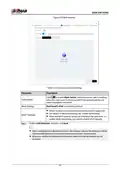
You can initialize the device and log in to it through the device webpage and WiLynk app.
2.1 App Configuration
You can initialize the device and log in to the app to configure the device.
●
For the first time use or after the device is restored to its factory defaults, you need to initialize
the device.
●
To protect your device, keep the admin login password safe after initialization, and change the
password regularly.
●
For more details on app configuration, go to Me > User Manual on WiLynk.
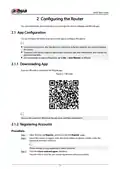
2.1.1 Downloading App
Scan the QR code to download the WiLynk app.
Figure 2-1 QR code
You can also search for WiLynk at the app store, and then download it.
2.1.2 Registering Accounts
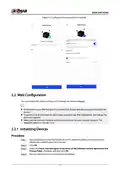
Procedure
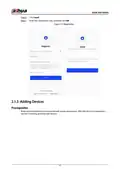
Step 1 Open WiLynk, tap Register , and then enter the Register page.
Step 2 Select the country or region, enter the email address or phone number, enter the
password, and then confirm it.
Phone number is only supported in select countries.
Step 3 Click the I have read and agree checkbox.
You can click to view the user service agreement and privacy policy.
3

| General | Details |
|---|---|
| Name | dahua DH-MAX18-3 MAX18 Mesh Wireless Router User Guide |
| Make | Dahua |
| Language | English |
| Filetype | PDF (Download) |
| File size | 0.3 MB |
 (1 votes, average: 5.00 out of 5)
 Loading...
If you have any questions regarding dahua DH-MAX18-3 MAX18 Mesh Wireless Router User Guide, please ask here and describe the problem in detail.

dahua AX1500 Wi-Fi6 Wireless Router Instruction Manual

dahua N300 Wireless Router User Guide

dahua DH-AX30 Wireless Router User Manual


ASUS RT-BE96U Wi-Fi 7 Ethernet Wireless Router User Guide

hitron CODA5x1xQ Series Cable Modem Router User Guide

westermo MRD-455-NA Cellular Router User Guide

ime RUTM10 Router Instruction Manual

TELTONIKA Networks RUTM50 Cellular 5G Router User Guide

DrayTek Vigor2765 Series fast Security Router User Guide

FALCON 150 Mbps 4G LTE Portable Router User Manual

TELTONIKA RUTM31 Router User Guide

THREE CJB74V0HWAAC 4G Plus MiFi Mobile WiFi Router User Guide
more FTTP BYO Router Installation Guide