
Doonink FW40-WIFI Wi-Fi Router User Manual




4.6 Equipment management
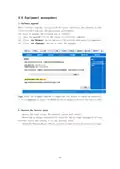
1. Software upgrade
With a software upgrade, you can load the latest version of the software to your
router for more features and more stable performance.
The steps to upgrade the software are as follows:
(1) Save the upgrade file of the router to your local computer.
(2) Click the <Browse> buttonandselectthesoftwarethatneedstobe upgraded.
(3) Click the <Upgrade> button to start the upgrade.
Tips: After the firmware upgrade is completed (the device is turned on normally),
it is recommended to press the RESET button to manually restore the factory once
2. Restore the factory value
During the reset setup, the wireless router will restart.
Restoring to factory settings will erase all the settings information of your
wireless router and restore it to its original state.
Click the <Factory Reset> button, confirm it, and restore the factory settings.
12

| General | Details |
|---|---|
| Name | Doonink FW40-WIFI Wi-Fi Router User Manual |
| Make | Doonink |
| Language | English |
| Filetype | PDF (Download) |
| File size | 0.62 MB |
 (1 votes, average: 5.00 out of 5)
 Loading...
If you have any questions regarding Doonink FW40-WIFI Wi-Fi Router User Manual, please ask here and describe the problem in detail.

Doonink FW70 WIFI Router User Manual


ASUS RT-AX55 Dual Band Router User Guide

GL iNet XE2000 Dual SIM Wi-Fi 6 Router User Guide

DIGITAL YACHT 4GXtream NMEA 0183 3G or 4G Router Instruction Manual

Maiyuan AX3000W Router Installation Guide

CHIMA SAX3000 EasyMesh WiFi 6 Router Owner’s Manual

NETGEAR RS200 Nighthawk WiFi 7 Dual Band Router Owner’s Manual

Tenda AX1800 Wi-Fi 6 5G NR Router User Manual

Cudy WR1200 Dual Band Smart Wi-Fi Router Installation Guide

ASUS RT-BE86U Wireless Router User Guide

TP-Link TL-R470T Load Balance Broadband Router Installation Guide