
Doonink FW40-WIFI Wi-Fi Router User Manual


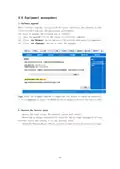


2. Click "2.4G Wireless" in the navigation bar - "Wireless Settings" in the router
management background interface, prohibit broadcasting SSID and tick behind it,
and click the "OK" button tohideWIFI.
Tips: Please remember your WIFI name and password before the setting is
completed, your mobile phone WIFI connection may be disconnected, you need to
manually add the WIFI name of the setting, enter the password you set to connect.
Remarks:that product not supports 3G/4G
4.2Router working mode settings
1.Standard wireless routing mode
When you are ready to use the "standard wireless routing mode", please pay
attention to plug in the available network cable in theWANport of the device, if
it is a broadband input, after the setting is completed, you need to select the mode
you need in the status bar "WANsettings" - "connection mode" and "Internet access
mode",PPPoE,DHCP, staticIP
1) Static Internet access
Enter the working mode of the router management interface, select the standard
routing mode, set theWANto the Internet mode, select the static address, enter
theIPaddress, network mask, gateway,DNSand other relevant parameters provided by
theISP, and click OK.
7

| General | Details |
|---|---|
| Name | Doonink FW40-WIFI Wi-Fi Router User Manual |
| Make | Doonink |
| Language | English |
| Filetype | PDF (Download) |
| File size | 0.62 MB |
 (1 votes, average: 5.00 out of 5)
 Loading...
If you have any questions regarding Doonink FW40-WIFI Wi-Fi Router User Manual, please ask here and describe the problem in detail.

Doonink FW70 WIFI Router User Manual


EnGenius XG60-FIT FitXpress 4 port Gigabit PoE plus VPV Router Owner’s Manual

neptronic RPB11 BACnet Router Installation Guide

Ruijie 42301 Dual Band Gigabit Wireless Router Installation Guide

Tenda AXE5700 Smart Wi-Fi 6E Router User Manual

ASUS RT-AX55 Dual Band Router User Guide

JuniPer ACX7024 Cloud Metro Router User Guide

Adtran SDG-8610 Service Delivery Gateway WiFi 6 Gigabit Router Instruction Manual

DrayTek Vigor3912 Series Security VPN Router User Guide

Urocomm UROZETTA 2 4G LTE Mobile Router User Manual

D-Link DSL-G225 Wireless N300 ADSL2+/VDSL2 Modem Router Installation Guide