
Milesight UF51 5G CPE Router User Guide


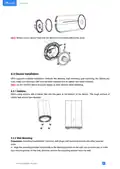



Note: Bottom cover can be fixed with the device via the wiring behind the cover.
4.3 Device Installation
UF51 supports multiple installation methods like desktop, wall mounting, pole mounting, etc. Before you
start, make sure that your SIM card has been inserted and all cables have been installed.
Note: Do not connect device to power supply or other devices when installing.
4.3.1 Desktop
When using indoors, pile 4 rubber feet into the gaps at the bottom of the device. The rough surface of
rubber feet should face desktop.
4.3.2 Wall Mounting
Preparation: mounting bracket(with 2 screws), wall plugs, wall mounting screws and other required
tools.
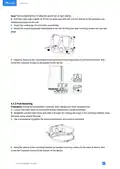
A. Align the mounting bracket horizontally to the desired position on the wall, use a marker pen to mark
four mounting holes on the wall, and then remove the mounting bracket from the wall.
11

| General | Details |
|---|---|
| Name | Milesight UF51 5G CPE Router User Guide |
| Make | Milesight |
| Language | English |
| Filetype | PDF (Download) |
| File size | 0.6 MB |
 (1 votes, average: 5.00 out of 5)
 Loading...
If you have any questions regarding Milesight UF51 5G CPE Router User Guide, please ask here and describe the problem in detail.
Milesight UR35 Dual SIM Router User Guide

Milesight UR75 UltraSeries Router User Guide

Milesight Lite Cellular Router User Guide

Milesight Routers Installation Guide

Milesight UR32S CCTV Router Owner’s Manual


EtherWAN EasyCell Hardened 4G LTE CAT4 Router Installation Guide

ASUS TUF-AX4200 Dual Band WiFi 6 Gaming Router User Guide

REYEE RG-E6 WiFi 6 Router Installation Guide

Yifan YF325 4G Router User Guide

Pix-Link AX02 Wi-Fi 6 Router Installation Guide

ASUS RT-BE96U BE19000 Tri Band WiFi Router User Guide

EAE Technology IPR200 KNX IP Router User Guide

TP-Link Archer AX20 Dual-Band Wi-Fi 6 Gaming Router Installation Guide

TCL HH132V1 Tim Modem Router User Manual

COOSPO RC905 Router User Manual