
Milesight UF51 5G CPE Router User Guide





4. Hardware Installation
4.1 SIM Card Installation
Insert the SIM card into the device according to the direction icon on the device. If you need to take out
the SIM card, press into the SIM card and it will pop out automatically.
4.2 Waterproof Cover & Ethernet Cable Installation
If you need to use UF51 outdoors, the waterproof cover and cable gland should be installed under the
bottom of the device.
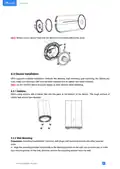
A. Install the rubber ring into the bottom of the device. Note that the round part needs to face the gap of
bottom when installing, otherwise it may cause waterlogged.
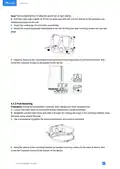
B. Connect a round Ethernet cable to LAN1/WAN port, then pass the Ethernet cable through all parts of
the cable gland and the bottom cover.
C. Fix the bottom cover to the bottom of the device with 4 screws.Note that the arrow behind the cover
needs to face the bracket mounting screws.
10

| General | Details |
|---|---|
| Name | Milesight UF51 5G CPE Router User Guide |
| Make | Milesight |
| Language | English |
| Filetype | PDF (Download) |
| File size | 0.6 MB |
 (1 votes, average: 5.00 out of 5)
 Loading...
If you have any questions regarding Milesight UF51 5G CPE Router User Guide, please ask here and describe the problem in detail.
Milesight UR35 Dual SIM Router User Guide

Milesight UR75 UltraSeries Router User Guide

Milesight Lite Cellular Router User Guide

Milesight Routers Installation Guide

Milesight UR32S CCTV Router Owner’s Manual


LANCOM 1790VA-4G Router User Guide

inseego 5G Router FG2000e User Guide

Vigor 2136 Series Gigabit Broadband Router User Guide
Juniper NETWORKS PTX10004 Ultra-Compact Modular Router User Guide

TP-Link AX53 Internet Router User Guide

WAVLINK AC1200 Dual Band Wi-Fi Extender/AP User Guide

mine media M4 4g LTE Bonding Router User Manual

acer W6M W-Fi 6E Mesh Router User Manual

oppo AX5400 WiFi 6 Router User Guide

ASUS RT-AX57 Dual Band WiFi Router User Guide