
Milesight UF51 5G CPE Router User Guide



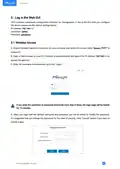


E. After you login the Web GUI, you can view system information and perform configuration on the
device.
5.2 Wired Access
Connect PC to LAN port of UF51 directly. The following steps are based on Windows 10 operating
system for your reference.
A. Go to “Control Panel” → “Network and Internet” → “Network and Sharing Center”, then click “Ethernet”
(May have different names).
B. Go to “Properties” → “Internet Protocol Version 4(TCP/IPv4) ”, select “Obtain an IP address
automatically” or “Use the following IP address”, then assign a static IP manually within the same subnet
of the device.
15

| General | Details |
|---|---|
| Name | Milesight UF51 5G CPE Router User Guide |
| Make | Milesight |
| Language | English |
| Filetype | PDF (Download) |
| File size | 0.6 MB |
 (1 votes, average: 5.00 out of 5)
 Loading...
If you have any questions regarding Milesight UF51 5G CPE Router User Guide, please ask here and describe the problem in detail.
Milesight UR35 Dual SIM Router User Guide

Milesight UR75 UltraSeries Router User Guide

Milesight Lite Cellular Router User Guide

Milesight Routers Installation Guide

Milesight UR32S CCTV Router Owner’s Manual


ads-tec IRF3000 Series Router and Firewall User Guide

TCL HH515V 5G Home Station Router User Guide

Cudy WR300 Multi Mode WiFi Router Installation Guide

acer W6M W-Fi 6E Mesh Router User Manual

ime RUTM10 Router Instruction Manual

D-Link M32 AX3200 Mesh Router Installation Guide

ASUS DSL-N12U 11N 300MBps Wireless ADSL Modem Router User Guide

PROCEND M331 Cellular Router Installation Guide

Imou AC1200 Dual Band WIFI Router User Guide

LANCOM SYSTEMS IAP-4G Plus LTE 4G Router User Guide