
Milesight UF51 5G CPE Router User Guide



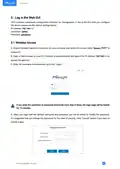


C. Open a Web browser on your PC (Chrome is recommended), type in the IP address 192.168.1.1, and
press Enter on your keyboard.
D. Enter the username, password, and click "Login".
If you enter the username or password incorrectly more than 5 times, the login page will be locked
for 10 minutes.
E. When you login with the default username and password, you will be asked to modify the password.
It’s suggested that you change the password for the sake of security. Click "Cancel" button if you want to
modify it later.
16

| General | Details |
|---|---|
| Name | Milesight UF51 5G CPE Router User Guide |
| Make | Milesight |
| Language | English |
| Filetype | PDF (Download) |
| File size | 0.6 MB |
 (1 votes, average: 5.00 out of 5)
 Loading...
If you have any questions regarding Milesight UF51 5G CPE Router User Guide, please ask here and describe the problem in detail.
Milesight UR35 Dual SIM Router User Guide

Milesight UR75 UltraSeries Router User Guide

Milesight Lite Cellular Router User Guide

Milesight Routers Installation Guide

Milesight UR32S CCTV Router Owner’s Manual


NEXXT Nyx1200-AC Plus Dual Band AC Wireless Router User Guide

ZTE E3330 WiFi 6 Wireless Router User Manual

Cudy LT300 4G N300 Wi-Fi Router Installation Guide

ZYXEL FWA505 5G AX1800 Router User Guide

TP-Link Archer AX55 Wi-Fi 6 Router Installation Guide

Spectrum RAC2V1S WiFi 5 Wave 2 Router User Guide

Beijer CloudVPN Gateway Router User Guide

WAVLINK AC1200 WiFi AP/Router Specifications

legrand RT-20 High Performance Gigabit Router User Guide

TP-Link Archer C54 Dual Band Wi-Fi Router Installation Guide